
novaHost - Playback Tab
The Playback tab allows users to run pC-Nova paths (*.pth) or Spy Logs (*.spy) through CIGI.
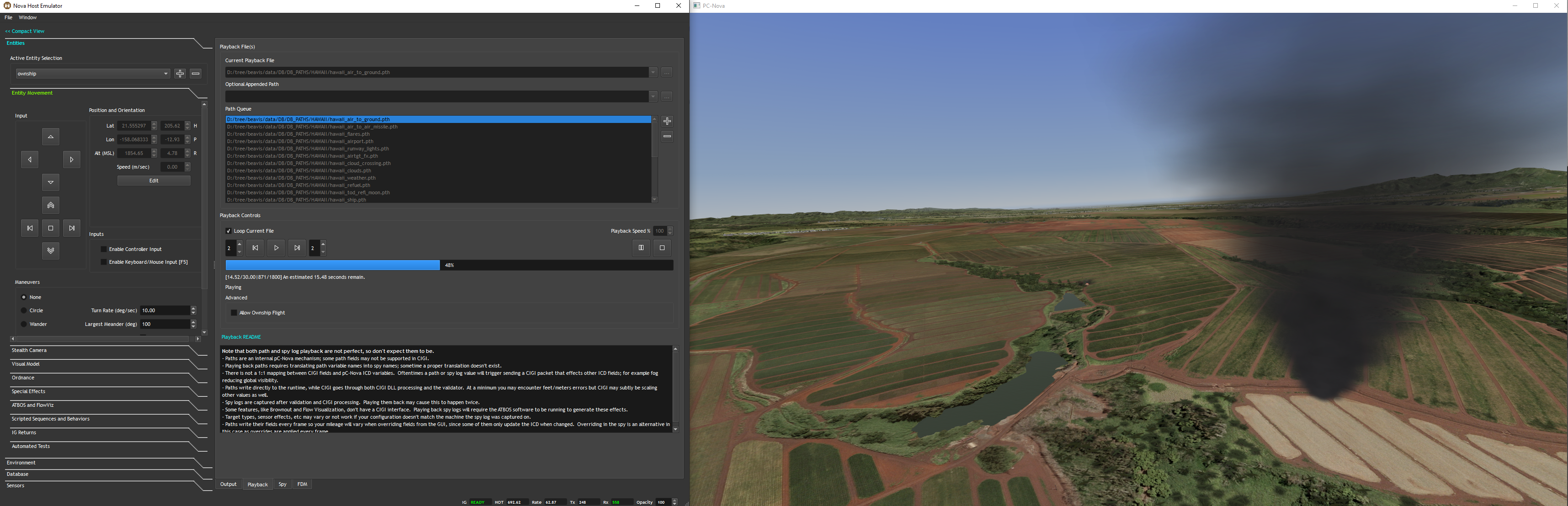
Playback File(s)
Use the Playback File(s) controls to load path files or spy logs.
Current Playback File
This is the file that will be loaded and played back when you press the play button.
Use the (...) button to browse for a path or spy log to play.
If you've loaded a list of paths in the Path Queue, double-clicking one will move it to the Current Playback File.
When a new file is selected, the previous one will be saved as a selection in the combo box so you don't have to browse for it again.
Optional Appended Path
This is only supported for path files and not spy logs.
It allows you to append a path file to the current one.
An example use case would be a path that sets the time of day to dusk. You could append this path to any other path to have it function at dusk.
Path Queue
Clicking the (+) button next to the Path Queue allows the user to browse for a *.cfg file that contains a list of paths.
This is most frequently used for running ATP tests - the above screenshot has loaded DB\DB_CONFIG\HAWAII\OTW_FAT\hawaii_otw_fat_paths.cfg in the Path Queue.
Double-clicking a path in the Path Queue moves it to the Current Playback File.
Clicking the (-) button will remove the selected path from the Path Queue.
Playback Controls
When you've selected a playback file use the Playback Controls to play it back.
Loop Current File
When enabled the current playback file will loop when it reaches the end (or beginning if rewinding).
If you're playing back paths from the Path Queue and this is disabled, the next path in the queue will be played when the current path ends.
Playback Speed %
This control is only applicable to spy log playback and governs the speed percentage that the log will be played back at.
It's useful for logs that were captured at a different frame rate than the system where you're playing them back. As an example consider a log captured on a Nucleus with a Frontend running 120 Hz that you want to play back on your laptop running nova at barely 60 Hz. In this case you'd want to play it back at 50% speed.
Control Buttons
Play, Pause, Rewind, Fast Forward, and Stop playback using these controls.
Allow Ownship Flight
When enabled any ownship data in the path or spy log will be ignored allowing the user to fly using the Entity Movement controls in the Entities tab.
Playback README
There is a laundry list of known issues with playing back paths and spy logs through CIGI instead of natively on the IG. They are listed in the GUI since it's an issue that comes up frequently.
Note that both path and spy log playback are not perfect, so don't expect them to be.
- Paths are an internal pC-Nova mechanism; some path fields may not be supported in CIGI.
- Playing back paths requires translating path variable names into spy names; sometime a proper translation doesn't exist.
- There is not a 1:1 mapping between CIGI fields and pC-Nova ICD variables. Oftentimes a path or spy log value will trigger sending a CIGI packet that effects other ICD fields; for example fog reducing global visibility.
- Paths write directly to the runtime, while CIGI goes through both CIGI DLL processing and the validator. At a minimum you may encounter feet/meters errors but CIGI may subtly be scaling other values as well.
- Spy logs are captured after validation and CIGI processing. Playing them back may cause this to happen twice.
- Some features, like Brownout and Flow Visualization, don't have a CIGI interface. Playing back spy logs will require the ATBOS software to be running to generate these effects.
- Target types, sensor effects, etc may vary or not work if your configuration doesn't match the machine the spy log was captured on.
- Paths write their fields every frame so your mileage will vary when overriding fields from the GUI, since some of them only update the ICD when changed. Overriding in the spy is an alternative in this case as overrides are applied every frame.
Viewing Other Targets During Playback
When a path or spy log is playing you can focus the camera on any target!
- In the Entities tab, select the desired target in the Active Entity Selection combo box.
- In the Entities tab, go to the Stealth Camera tab, select Override Ownship Position to View Selected Entity (Stealth Camera).
- Use the camera controls to view the target.
Changing ICD Fields During Playback
Since the Spy tab is updated after the Playback tab you can use it to override any ICD fields in the path or spy log.
Use this to change the time of day, turn on weather, etc.
Playback Fields Being Overridden
Note that the playback tab is ticked before plugins so they can override values in the path or spy log.
Use the Window menu to disable plugins to avoid this.