
novaHost - FDM Tab
The Nova Host Flight Dynamics Model (FDM) tab allows the user to fly the ownship or an air target using a supported JSBSim model.
Currently supported models include:
- F-16
- AH-1S Cobra
- Airbus A320
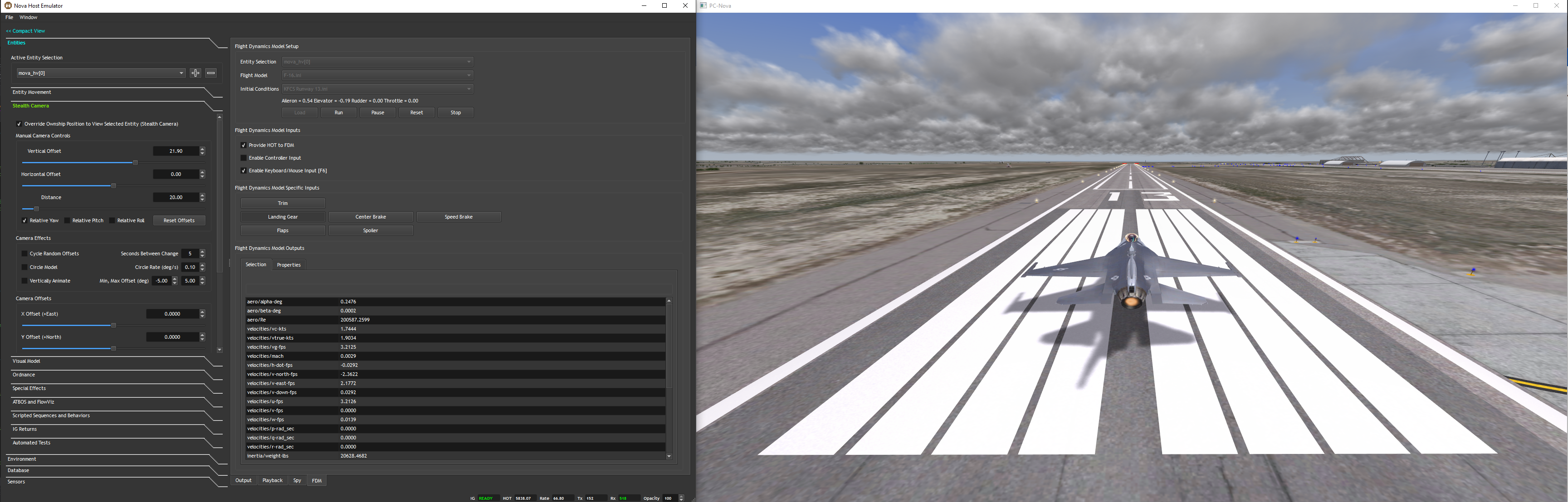
Flight Dynamics Model Setup
Use these controls to select and load a flight model and position prior to flying.
Entity Selection
Use this control to select the entity to fly using the flight model.
The ownship will always be selectable but if you'd like to fly an air target you need to first add it in the Entities tab by clicking the (+) button next to the Active Entity Selection.
Flight Model
Flight Model choices are populated by INI files in the AircraftDir Application Settings.
The F-16.ini file is shown here as an example.
[FDM]
Aircraft="f16"

InitialProperties="propulsion/engine[0]/set-running=1 propulsion/starter_cmd=1 propulsion/cutoff_cmd=0"

[GUI]
Button1Name="Landing Gear"
Button1PropPa="gear/gear-cmd-norm"
Button2Name="Center Brake"
Button2Prop="fcs/center-brake-cmd-norm"
Button3Name="Speed Brake"
Button3Prop="fcs/speedbrake-cmd-norm"
Button4Name="Flaps"
Button4Prop="fcs/flap-cmd-norm"
Button5Name="Spoiler"
Button5Prop="fcs/spoiler-cmd-norm"
Button6Name=
Button6Prop=

[Visual]
# DB/DB_HIE/M_AIRCRF/F16C_57TH-Nevada_lgear.hie
CameraModelType=2
Generally users should not attempt to modify these files.
Initial Conditions
Initial Conditions choices are populated by INI files in the PositionsDir Application Settings.
The KFCS Runway 13.ini file is shown here as an example.
[IC]
Lat=38.682859
Lon=-104.761857
AltAglFt=10
H=222.6667
P=0
R=0
HotFt=5837.54
VCalKts=0
The file defines an initial position, orientation, and speed for the aircraft. It also specifies the HOT in feet in case the IG is still loading when the model is loaded.
Users can define their own initial conditions selections by creating INI files in this format in the directory.
Lastly, the CURRENT POSITION selection is always selectable which will start the model wherever the ownship/air target is currently positioned. If you're reasonable above ground it'll attempt to initialize you with some speed to (attempt to) avoid an immediate crash.
Load
Once you've made your Entity, Flight Model, and Position selections you can click load to initialize the FDM.
Looking at the Nova Host console or Output tab will show the JSBSim output.
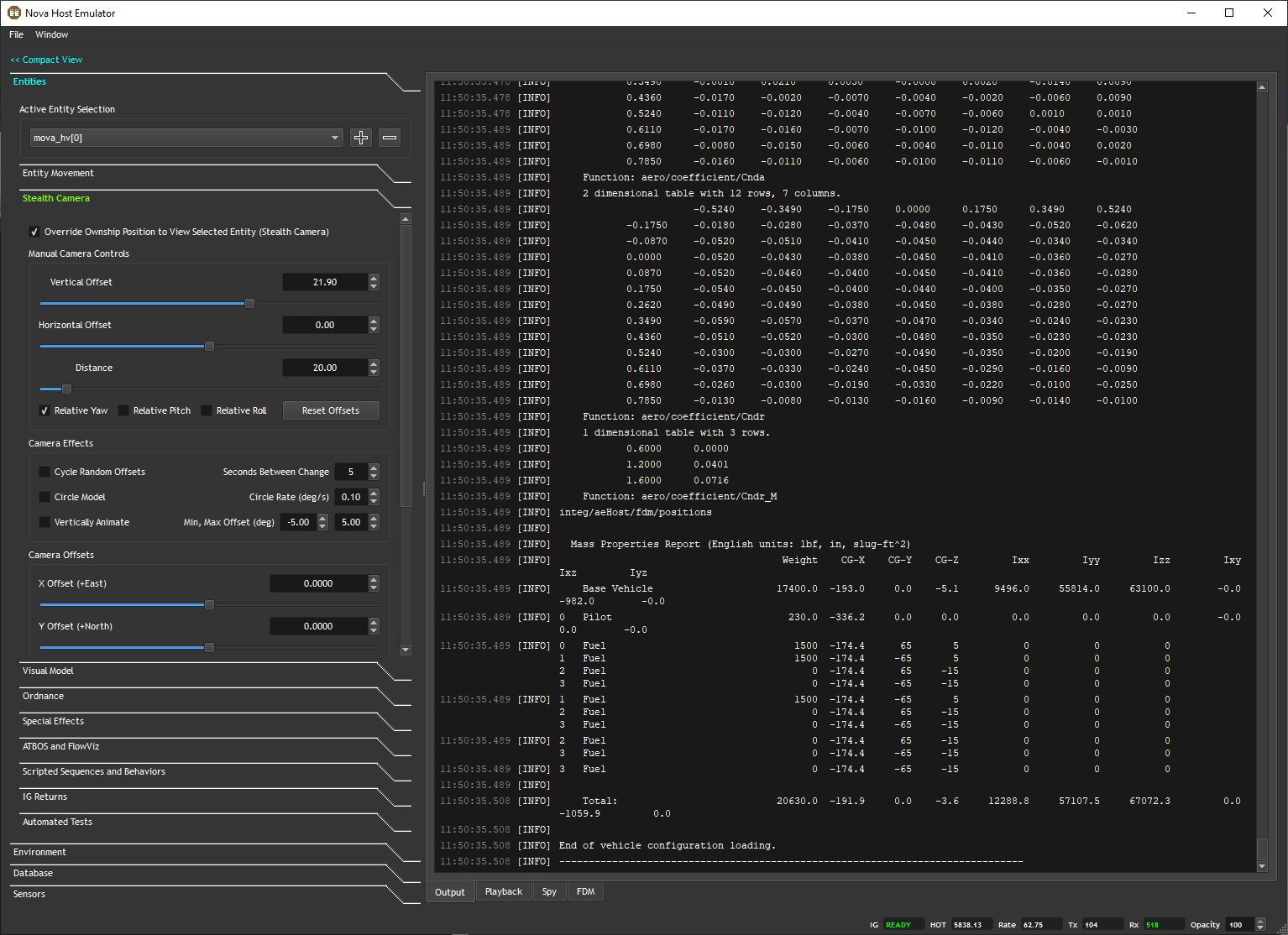
Once the FDM has loaded you'll notice that other controls become enabled and visible. Additionally, the status will change to display the current Aileron, Elevator, Rudder, and Throttle input values.
Run
After loading the model, click Run to begin flying.
In the screenshot above, an F-16 has been created in the Entities tab and the Stealth Camera has been attached to it. An F-16 FDM has been loaded to fly it from KFCS runway 13.
When Run is clicked the aircraft drops to the runway, bounces on its landing gear, and slowly starts moving forward. Turning the Center Brake on causes it to stop.
Pause
Pressing Pause freezes the FDM in it's current state. You can resume flight by pressing Run or start over by pressing Reset.
Reset
This will reset the FDM to the initial position. Generally you want to Pause before hitting Reset.
Stop
Pressing Stop will close and clean up the running FDM returning control back to the Entity plugin.
Flight Dynamics Model Inputs
This control group handles getting inputs into the FDM.
Provide HOT to the FDM
When enabled the IG HOT will be fed into the FDM and is recommended.
It is exposed as a control because when taking off on sloped runways or bumpy terrain with a fixed wing aircraft the FDM can begin to bounce. Disabling the HOT return is a temporary fix.
Enable Controller Input
If a controller is connected prior to starting Nova Host it can be used to control the FDM.
The default configuration targets a dual analog style controller where the left stick controls the aileron and elevators and the right stick controls the throttle and rudders.
Enable Keyboard/Mouse Input [F6]
When enabled the keyboard and mouse can be used to control the FDM.
This control can be toggled on and off by pressing F6 on the keyboard. This is useful for when you're in a steady flight and want to disable the mouse and keyboard to change other GUI settings.
The following controls are available:
| Key | Control |
|---|---|
| F6 | Toggles keyboard and mouse control. |
| W | Increases throttle. |
| S | Decreases throttle. |
| A | Moves rudders left. |
| D | Moves rudders right. |
| C | Sets throttle to 0. |
| Mouse | Controls aileron and elevators. |
Flight Dynamics Model Specific Inputs
This control group handles getting inputs specific to the loaded FDM.
Trim
Tells JSBSim to execute a full trim.
Generic Inputs
The aircraft INI file can selectively map JSBSim properties for a given aircraft to generic buttons as shown in the aforementioned F-16.ini file.
These are shown in the screenshot above where the F-16 exposes Landing Gear, Center Brake, Speed Brake, Flaps, and Spoiler controls.
Since these controls are defined in the INI file and are aircraft specific they will not be documented here.
Flight Dynamics Model Outputs
JSBSim flight models are governed by properties that are roughly analogous to the IG and ICD variables.
This table functions in a similar manner letting you view and in some cases override these properties.
Selection
These are properties that are programmatically displayed and updated by Nova Host as they are deemed important.
Most of these fields can be double-clicked to set them.
Properties
This table contains all of the FDM properties.
Properties that are labeled read/write (RW) or write (W) can be double-clicked and modified.