
novaHost - Entity Plugin
Overview
The Nova Host Entity plugin implements the "Entities" tab found in the Nova Host GUI.
The Entity Plugin demonstrates ownship controls and placing pC-Nova targets in the scene along with controlling their lights and articulations.
Source Location
src/novaHostEntityPlugin
INI File Data
The Entity Plugin doesn't read any INI file settings.
Command Line Options
The Entity Plugin doesn't use any command line options.
IG Features Demonstrated
The following IG features are demonstrated in the Entity Plugin:
Ownship
Positioning
Ownship Eyepoint Offsets
Visual Model Selection
Articulations
Landing Gear
Hover and Landing Lights
Target Types
Air
Simple Air
Ground
Simple Ground
Sea
Simple Sea
Weapon
Sling load
Relocatable Airfield
Prop
Fixed Targets
Forest Fire
Forest Burn
Ground Crew
Ground Troops
Ground Actors
Target Articulations
Target Lights
Target Damage States
Special Effects
Tracers
Gunner Tracers
Flares
Water Dump
Rotor Wash
Searchlights
Explosions
Smoke Columns
Small Arms Fire
Crash Dimming
RTAero
ATBOS
FlowViz
Refueling
IG Returns
Crash returns
HAT/HOT Returns
Introspection
ICD Fields Used
The Entity Plugin reads and writes the following ICD fields which are later translated to CIGI messages to be sent to (or read from) the IG.
ICD Field | Usage |
|---|---|
host2pcnova->h2ig.dat.ownship* | Used to move the ownship when it's the Active Entity. |
host2pcnova->h2ig.dat.ownship_offset* | Used on the camera tab to apply XYZHPR camera offsets. |
host2pcnova->h2ig.dat.ownship_artic* | Ownship articulations can be modified on the Visual Model tab when it's the Active Entity. |
host2pcnova->h2ig.dat.fx_data.landing_gear* | Ownship and Air Target landing gear can be toggled on the Visual Model tab when it's the Active Entity. |
host2pcnova->h2ig.dat.fx_data.search_light* | You can add a search light to the ownship of a Target on the Special Effects tab when it's the Active Entity. |
host2pcnova->h2ig.dat.fx_data.crash_dimming* | You can enable crash dimming on the IG Returns tab to show collisions. |
host2pcnova->h2ig.dat.fx_data.flares* | Targets can dump flares from the Ordnance tab. |
host2pcnova->h2ig.dat.fx_data.ownship_lights* | Ownship lights can be modified on the Visual Model tab when it's the Active Entity. |
host2pcnova->h2ig.dat.mova_hv* | Air Targets can be added to the scene with the (+) button. |
host2pcnova->h2ig.dat.movt_hv* | Ground Targets can be added to the scene with the (+) button. |
host2pcnova->h2ig.dat.movs_hv* | Sea Targets can be added to the scene with the (+) button. |
host2pcnova->h2ig.dat.movw_hv* | Weapon Targets can be added to the scene with the (+) button. |
host2pcnova->h2ig.dat.prop_hv* | Props can be added to the scene with the (+) button. |
host2pcnova->h2ig.dat.fixed_target_hv* | Fixed Targets can be added to the scene with the (+) button. |
host2pcnova->h2ig.dat.tracer_hv* | Targets can shoot Tracers from the Ordnance tab. |
host2pcnova->h2ig.dat.gunner_tracer_hv* | Targets can shoot Gunner Tracers from the Ordnance tab. |
host2pcnova->h2ig.dat.smokecol_hv* | You can attach a Smoke Column to an entity on the Special Effects tab. |
host2pcnova->h2ig.dat.explosion_hv* | You can attach an Explosion to an entity on the Special Effects tab. |
host2pcnova->h2ig.dat.smll_arms_hv* | You can attach an Small Arms Fire to an entity on the Special Effects tab. |
host2pcnova->h2ig.dat.rotor_wash_hv* | You can attach a Rotor Wash to an entity on the Special Effects tab. |
host2pcnova->h2ig.dat.ground_crew_hv* | Ground Crew can be added to the scene with the (+) button (provided GroundCrew ON is configured on the IG). |
host2pcnova->h2ig.dat.ground_troop_hv* | Ground Troops can be added to the scene with the (+) button (provided GroundTroops ON is configured on the IG). |
host2pcnova->h2ig.dat.ground_actor_hv* | Ground Actors can be added to the scene with the (+) button (provided GroundActors ON is configured on the IG). |
host2pcnova->h2ig.dat.sling_load_hv* | Sling loads can be added to the scene with the (+) button. |
host2pcnova->h2ig.dat.airfield_hv* | Relocatable airfields can be added to the scene with the (+) button. |
host2pcnova->h2ig.dat.simple_air_target_hv* | Simple Air Targets can be added to the scene with the (+) button. |
host2pcnova->h2ig.dat.simple_sea_target_hv* | Simple Sea Targets can be added to the scene with the (+) button. |
host2pcnova->h2ig.dat.simple_gnd_target_hv* | Simple Ground Targets can be added to the scene with the (+) button. |
host2pcnova->h2ig.dat.forest_fire_hv* | Forest Fires can be added to the scene with the (+) button. |
host2pcnova->h2ig.dat.fire_fighting_water_dump_hv* | Targets can dump Fire Fighting Water from the Ordnance tab. |
host2pcnova->h2ig.dat.forest_burn_hv* | Forest Fire Burnt areas can be added to the scene with the (+) button. |
host2pcnova->h2atbos* | ATBOS and FlowViz can be tested on the tab of the same name. |
pcnova2host->ig2h.dat.ownship_height | When the ownship is the Active Entity it's returns are shown on the IG Returns tab. |
pcnova2host->ig2h.dat.ownship_terrain_normal* | When the ownship is the Active Entity it's returns are shown on the IG Returns tab. |
pcnova2host->ig2h.dat.landing_gear_hat* | When the ownship is the Active Entity it's returns are shown on the IG Returns tab. |
pcnova2host->ig2h.dat.landing_gear_normal* | When the ownship is the Active Entity it's returns are shown on the IG Returns tab. |
pcnova2host->ig2h.dat.crash_flag | Used to detect and visualize collisions using crash dimming. |
pcnova2host->ig2h.dat.crash_type | Used to detect and visualize collisions using crash dimming. |
pcnova2host->ig2h.dat.weapon_impact | Used to detect and visualize collisions using crash dimming. |
pcnova2host->ig2h.dat.air_tgt_crash | Used to detect and visualize collisions using crash dimming. |
pcnova2host->ig2h.dat.ground_crash | Used to detect and visualize collisions using crash dimming. |
pcnova2host->ig2h.dat.sea_crash | Used to detect and visualize collisions using crash dimming. |
pcnova2host->ig2h.dat.water_crash | Used to detect and visualize collisions using crash dimming. |
pcnova2host->ig2h.dat.collide_id | Used to detect and visualize collisions using crash dimming. |
pcnova2host->ig2h.dat.ownship_material_code | When the ownship is the Active Entity it's returns are shown on the IG Returns tab. |
pcnova2host->ig2h.dat.gear_material_code* | When the ownship is the Active Entity it's returns are shown on the IG Returns tab. |
pcnova2host->ig2h.dat.mova_vh* | When an Air Target is the Active Entity it's returns are shown on the IG Returns tab. |
pcnova2host->ig2h.dat.movt_vh* | When a Ground Target is the Active Entity it's returns are shown on the IG Returns tab. |
pcnova2host->ig2h.dat.movs_vh* | When a Sea Target is the Active Entity it's returns are shown on the IG Returns tab. |
pcnova2host->ig2h.dat.movw_vh* | When a Weapon Target is the Active Entity it's returns are shown on the IG Returns tab. |
pcnova2host->ig2h.dat.prop_vh* | When a Prop is the Active Entity it's returns are shown on the IG Returns tab. |
pcnova2host->ig2h.dat.fixed_target_vh* | When a Fixed Target is the Active Entity it's returns are shown on the IG Returns tab. |
pcnova2host->ig2h.dat.simple_air_target_vh* | When a Simple Air Target is the Active Entity it's returns are shown on the IG Returns tab. |
pcnova2host->ig2h.dat.simple_gnd_target_vh* | When a Simple Ground Target is the Active Entity it's returns are shown on the IG Returns tab. |
pcnova2host->ig2h.dat.ground_crew_vh* | When a Ground Crew is the Active Entity it's returns are shown on the IG Returns tab. |
pcnova2host->ig2h.dat.ground_troop_vh* | When a Ground Troop is the Active Entity it's returns are shown on the IG Returns tab. |
pcnova2host->ig2h.dat.ground_actor_vh* | When a Ground Actor is the Active Entity it's returns are shown on the IG Returns tab. |
CIGI Packets Used
The Nova Host GUI's aeRosetta library will translate the aforementioned ICD fields to the following CIGI packet types.
CigiEntityCtrl
CigiCompCtrl
CigiShortCompCtrl
CigiArtPartCtrl
CigiShortArtPartCtrl
CigiHatHotReturn
CigiEventNotification
API Features Used
The Entity Plugin uses the following Plugin API features:
Feature | Usage |
|---|---|
GuiEventApi | Used to write messages and to show additional IG returns in the Spy tab. |
GuiInputApi | Reading, writing, and responding to the Entity Plugin's GUI widgets. Entities can be flown using keyboard, mouse, and joystick controls. |
GuiUtilApi | Caching and restoring ownship position. Timers for camera effects. Tokenizing strings. |
GuiObjectApi | Movable objects and stealth camera. |
GuiDataApi | Introspection to show actual entity selections and articulations. Reading/writing the pC-Nova ICD that the Nova Host GUI translates to CIGI with aeRosetta. |
Usage
The following sections provide a brief overview of using the Entity Plugin's controls which are shown below.
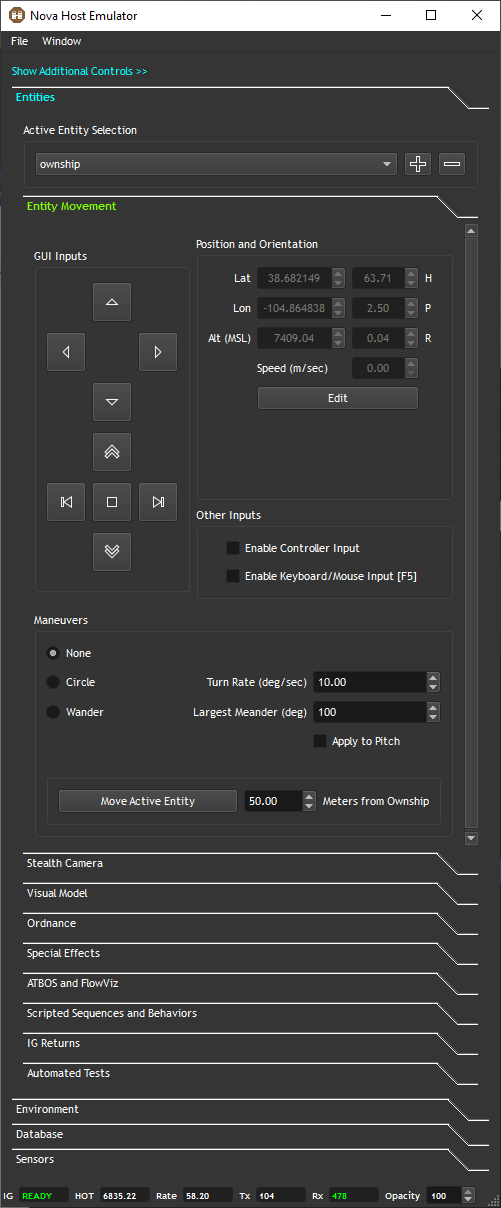
Active Entity Selection
Above the Entity Plugins sub-tabs is the Active Entity Selection combo box.
All Entity Plugin controls will affect the Active Entity.
Note that during Playback this list will update with any entities created by the path allowing you to use the Stealth Camera to view them.
Adding and Removing Entities
Press the (+) button next to the Active Entity Selection combo box to create a new entity.
The Create New Entity dialog will allow users to select the Entity Type and Visual Model which will be populated with types that the IG has loaded and notified the host about through introspection.
Users can also select a parent for the entity if desired.
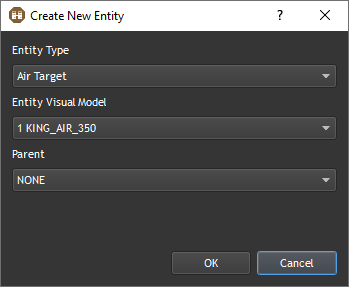
Pressing OK will place the new model in front of the eyepoint.
To remove the Active Entity simply press the (-) button.
Entity Movement
The Entity Movement sub-tab provides several controls to move the Active Entity.
GUI Inputs
The GUI Input group contains buttons to pitch up/down, change yaw right/left, speed up/down, stop, and strafe left/right.
Position and Orientation
These controls display the Active Entity's position, orientation, and speed.
Pressing the Edit button allows users to manually set them.
Other Inputs
The Other Inputs group lets you enable flying with peripheral devices.
Enable Controller Input
When enabled the Active Entity can be flown using a joystick.
The default controls in the source code target a dual analog stick controller with the left stick controlling pitch/yaw and the right stick controlling velocity and strafing.
Enable Keyboard/Mouse Input F5
When enabled the Active Entity can be flown using the keyboard and mouse.
This control can be toggled by pressing F5 which is useful for when you're flying but want to change something in the GUI.
The following controls are available:
Key | Control |
|---|---|
F5 | Toggles keyboard and mouse control. |
W | Increases speed. |
S | Decreases speed. |
A | Strafe left. |
D | Strafe right. |
C | Sets speed to 0. |
Mouse | Controls pitch and yaw. |
Circle
Combined with Speed this causes the Active Entity to fly in a circle.
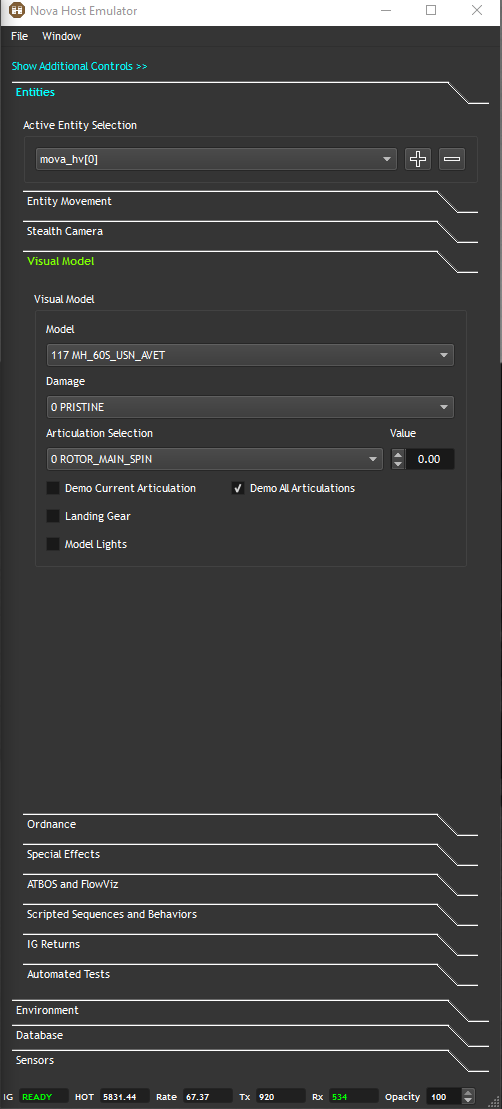
When Speed is 0 this causes the Active Entity to rotate in place. This can useful for demoing models, especially when the Demo All Articulation control is enabled as shown below with an MH-60S.
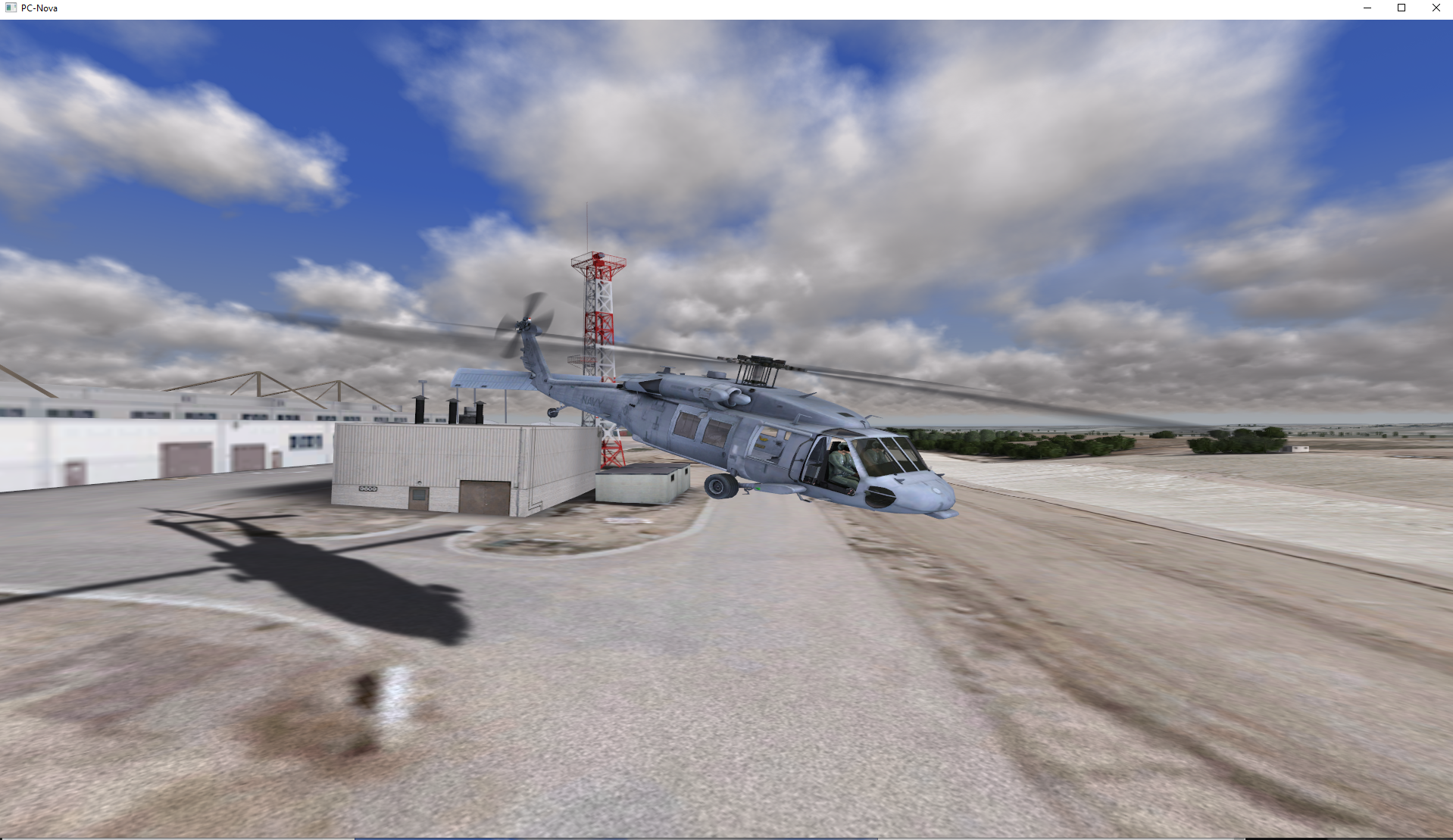
Circle with no speed combined with Demo All Articulations can be useful for demoing models
Wander
When enabled the Active Entity will randomly change their heading periodically. Combined with Speed this will cause ground actors to wander.
Move Active Entity
Moves the Active Entity a specified distance from the ownship.
This is useful for testing Detection, Observation, Recognition, Identification (DORI).
Stealth Camera
The Stealth Camera allows the ownship position to be overridden by Nova Host to function as a stealth camera.
Note that this isn't a stealth channel on the IG, it's Nova Host modifying the ownship ICD position and orientation variables to use it as a camera.
Override Ownship Position to View Selected Entity (Stealth Camera)
This verbosely named control is what enables overriding the ownship position with the camera position.
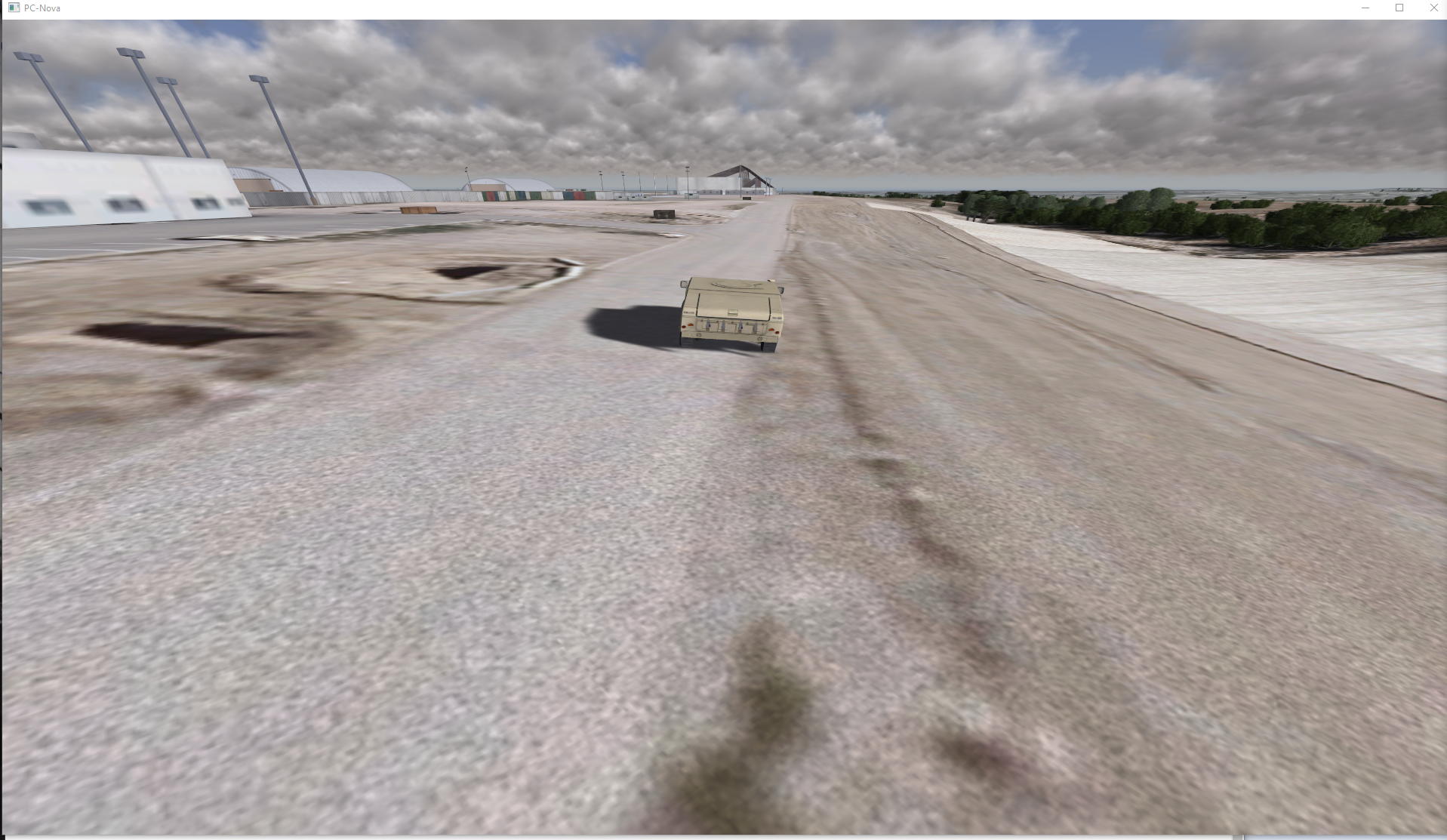
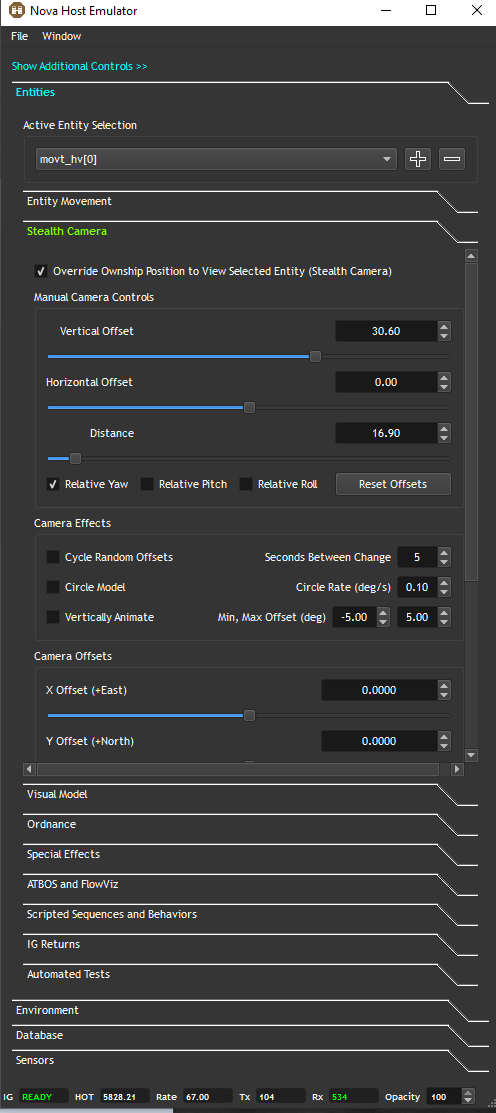
Here we use the camera to view a Humvee from a 3rd person view as we drive it.
Manual Camera Controls
These controls let you move the stealth camera a certain distance from the Active Entity and move around it.
Camera Effects
The entirely unessential Camera Effects controls let you randomly move the camera at a specified interval, circle the camera around the model, and move the camera up and down.
Camera Offsets
The Camera Offsets use the ICD ownship_offset controls to apply an XYZHPR offset to the camera position.
Visual Model
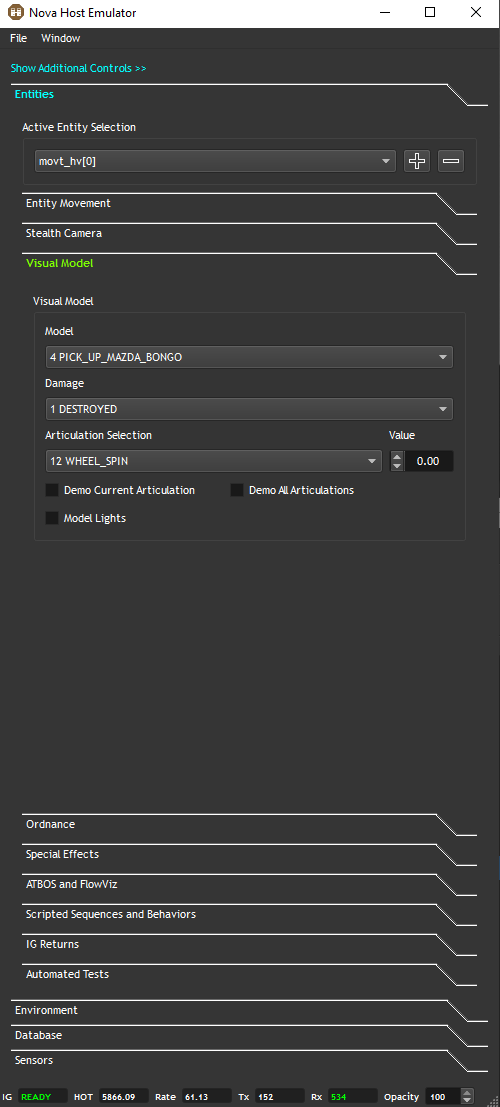
This sub-tab encompasses controls that apply to the entity's visual model and the selections.
Note that the options presented here will vary by type (e.g. a Landing Gear control will not be shown for Ground Targets).
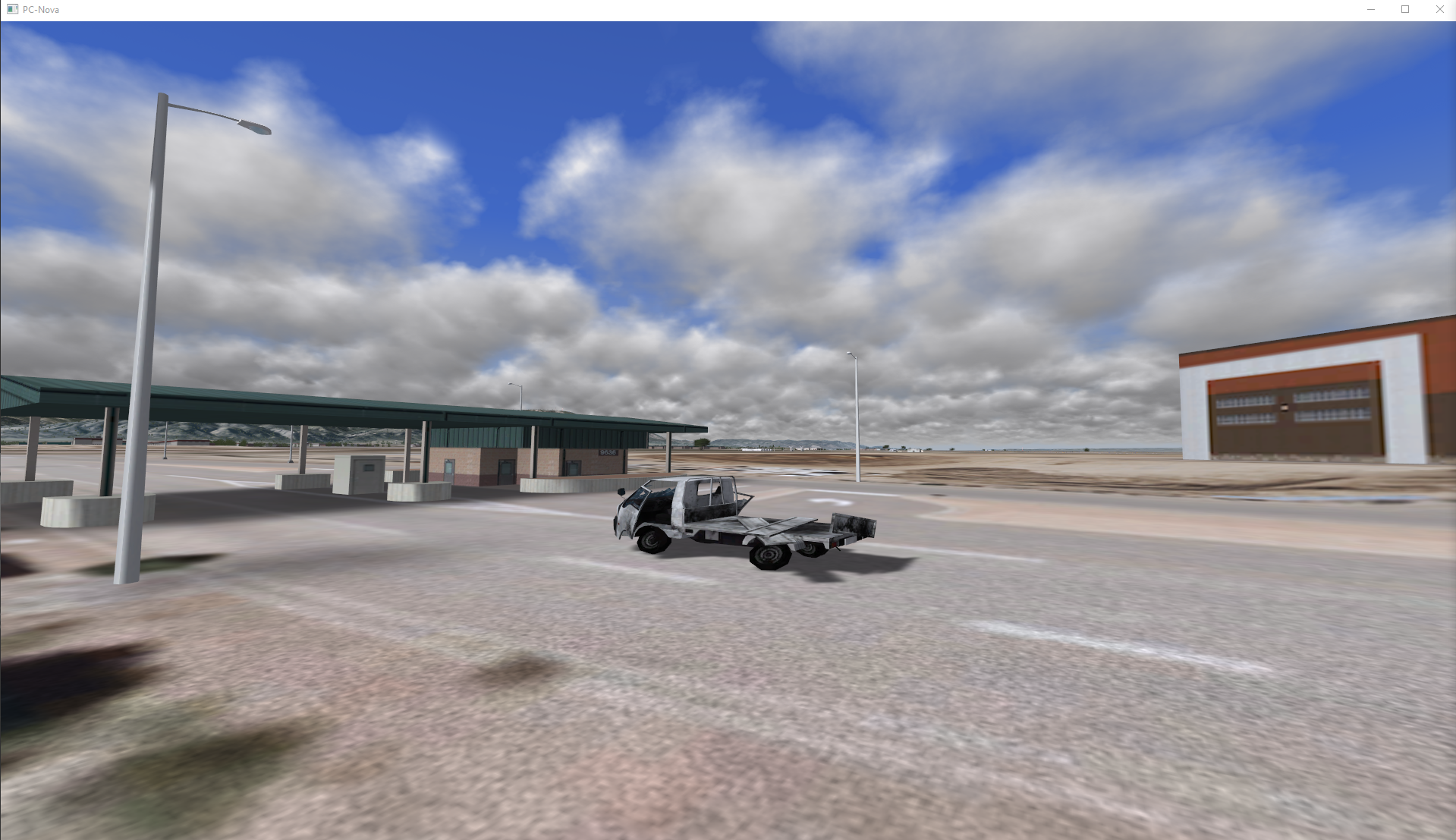
Below is an example of using the Visual Model controls to destroy a pickup truck.
Ordnance
Fire missiles, shoot tracers, and other Ordnance from the Active Entity using the controls in this sub-tab.
Missiles
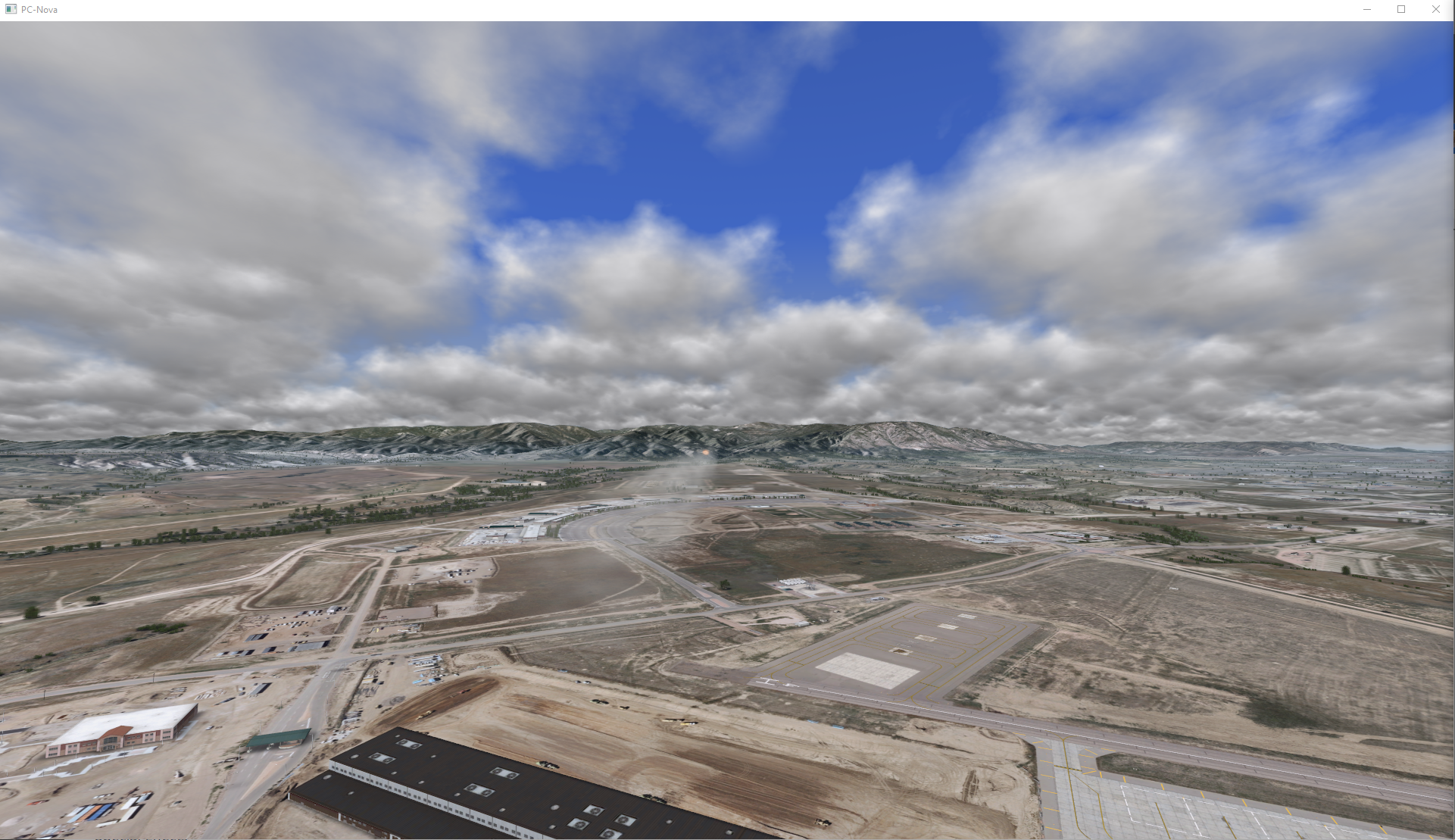
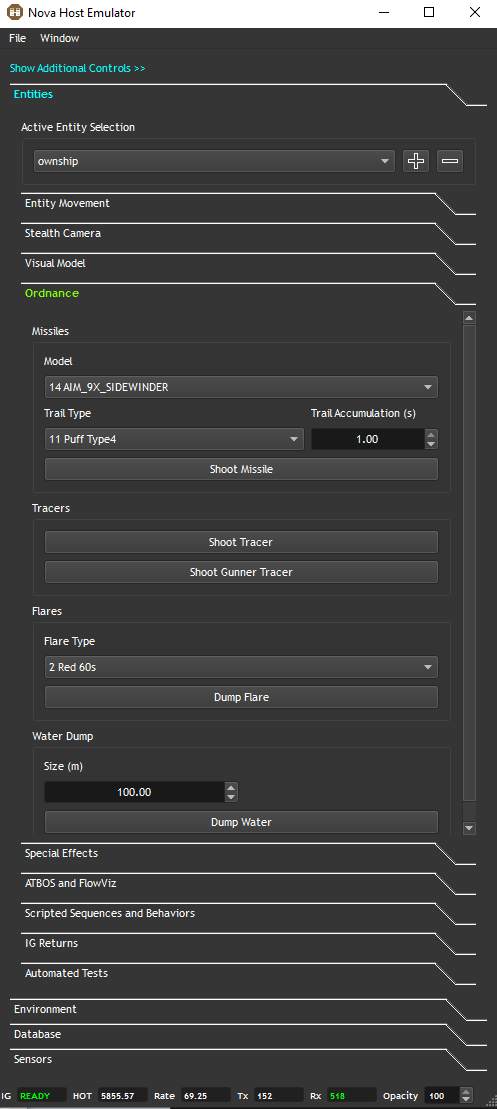
Select a visual model type and smoke trail effects to test shooting a Missile from the Active Entity.
As an example a sidewinder is shot from the ownship below.
Tracers
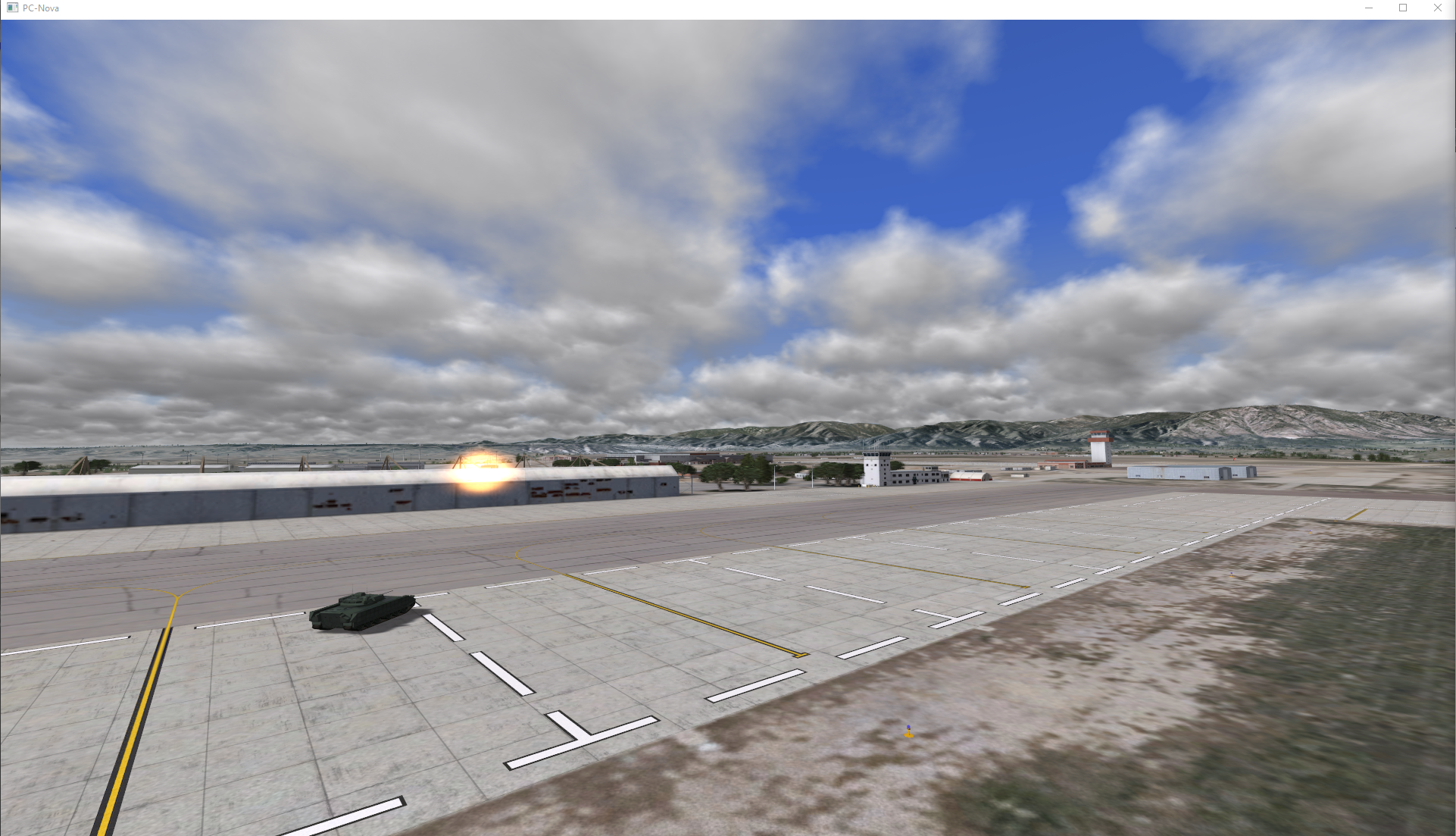
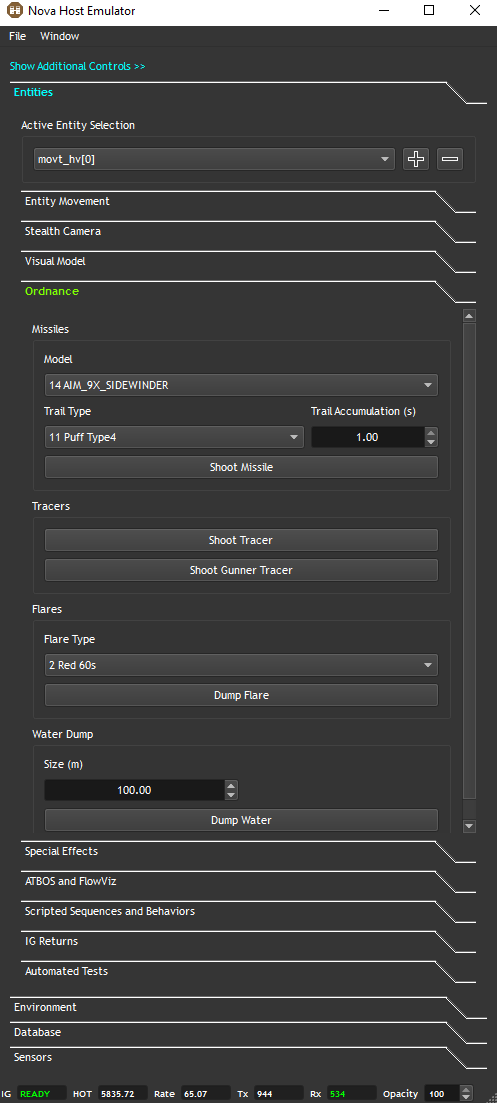
An example of a Bradley shooting a Tracer is shown here.
Flares
Here a CH-47 drops a Red Flare in the distance.
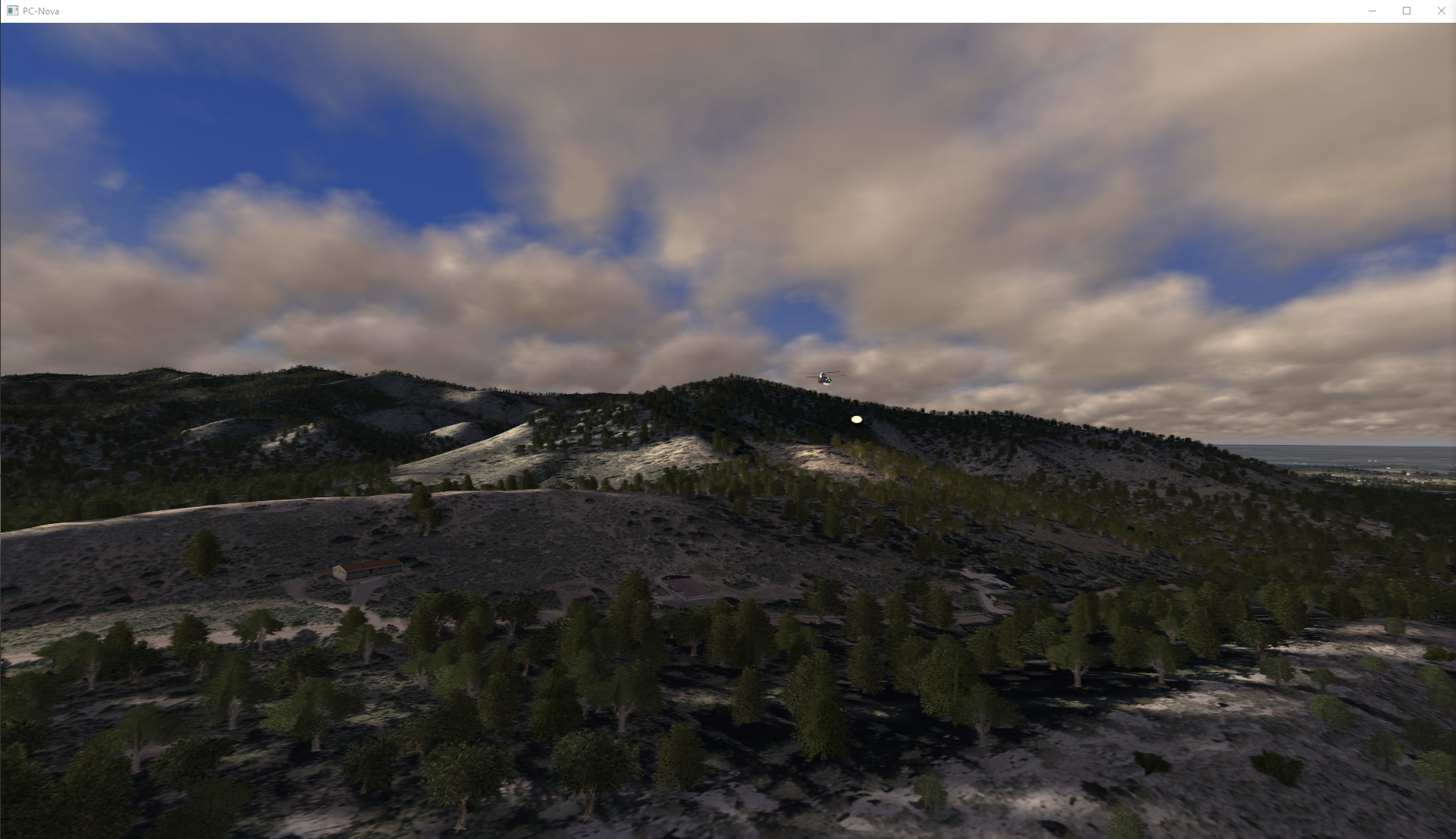
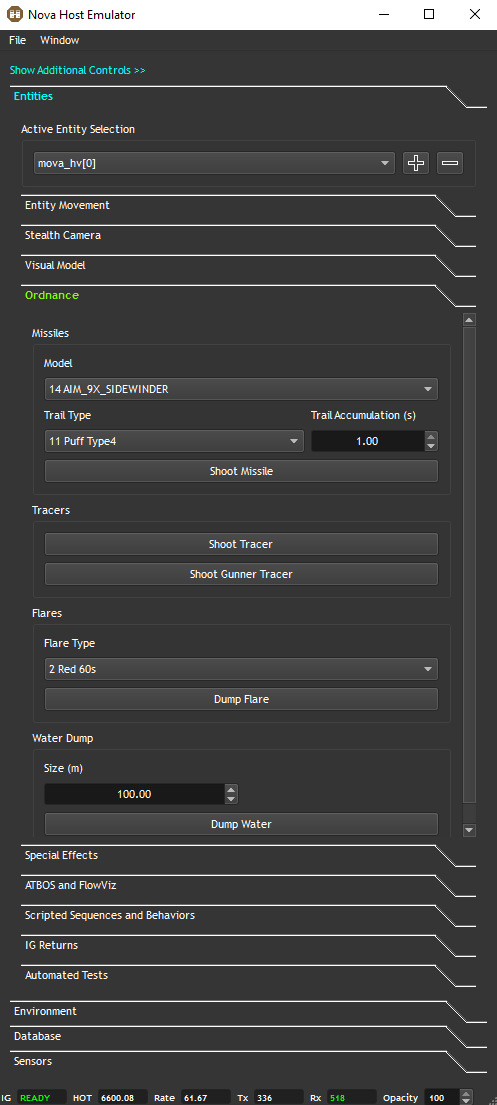
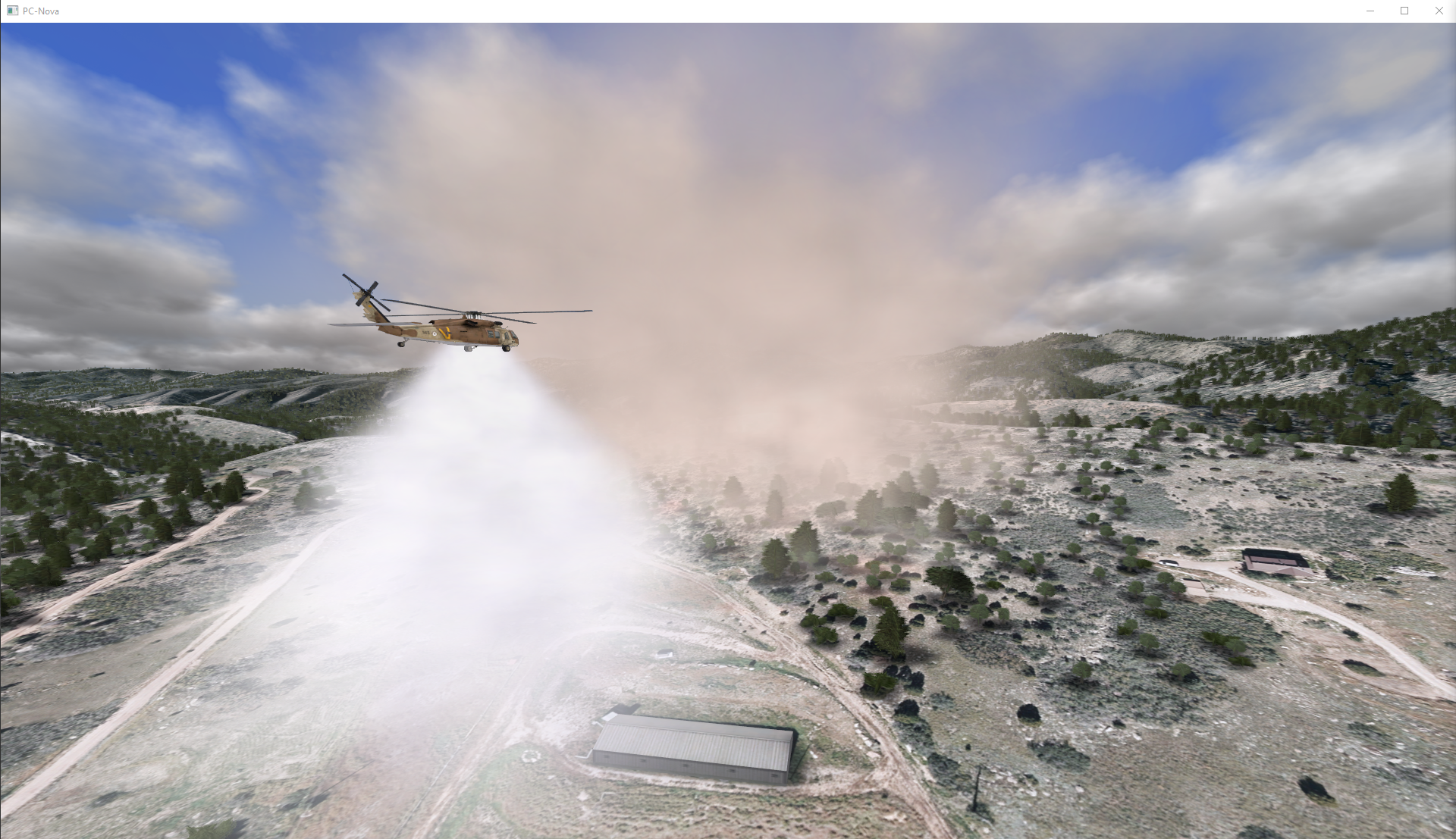
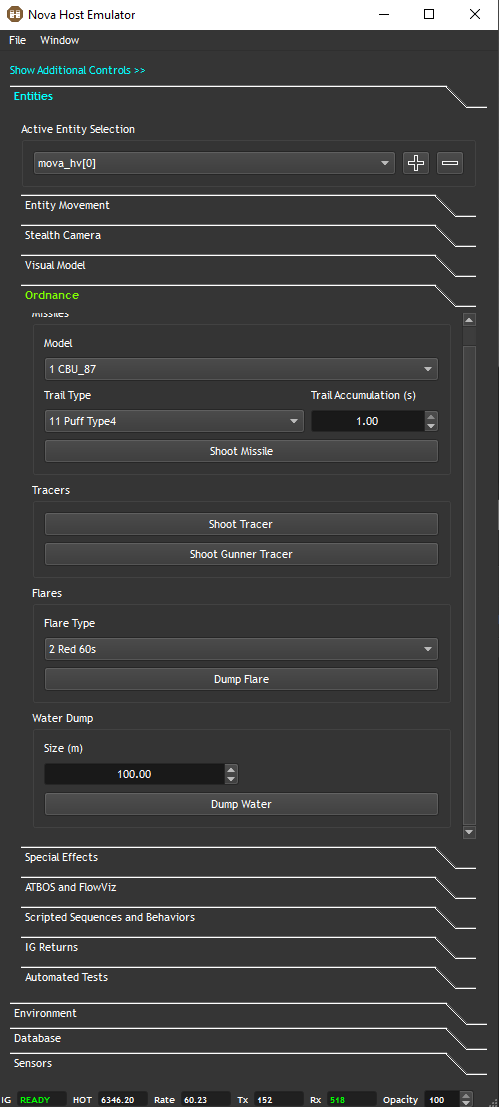
Water Dump
An example of the Water Dump effect is shown below.
A forest fire was created and a Black Hawk is dumping water.
Special Effects
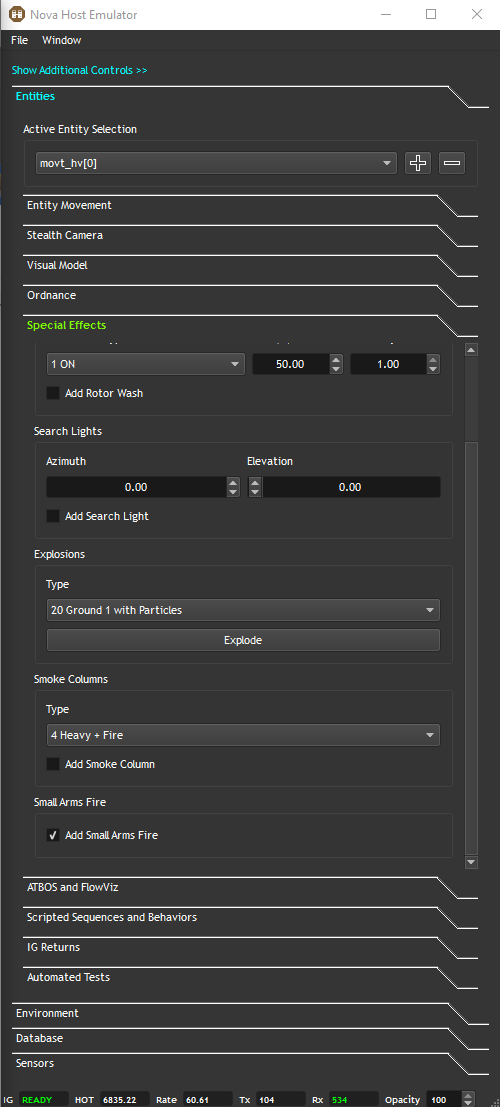
Use the Special Effects controls to demonstrate explosion and smoke column types, add search lights, and several other features.
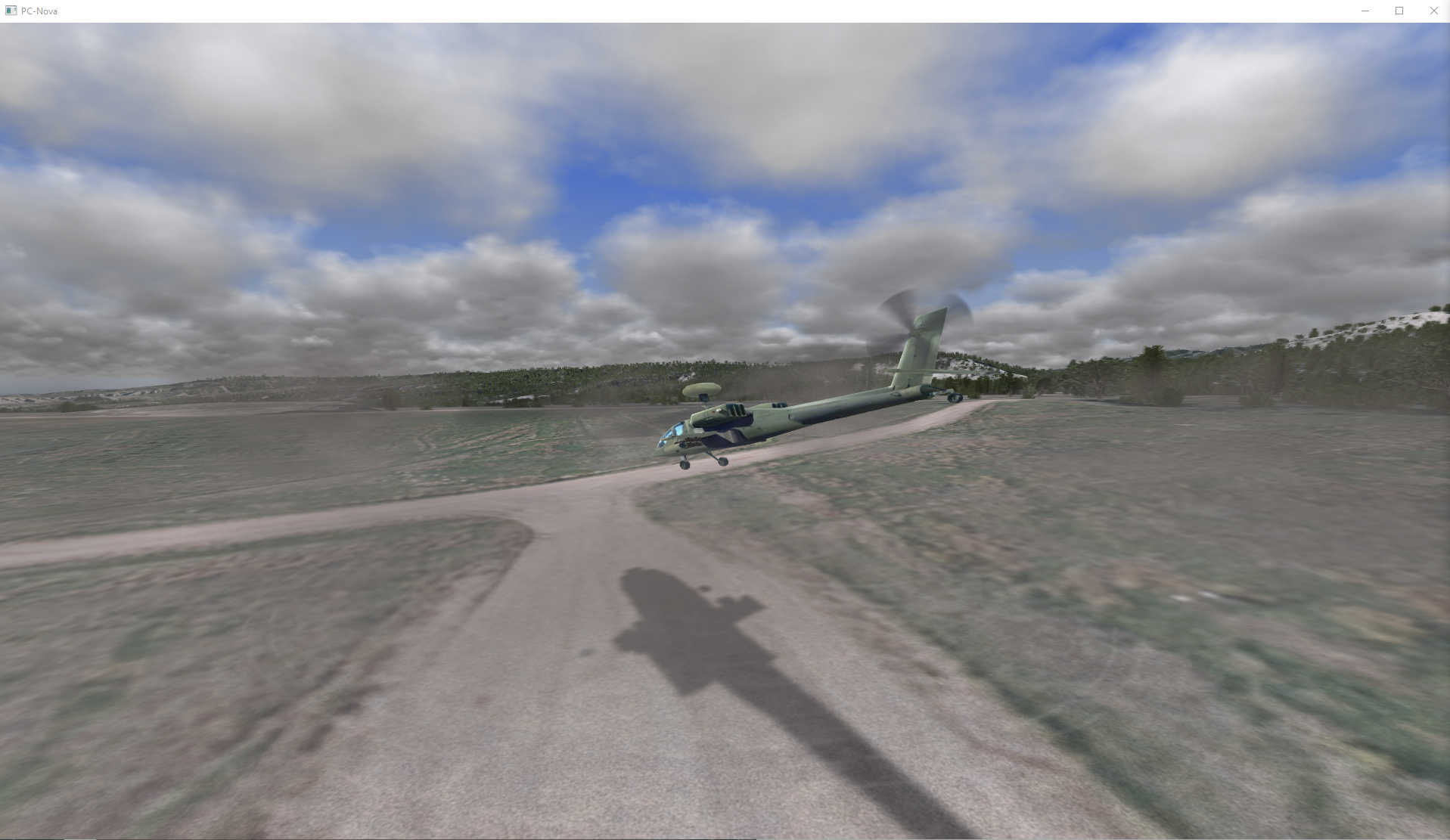
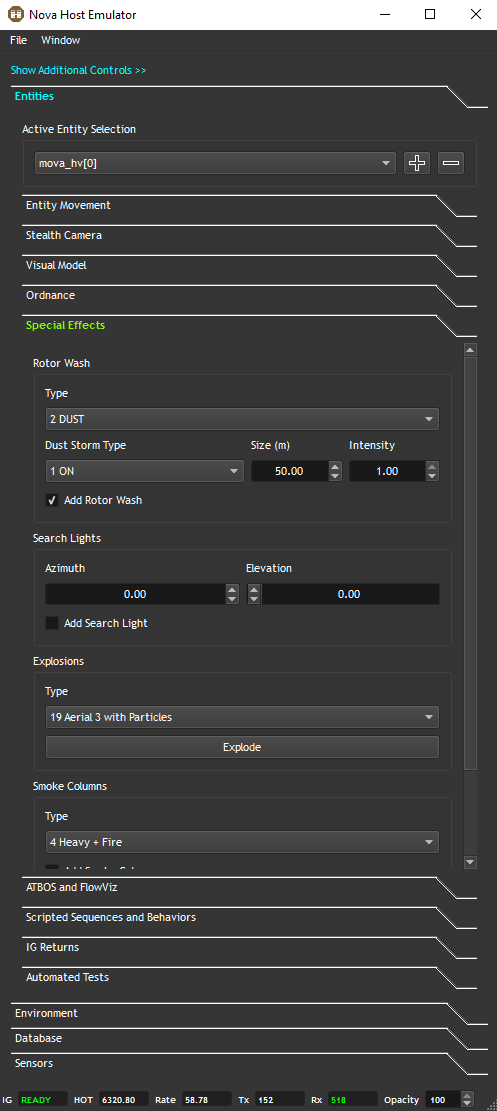
Rotor Wash
A Rotor Wash effect can be added to the Active Entity in lieu of ATBOS brownout.
Search Lights
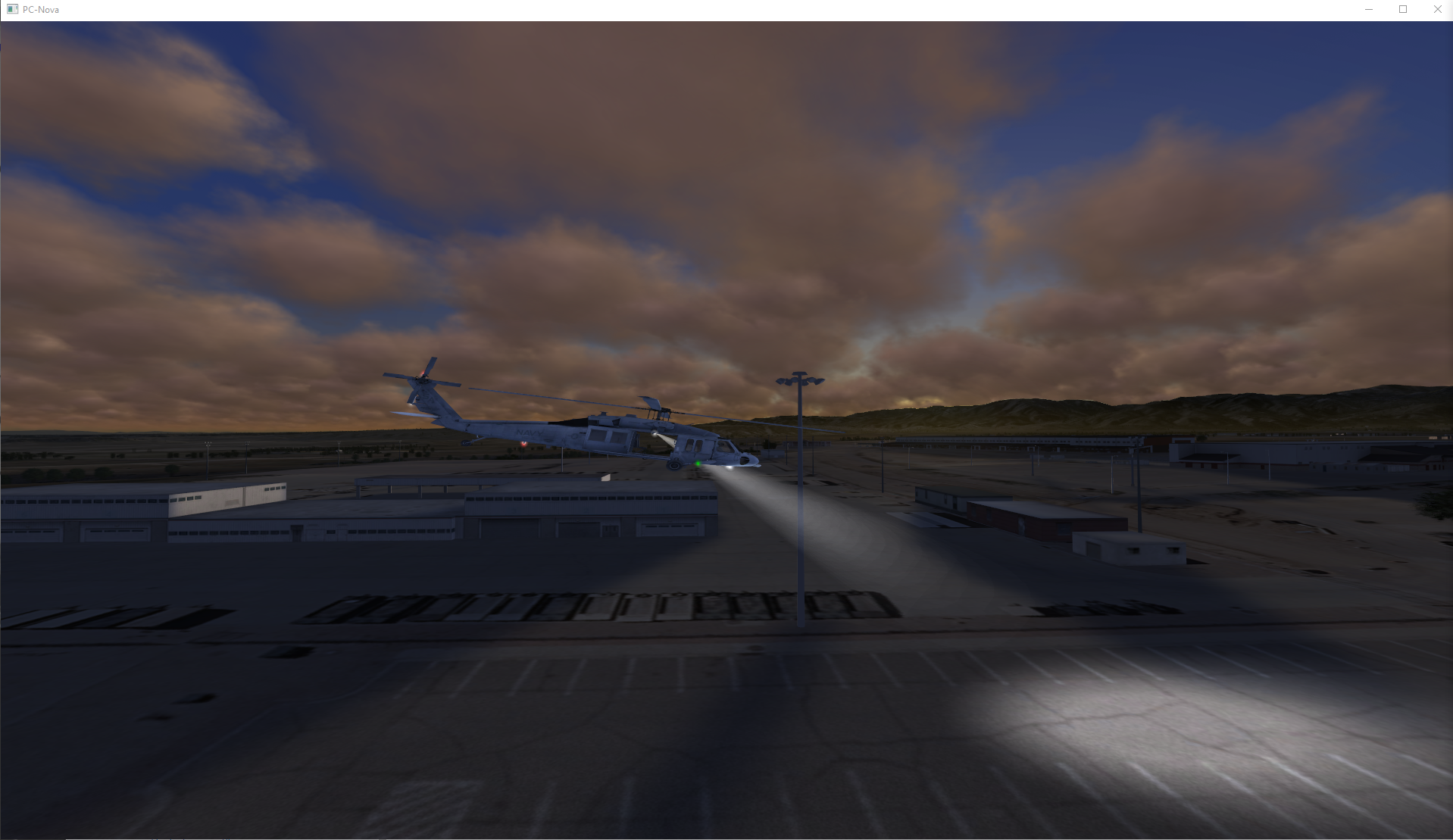
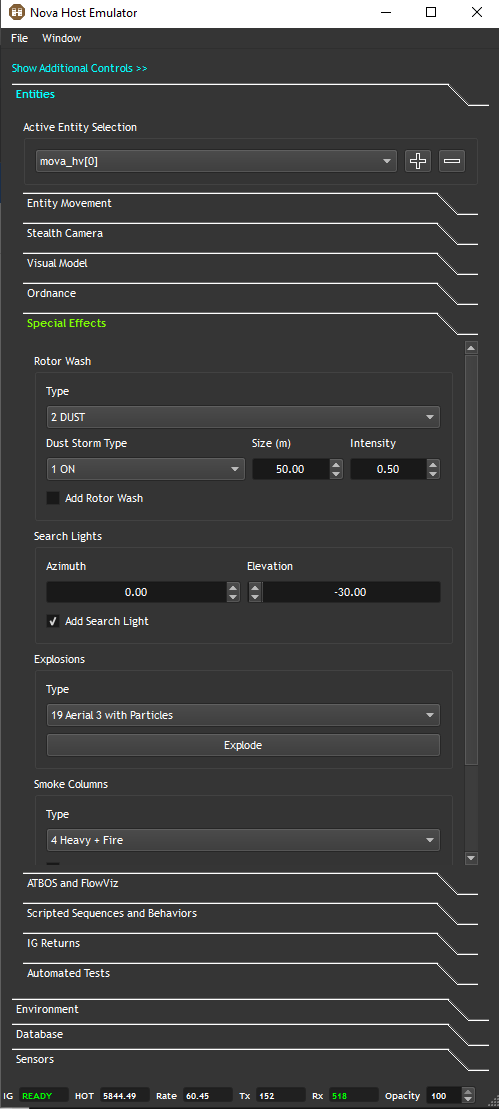
Search Lights can be added to the Active Entity.
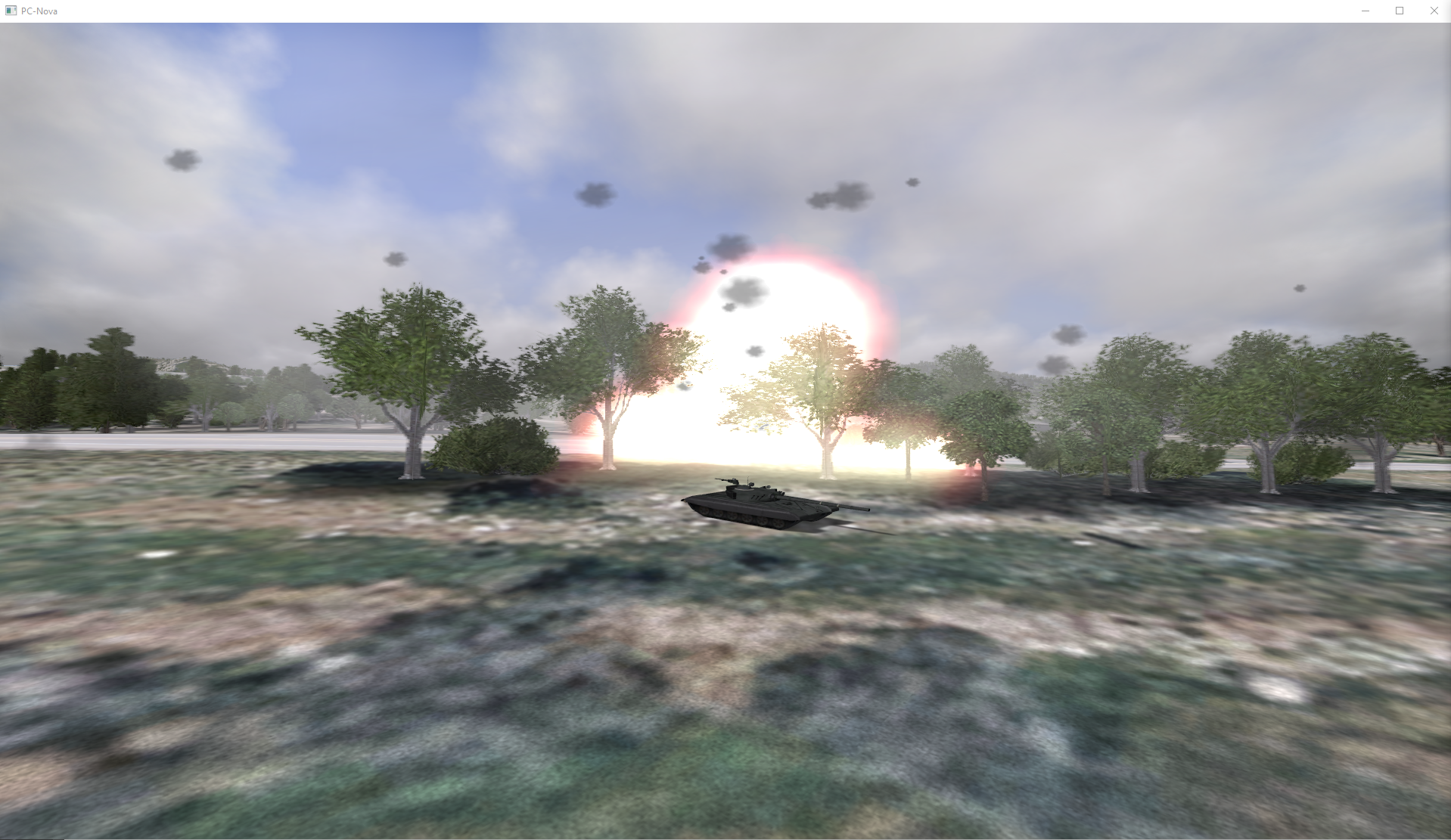
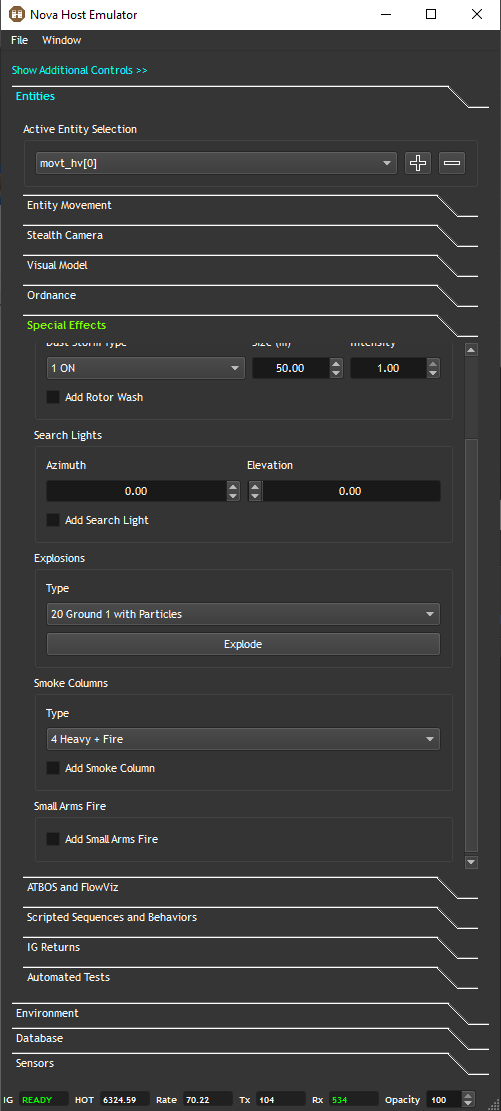
Explosions
Users can attach Explosions to the Active Entity for testing.
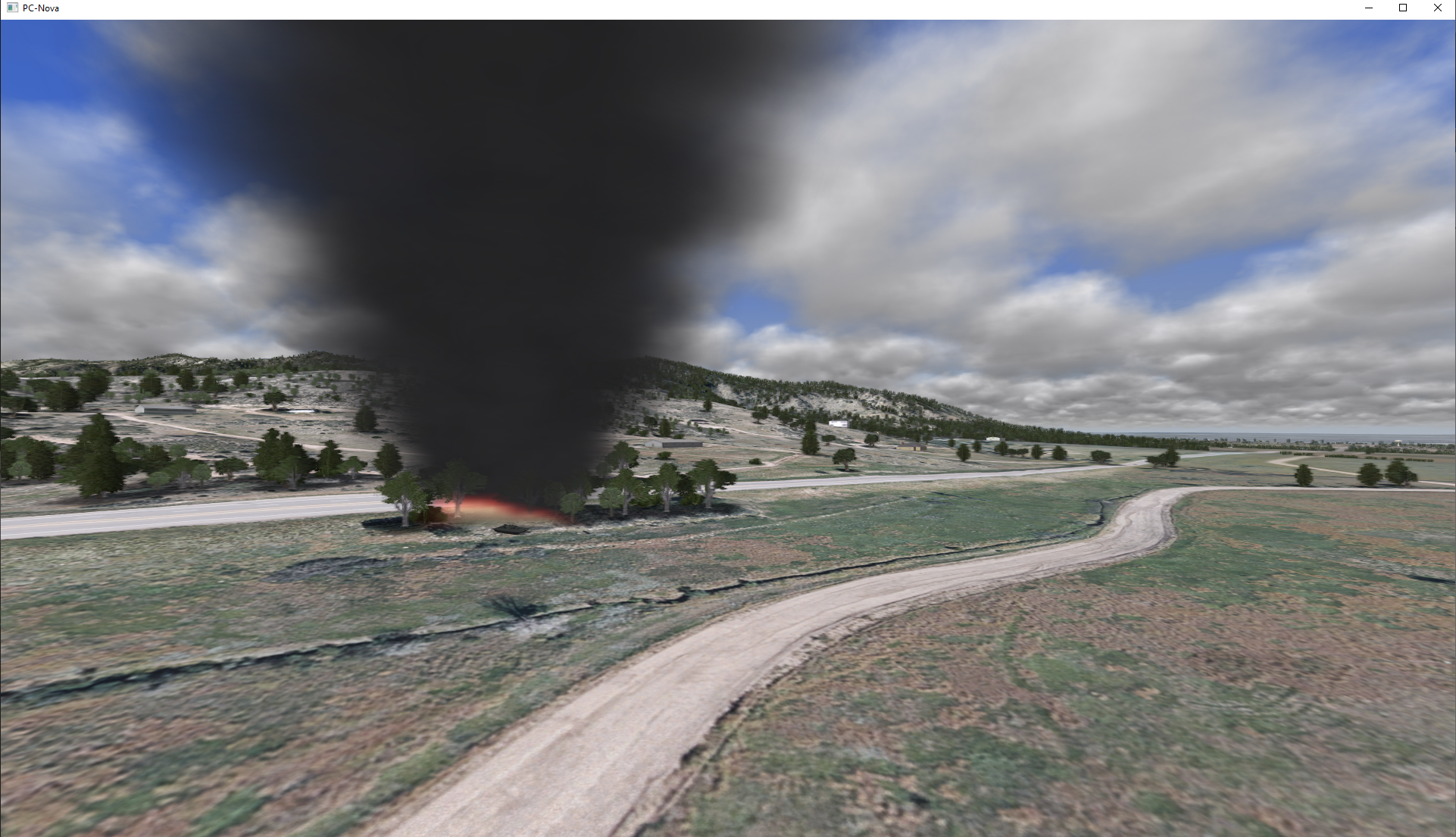
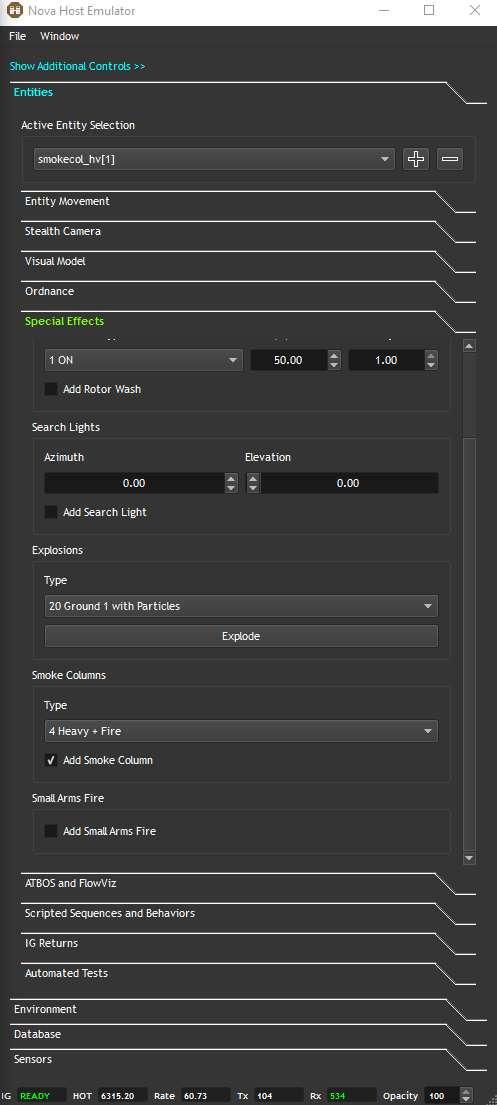
Smoke Columns
Similar to explosions, the Smoke Columns controls allow users to visualize the different types.
Small Arms Fire
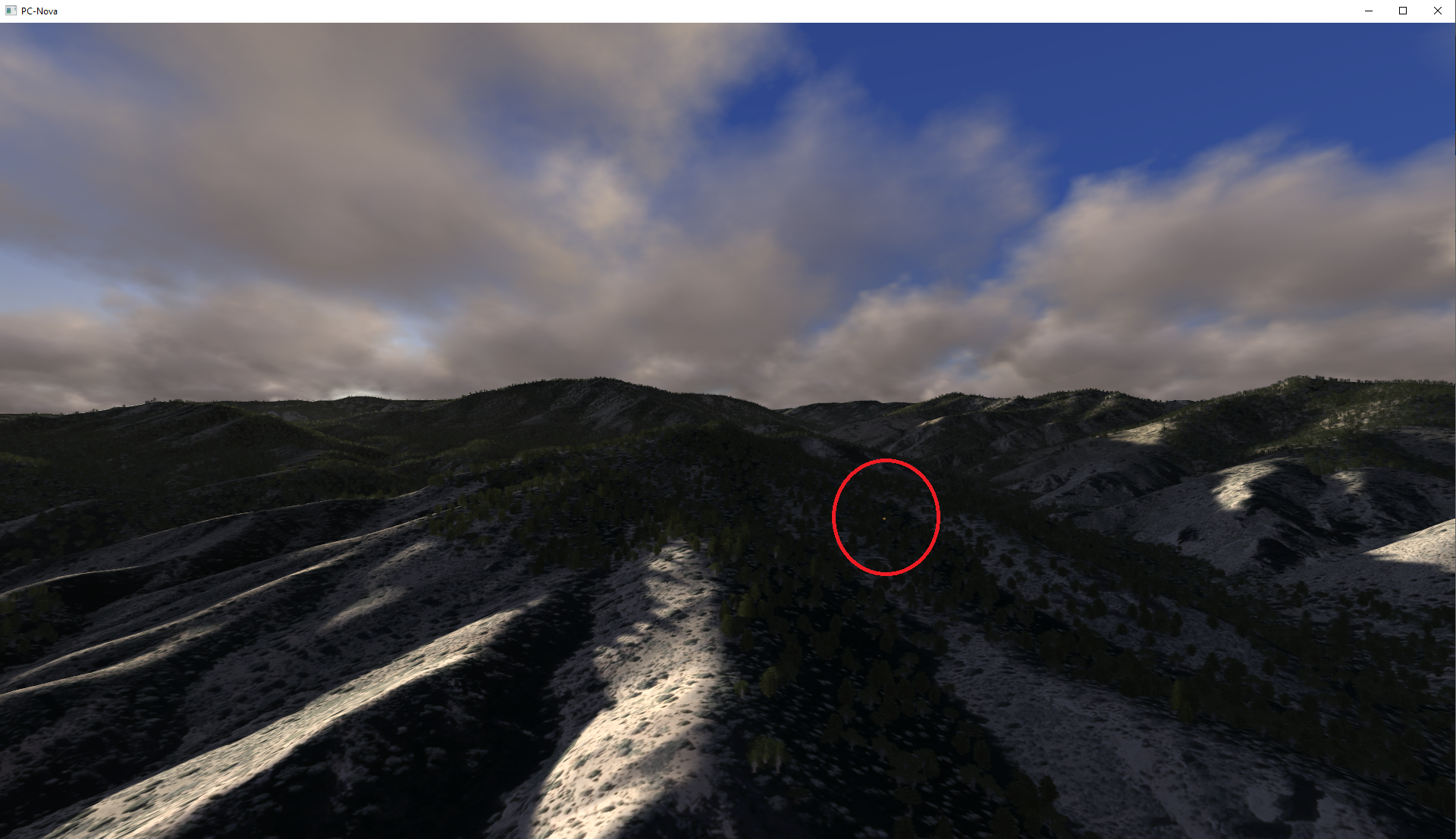
This control can be used to add random Small Arms Fire muzzle flashes around the Active Entity.
ATBOS and FlowViz
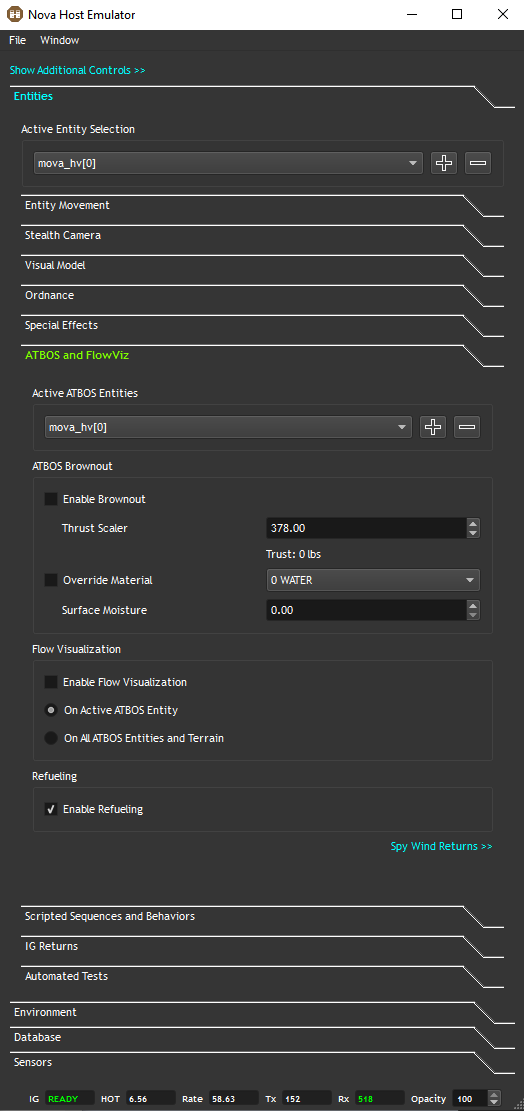
The ATBOS and FlowViz sub-tab demonstrates several RTAero features provided your system is properly licensed and configured.
Active ATBOS Entities
RTAero Brownout and FlowViz calculations take terrain data and entity data into account for their calculations. Entity data is sent to the RTAero software using the ATBOS ICD.
The ownship will always be sent through the ATBOS ICD, but you can also send 3 other entities of type air or sea to be used in the calculations.
Using the ICD, users can command 4 simultaneous Brownout effects on these 3 entities and the ownship, but only one FlowViz (although all 4 entities will affect it).
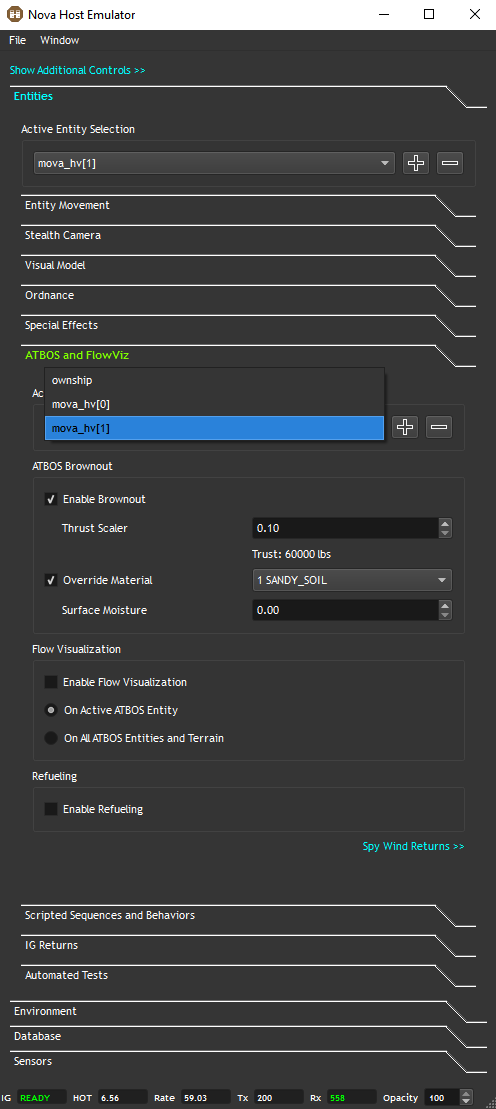
Press the (+) button (shown in red) next to the Active ATBOS Entities to add the currently selected Active Entity Selection (shown in blue) to the list of entities to be sent in the ATBOS ICD.
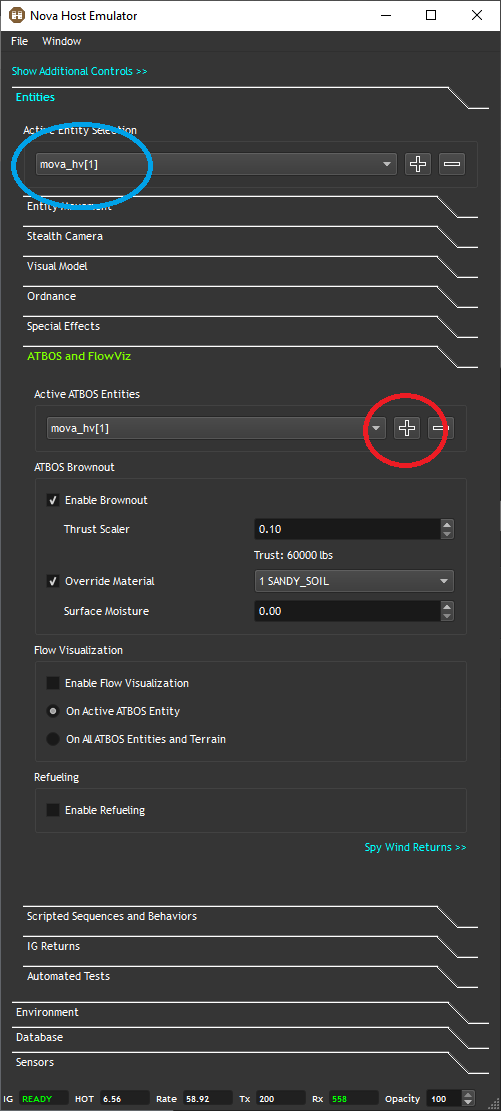
Press the (-) button to remove the entity from the ATBOS ICD.
ATBOS Brownout
The ATBOS Brownout controls allow users to command up to 4 individual brownouts.
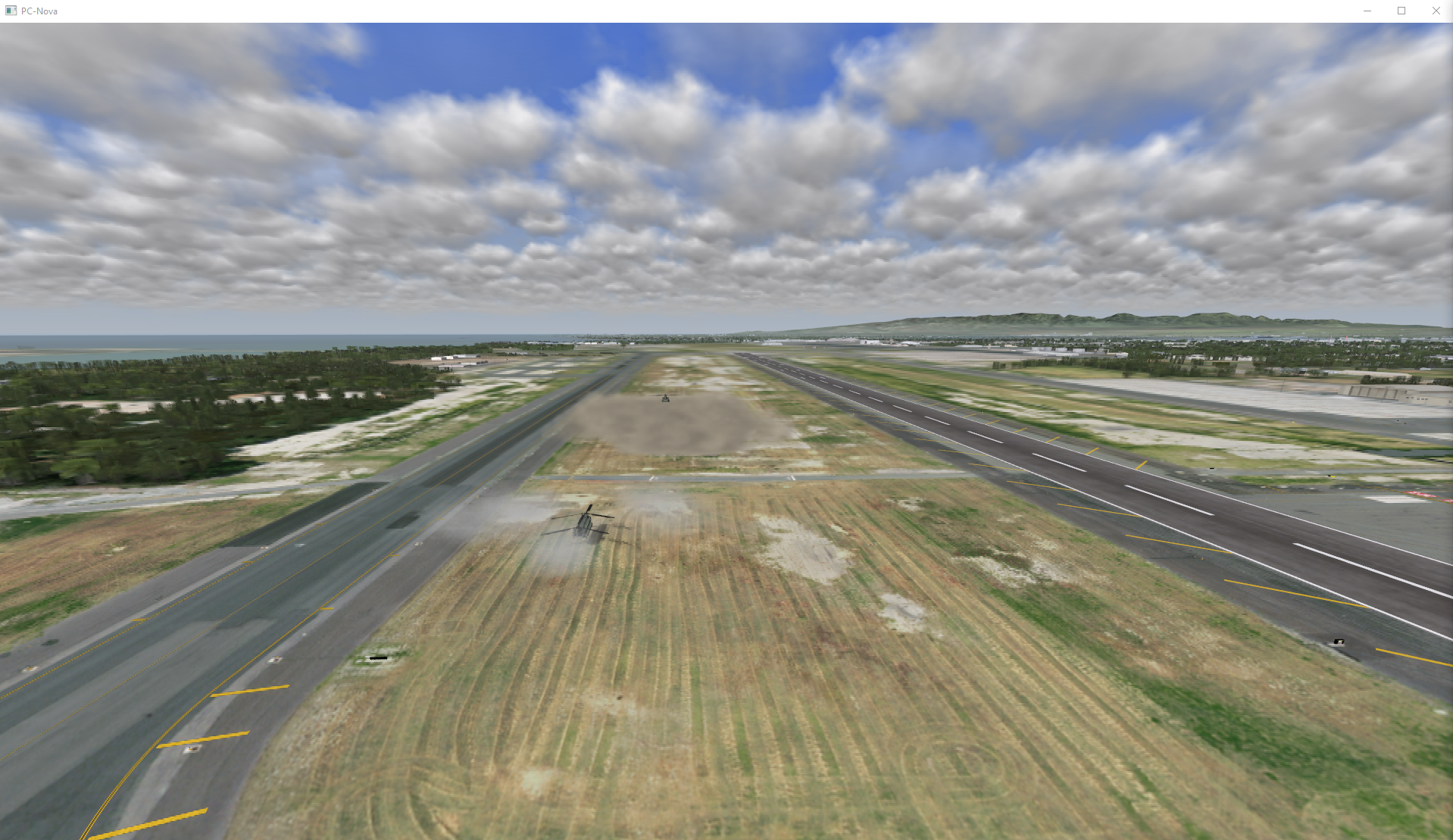
In the image below we are sending the ownship and 2 CH-47 aircraft through the ATBOS ICD. The first CH-47's ATBOS Brownout is using the IG return type (pavement) while the second is overriding the material to SANDY SOIL to produce a larger Brownout.
Note that if an FDM is being used to control one of the Active ATBOS Entities the actual thrust returned from the FDM will be used in the ATBOS ICD.
Additionally, the Trust Scalar control can be used to increase of decrease this value.
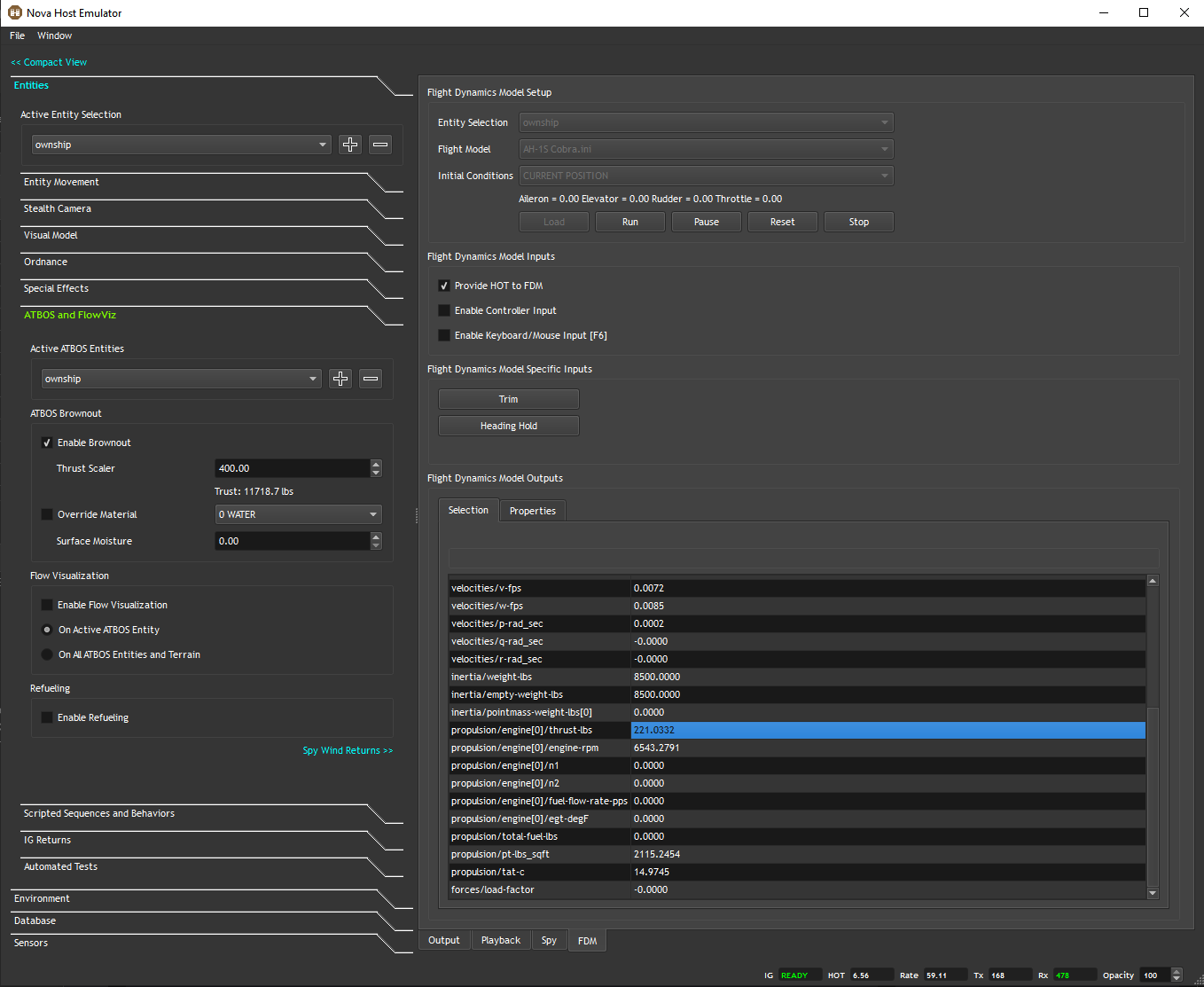
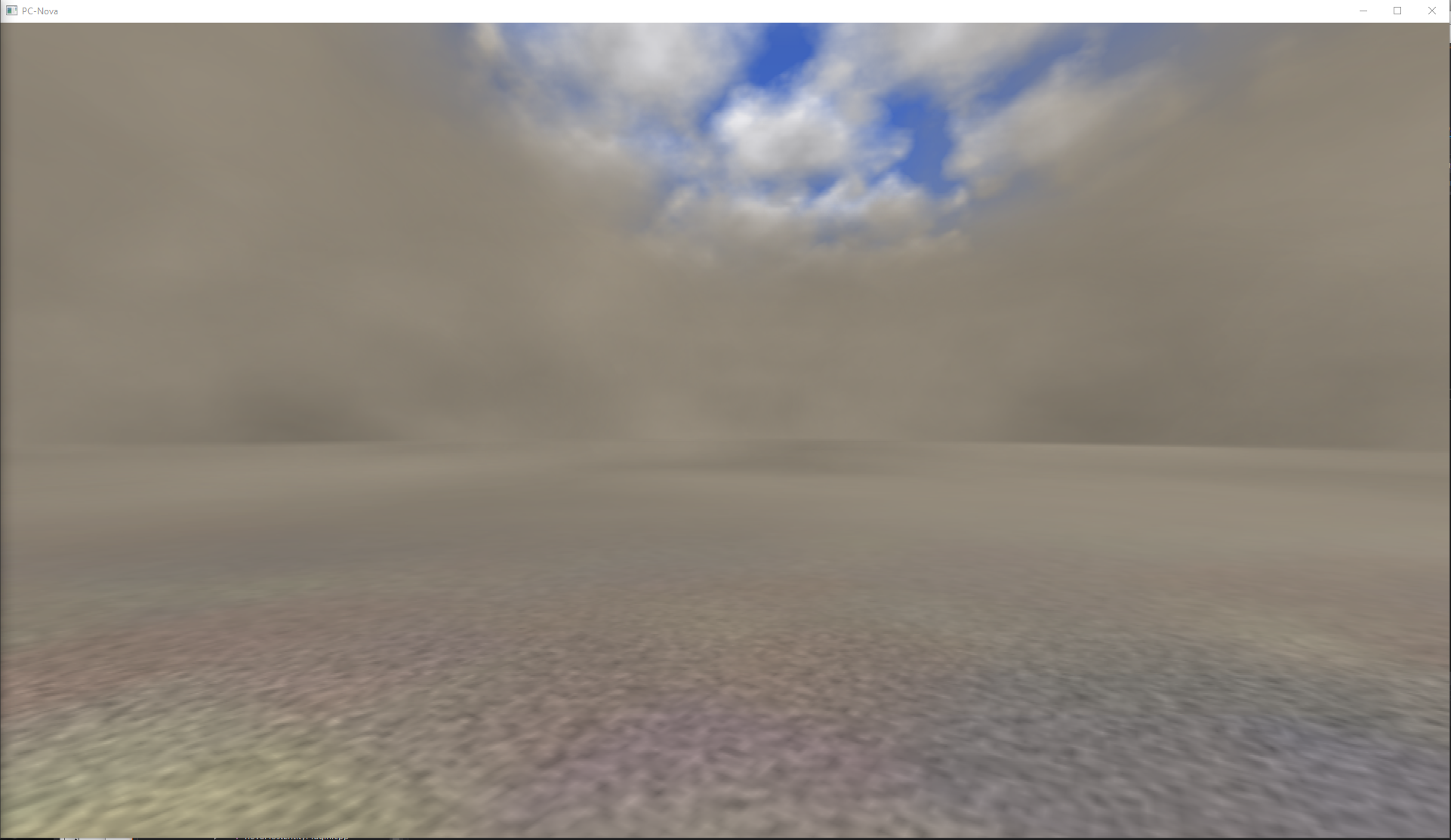
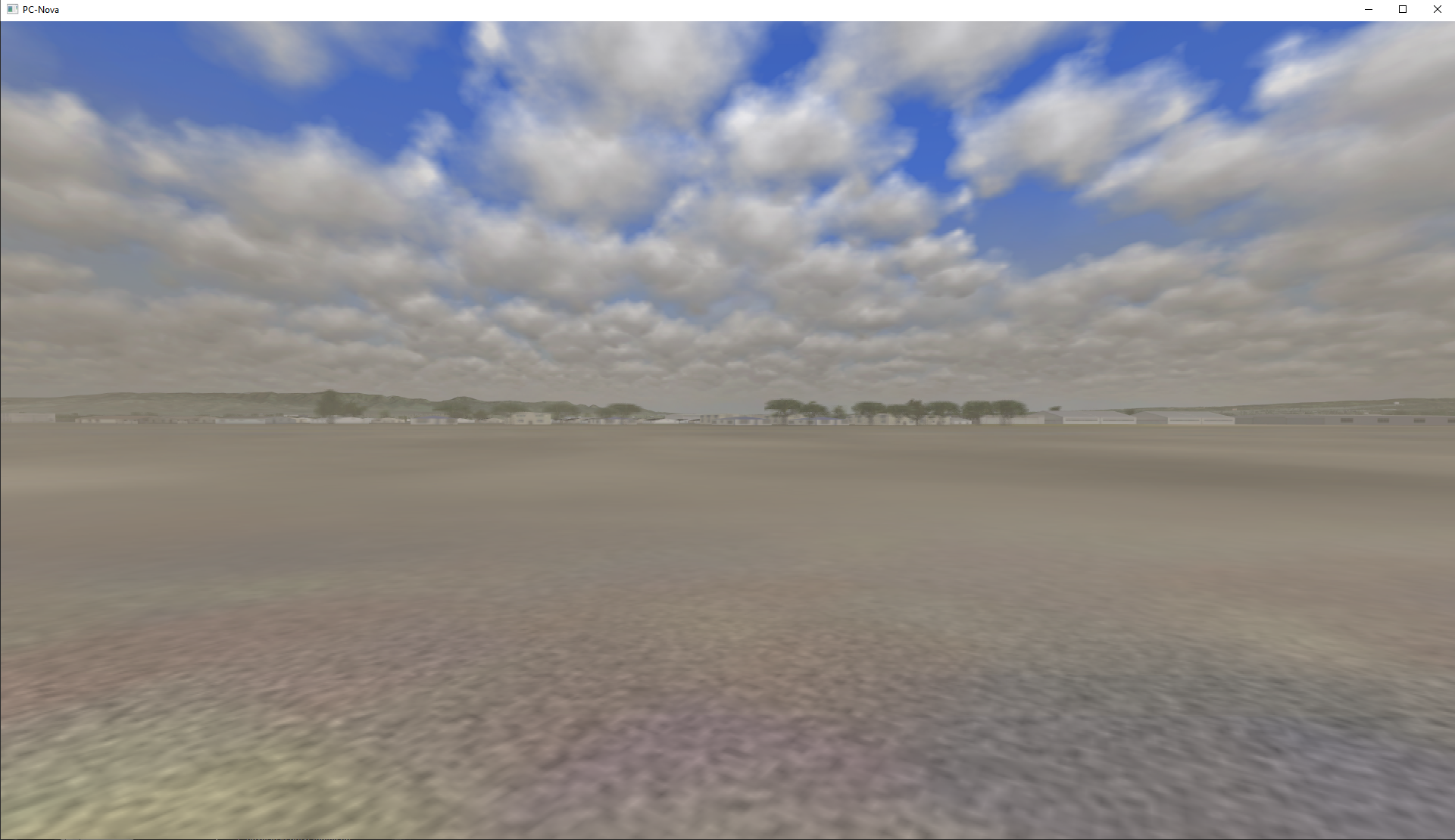
In the example below we are using the AH-1S Cobra flight model for the ownship as shown on the FDM tab. The ownship data is being sent through the ATBOS ICD as shown on the Active ATBOS Entities control. Lastly, we've enabled Brownout and have used the Thrust Scalar to increase the FDM thrust to generate a brownout while we are landed.
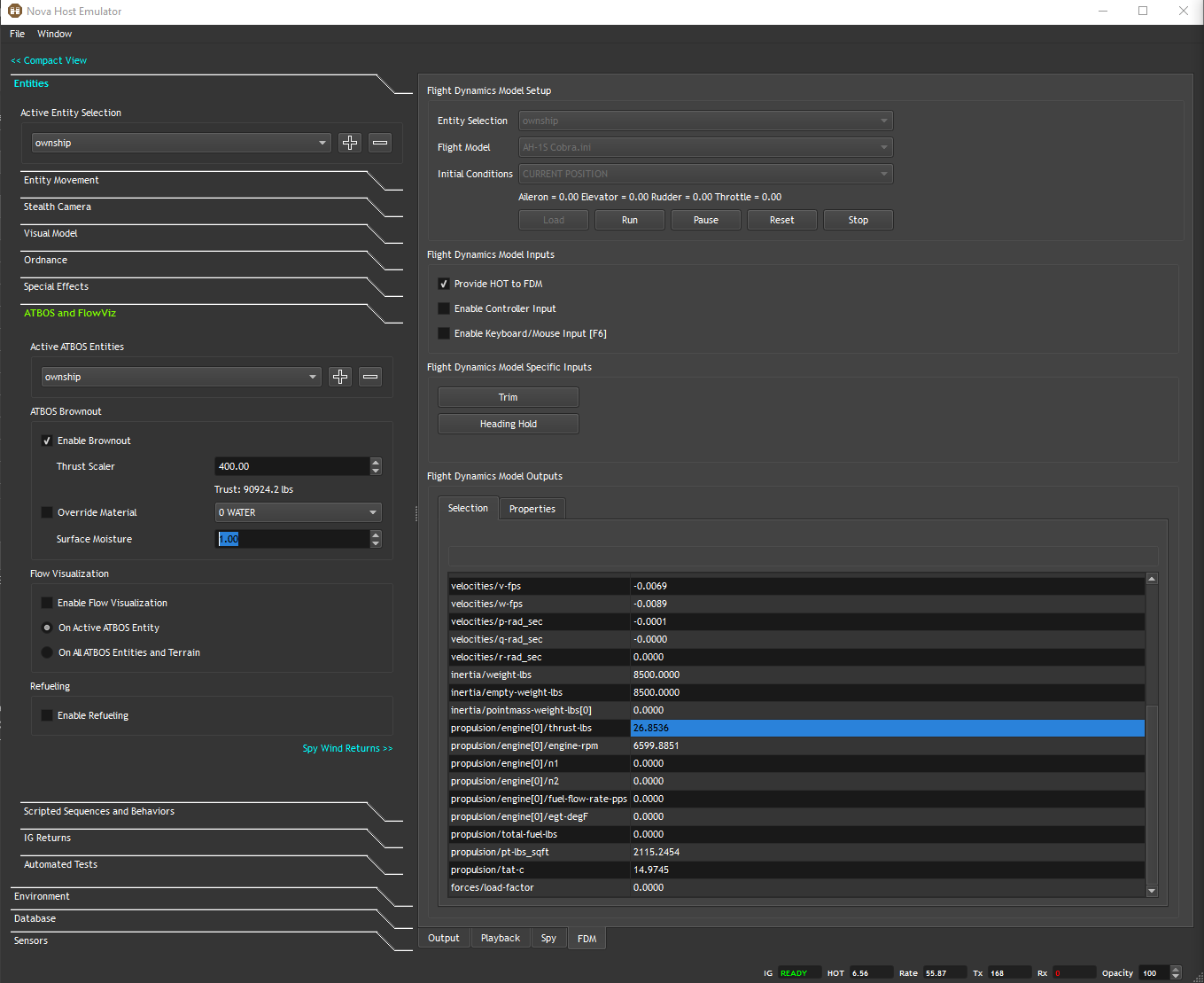
The Surface Moisture currently accepts the following values: 0 = DRY (ATBOS FULL), 1 = GROUND MOIST, 2 = GROUND WET, 3 = GROUND SOAKED (ATBOS OFF) but is exposed as a float for expansion.
Below we show the same landed, Thrust Scaled AH-1S Cobra with the Surface Moisture set to GROUND MOIST.
Flow Visualization
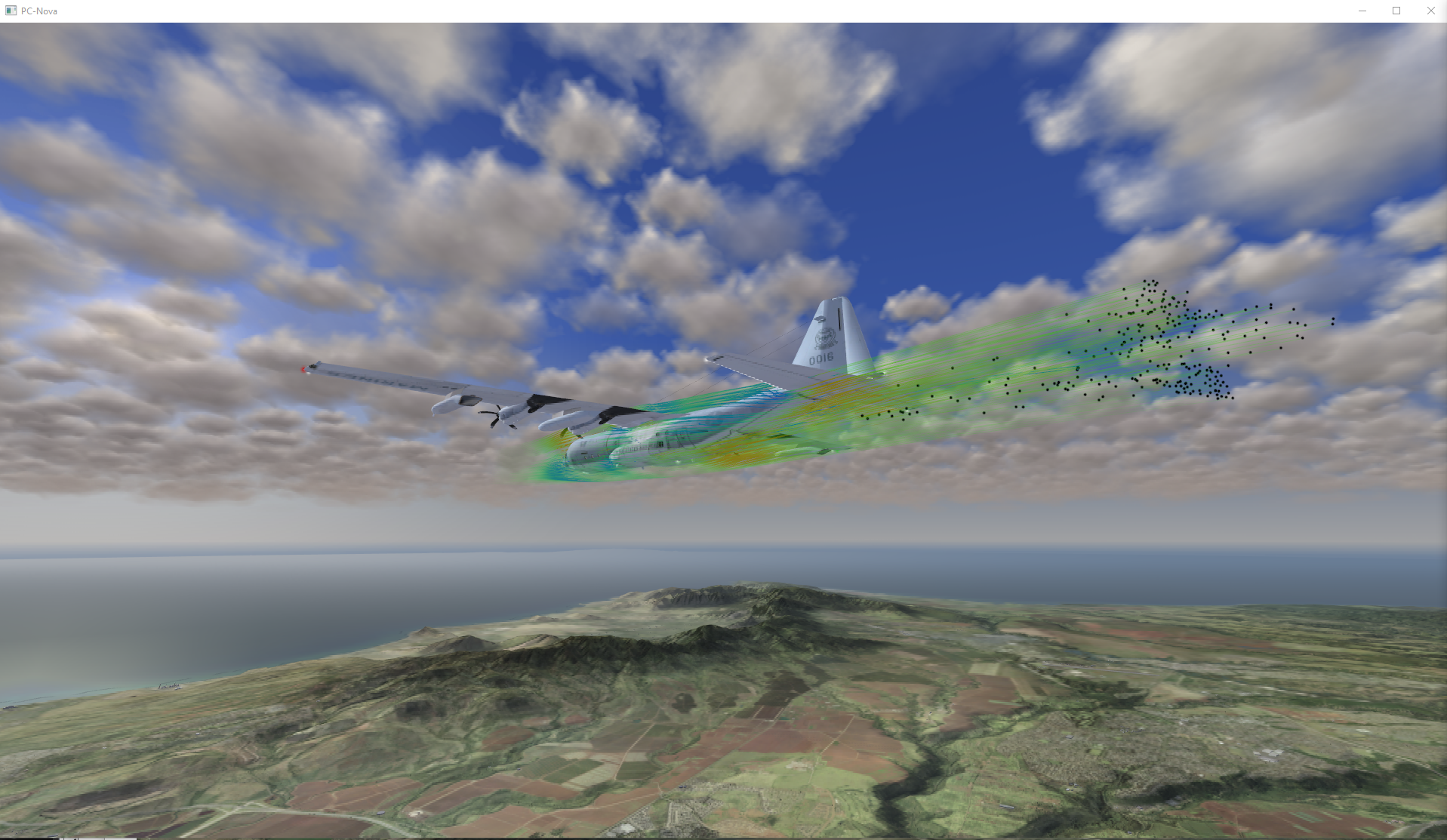
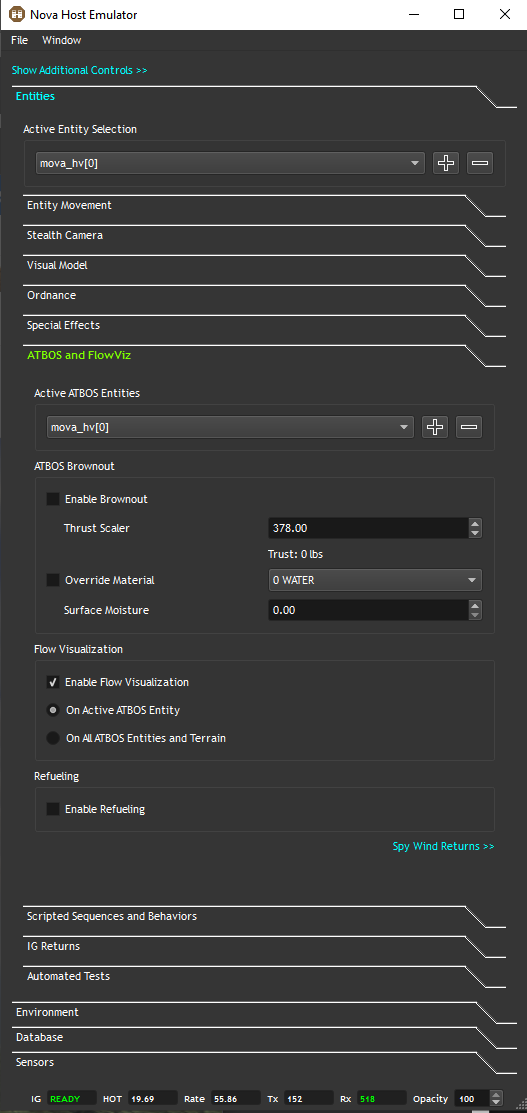
FlowViz can be enabled in "auto" mode either on the Active ATBOS Entity or for All ATBOS Entities and Terrain from the GUI.
Note that for FlowViz to be displayed on terrain you will need a licensed and configured GATO installation.
In the image below a C-130J has been created and is flying in a circle with the Stealth Camera attached to it and FlowViz enabled.
Refueling
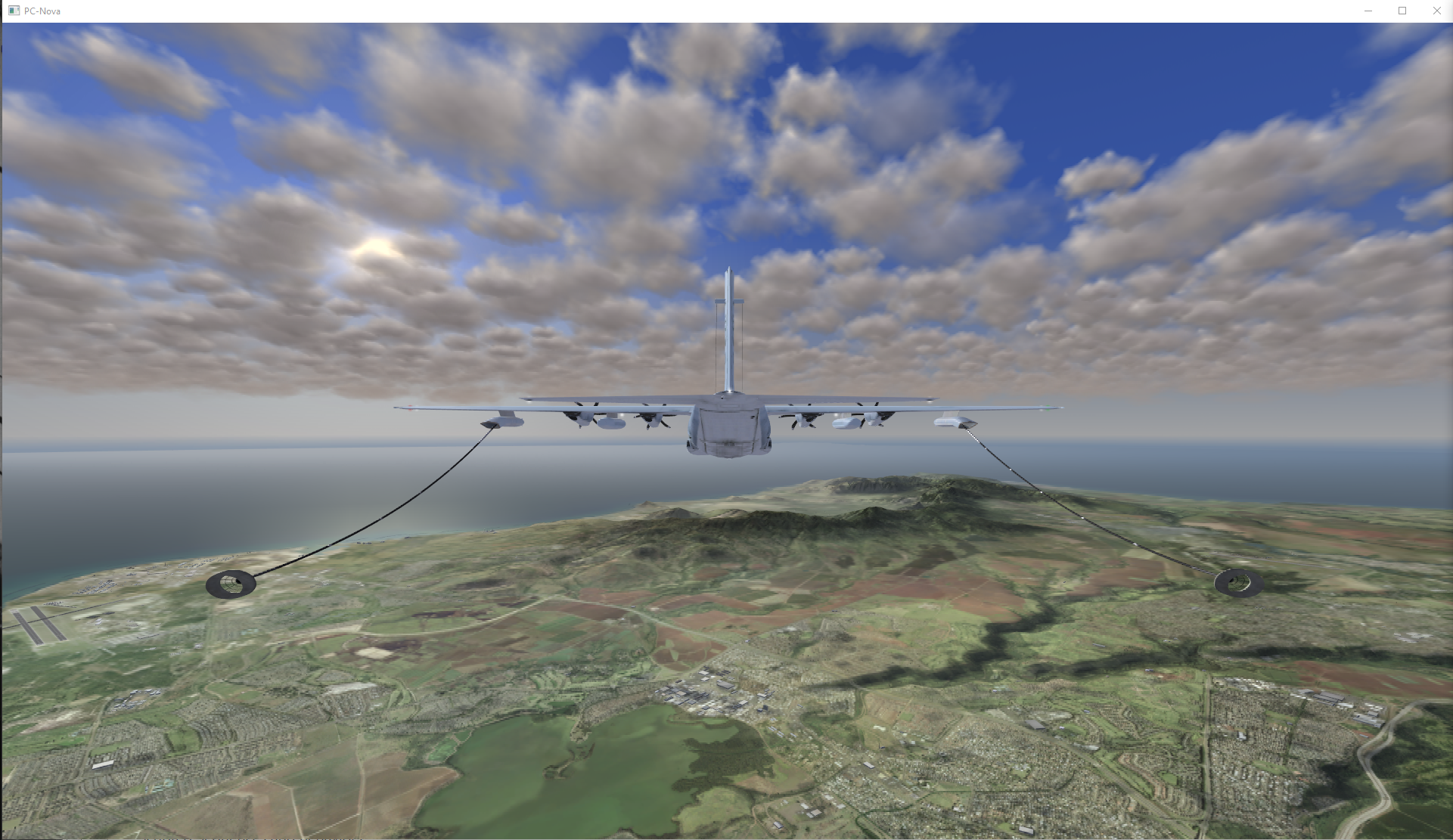
ATARSS controlled refueling hoses can also be demonstrated in "auto" mode as shown below.
Wind Returns
Provided they have been properly configured, the Spy Wind Returns control will open the Spy tab to display the steady and turbulent wind returns from RTWS.
Scripted Sequences and Behaviors
This feature will be added in the near future.
IG Returns
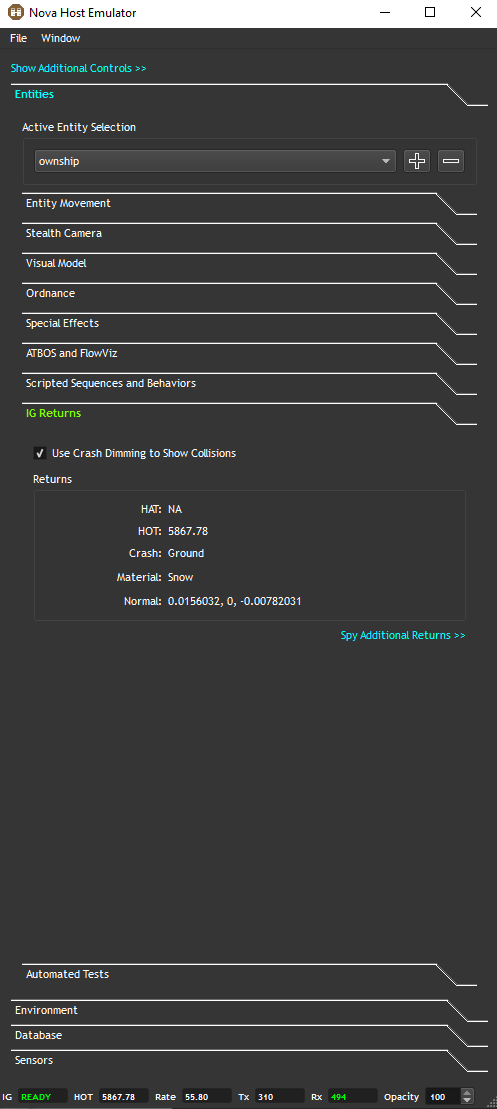
The IG Returns tab will display Image Generator return data for the Active Entity which will vary by type.
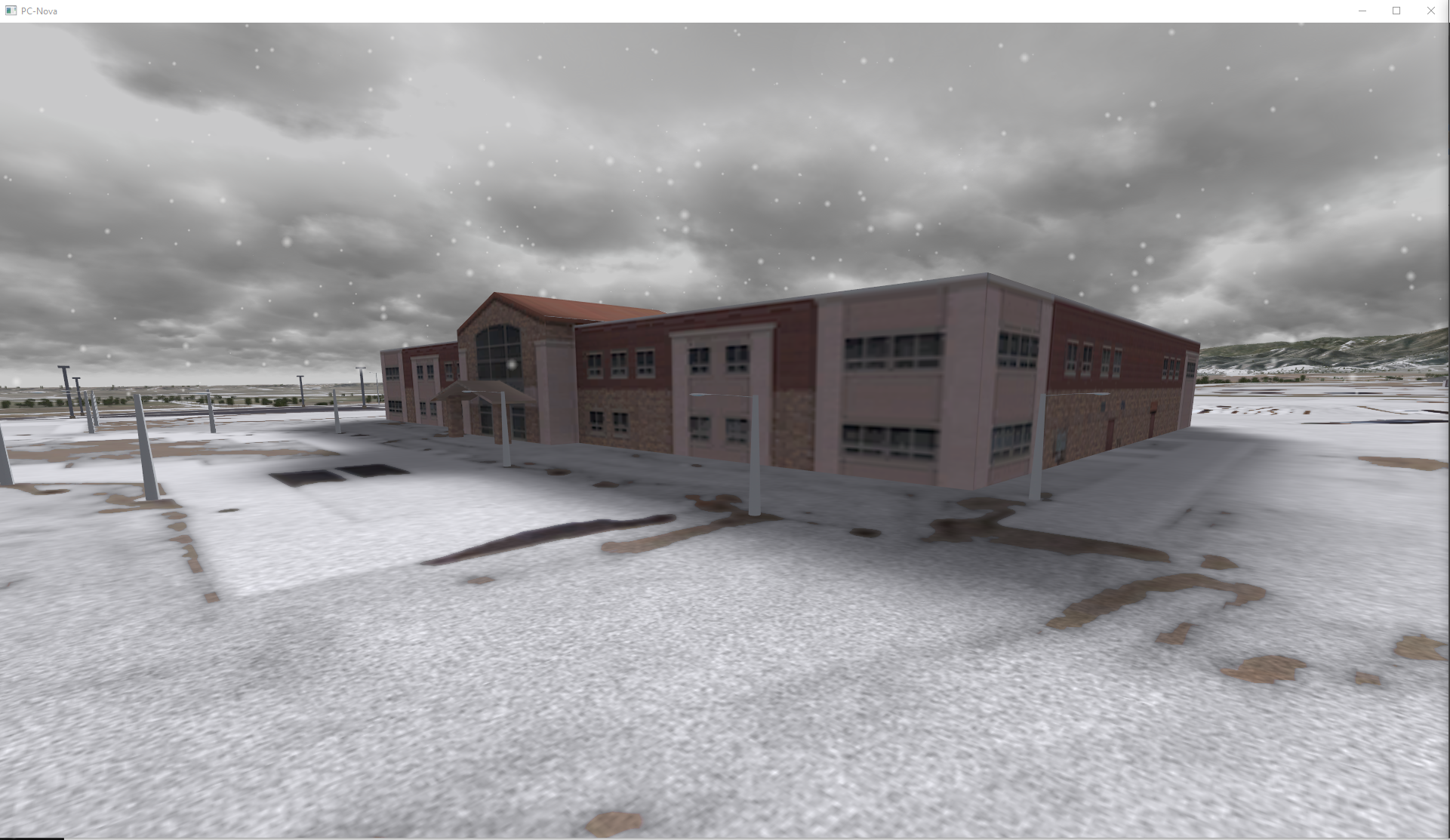
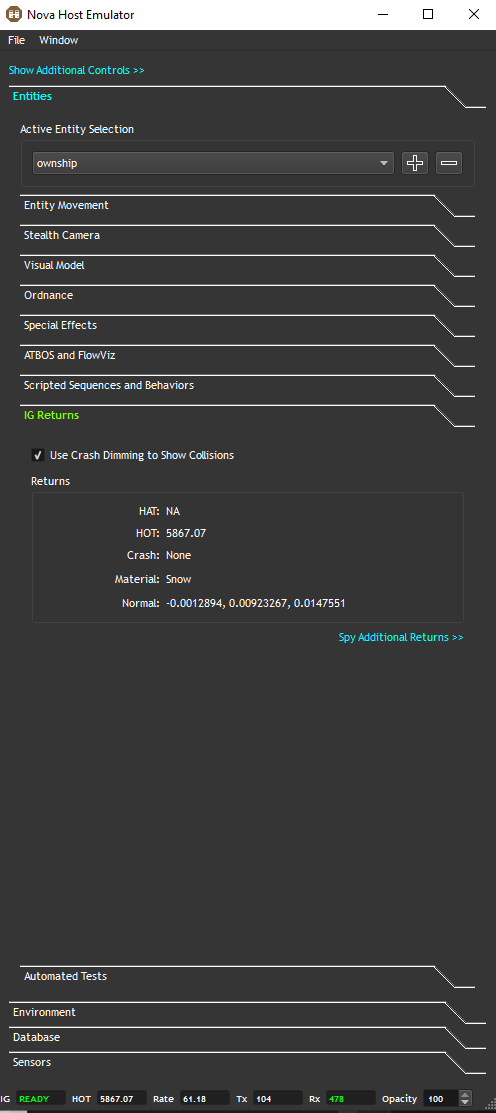
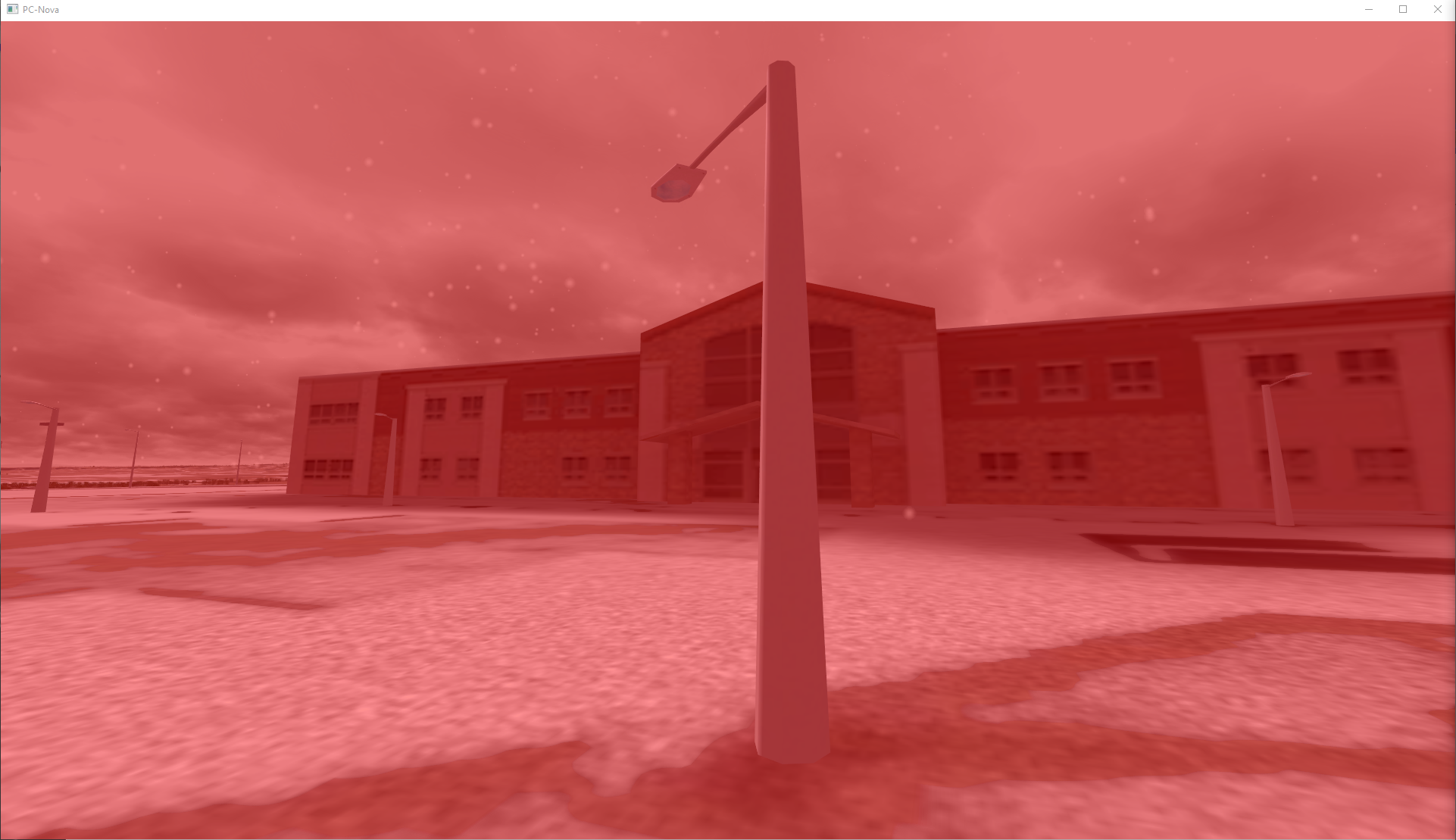
Use Crash Dimming to Show Collisions
When enabled, this will use crash dimming to show collisions for the Active Entity.
Enable Auto HAT/HOT Returns
For entity types that support automatic ISECT returns for HAT/HOT a check box is displayed for enabling and disabling these returns.
By default the CIGI DLL's AutoHots token is enabled which sets the pC-Nova ICD autoIsectEnable field to true for every new entity created, so this control will be enabled by default to match.
Automated Tests
This feature will be added in the near future.