novaHost - Sensors Plugin
Overview
The Nova Host Sensor plugin implements the "Sensors" tab found in the Nova Host GUI.
The Sensor Plugin provides exposes the ICD fields used to control pC-Nova sensor channels.
Source Location
src/novaHostSensorPlugin
INI File Data
The Sensor Plugin doesn't read any INI file settings.
Command Line Options
The Sensor Plugin doesn't use any command line options.
IG Features Demonstrated
The following IG features are demonstrated in the Sensor Plugin:
Sensor View Controls
Azimuth and Elevation
X and Y Field of View (FOV)
Digital Zoom
Digital Stabilization
Gain and Level Controls
Manual Primary and Secondary Gain and Level
Auto Gain (AG) Algorithms
Local Area Contrast Enable (LACE) Mode
Sensor Image Controls
Polarity
Focus
Noise
Image Tracking
Sensor Fusion
ICD Fields Used
The Sensor Plugin reads and writes the following ICD fields which are later translated to CIGI messages to be sent to (or read from) the IG.
ICD Field | Usage |
|---|---|
host2pcnova->w2ig* | Nearly all sensor controls are exposed through the "Weapon" ICD. |
host2pcnova->h2ig.dat.video_blender_hv* | Sensor fusion (video blender) control. |
CIGI Packets Used
The Nova Host GUI's aeRosetta library will translate the aforementioned ICD fields to the following CIGI packet types.
CigiSensorCtrl
CigiViewCtrl
CigiViewDef
CigiCompCtrl
CigiShortCompCtrl
API Features Used
The Entity Plugin uses the following Plugin API features:
Feature | Usage |
|---|---|
GuiEventApi | Used to write messages. |
GuiInputApi | Reading, writing, and responding to the Sensor Plugin's GUI widgets. Slewing the sensor view using the keyboard and mouse. |
GuiDataApi | Reading/writing the pC-Nova ICD that the Nova Host GUI translates to CIGI with aeRosetta. |
Usage
Clicking the Sensor tab in the Nova Host GUI displays the Sensor Plugin controls and sub-tabs.
Sensor Scope
You must have one or more Sensor IDs selected for any of the Sensor Plugin controls to work.
The Sensor IDs correspond to the WEAPON_ID channel setting in the cluster.cfg file which are then mapped to host2pcnova->w2ig[*] indexes.
The WEAPON_ID for each sensor can be configuration specific so consult E:\CM\data\custom\IG_CONFIG\%AECHELON_DEVICE_CFG%\cluster.cfg for your exact settings but they typically follow these guidelines:
Sensor ID | Sensor Channel |
|---|---|
0 | Stimulated NVG |
1 | Simulated NVG |
2 | DayTV |
3 | MWIR |
4 | SWIR |
5 | LLTV |
6 | Stealth or LWIR |
7 | LLTV_SWIR |
8 | DTV_LLTV_SWIR |
11 | HMD 1 |
12 | HMD 2 |
Sensor Enable
Enable or disable the selected sensor(s) using this control.
Sensor Type
Typically this setting is disregarded for most configurations/
Sensor View
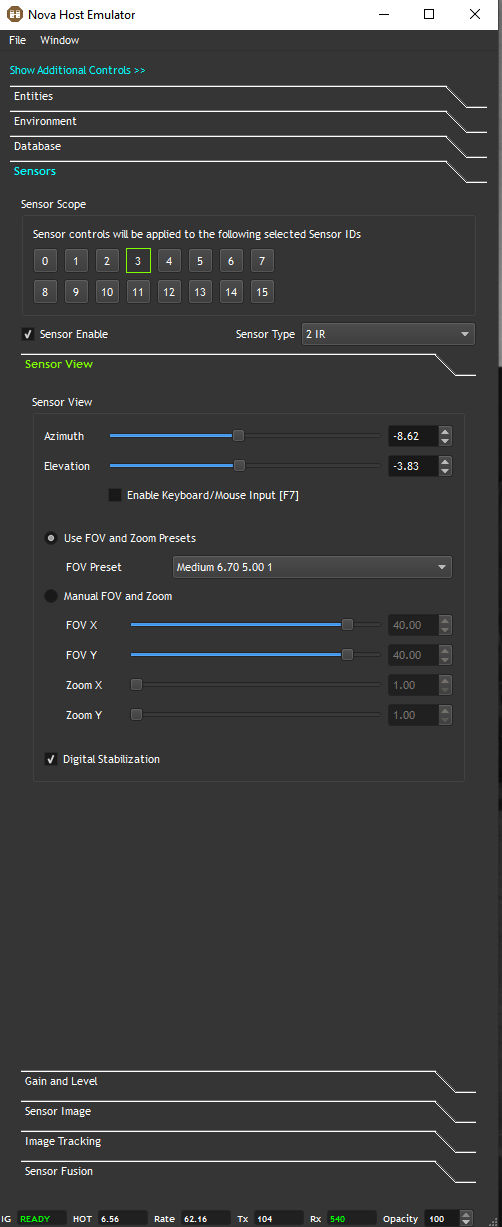
The Sensor View controls allow users to slew the selected sensor(s) and configure their FOV and Zoom.
Pressing F7 on the keyboard toggles allowing the mouse to slew the selected sensor(s).
Some FOV and Zoom presets are defined for ease of use but users can also set these manually.
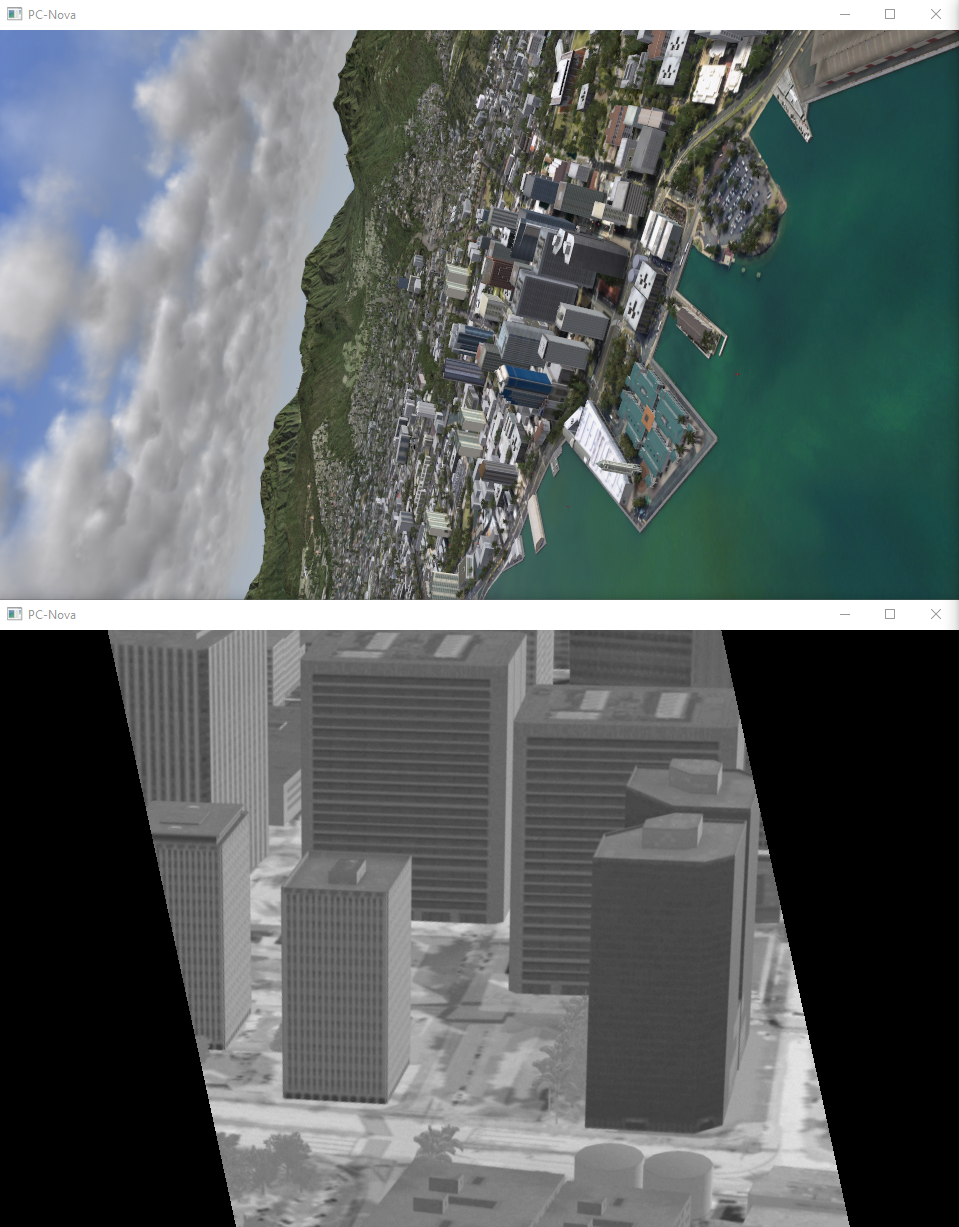
Digital Stabilization keeps the sensor view upright despite aircraft roll as shown below:
Gain and Level
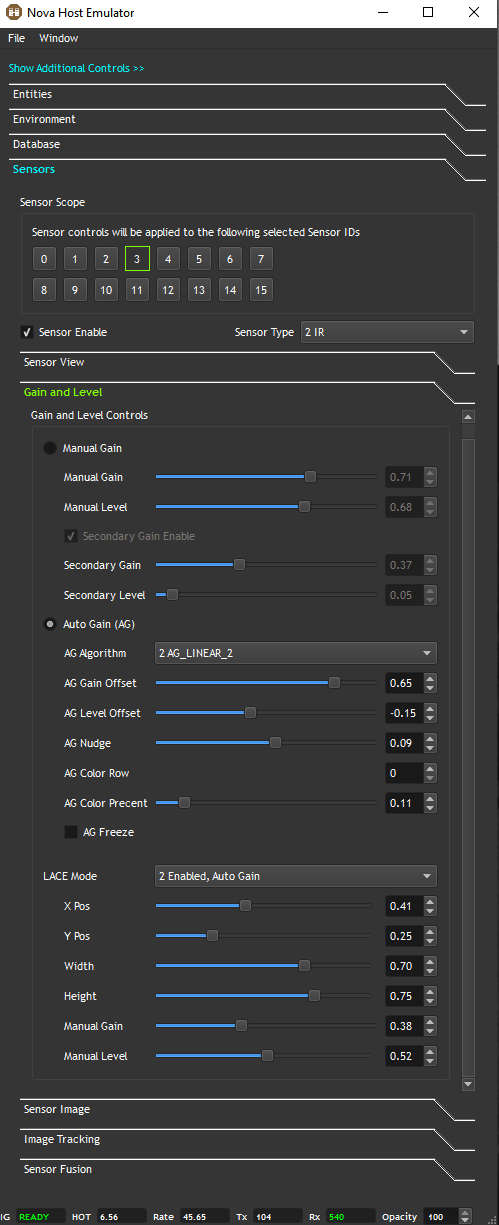
The controls on this sub-tab focus on Manual Gain and Level, Auto Gain (AG), and Local Area Contrast Enhancement (LACE).
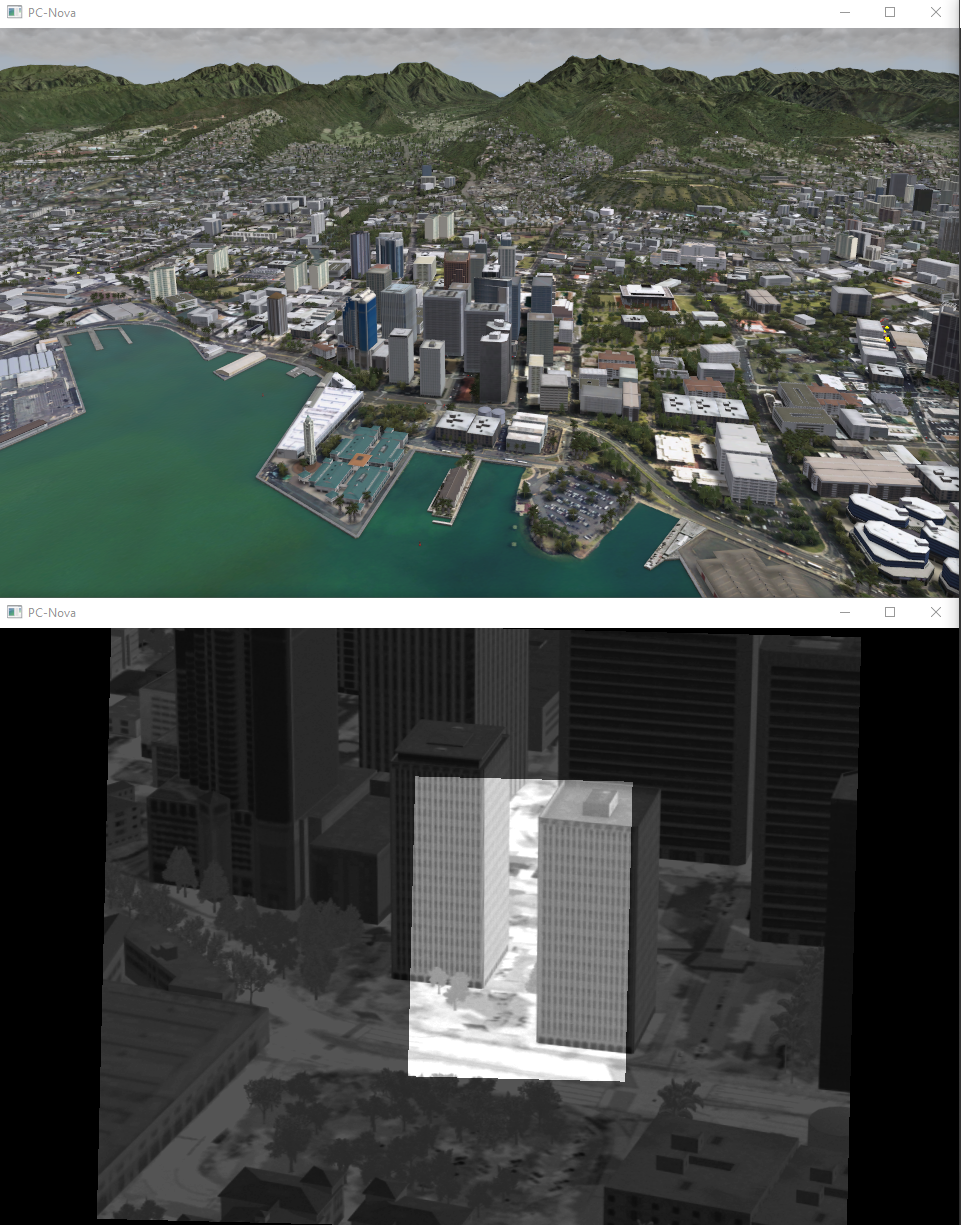
The image below shows the Linear 2 Auto Gain algorithm being applied to the image with some Offsets and Nudge applied. Additionally, LACE has been enabled.
Sensor Image
As an example the Sensor Image controls have been used to switch the above scene to Black Hot and the Focus and Noise controls have been used to make the scene blurry with static.
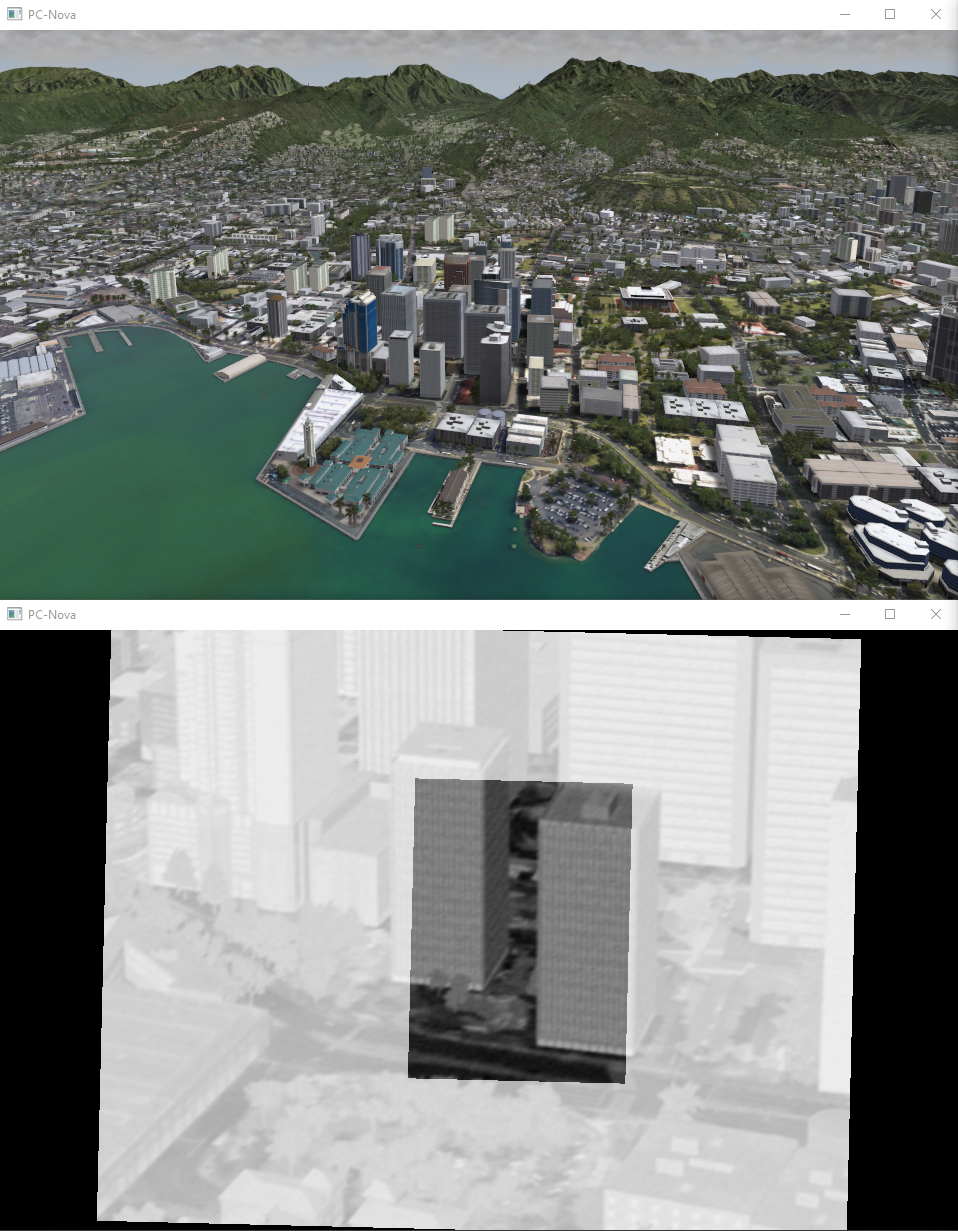
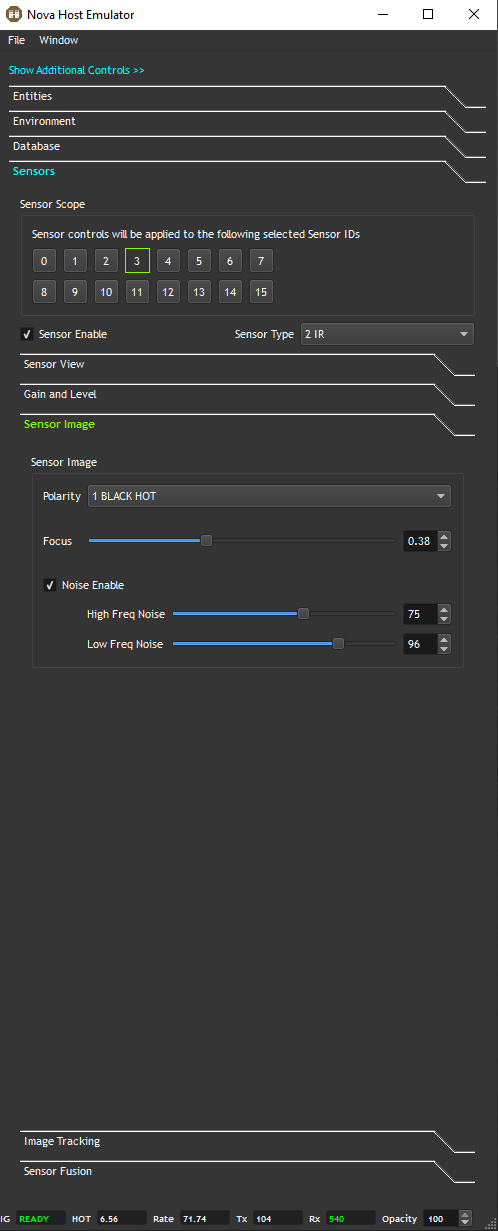
Image Tracking
The Image Tracking controls can be used to acquire and track targets in the scene.
Below the Image Tracker is tracking a Predator approaching Honolulu.
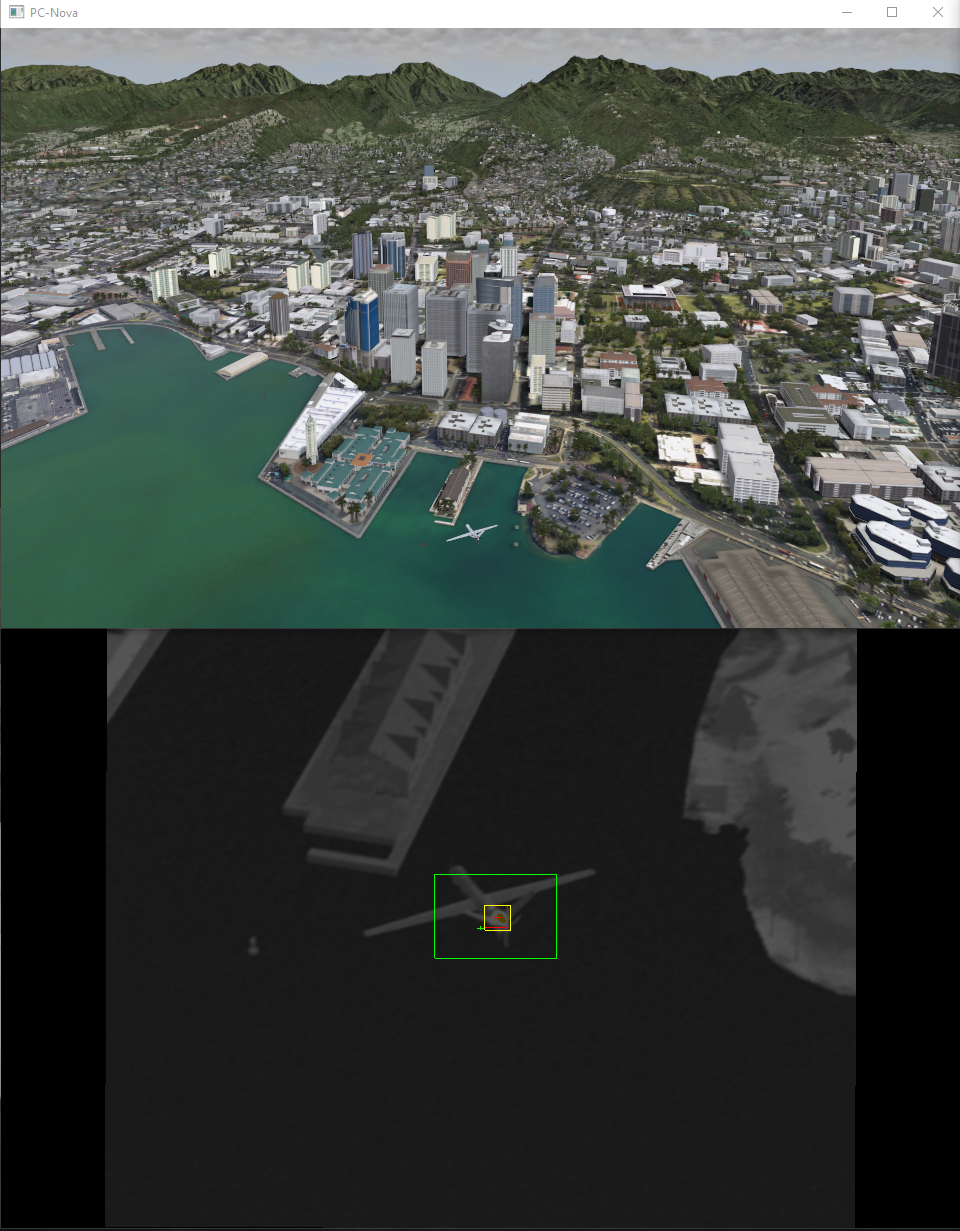
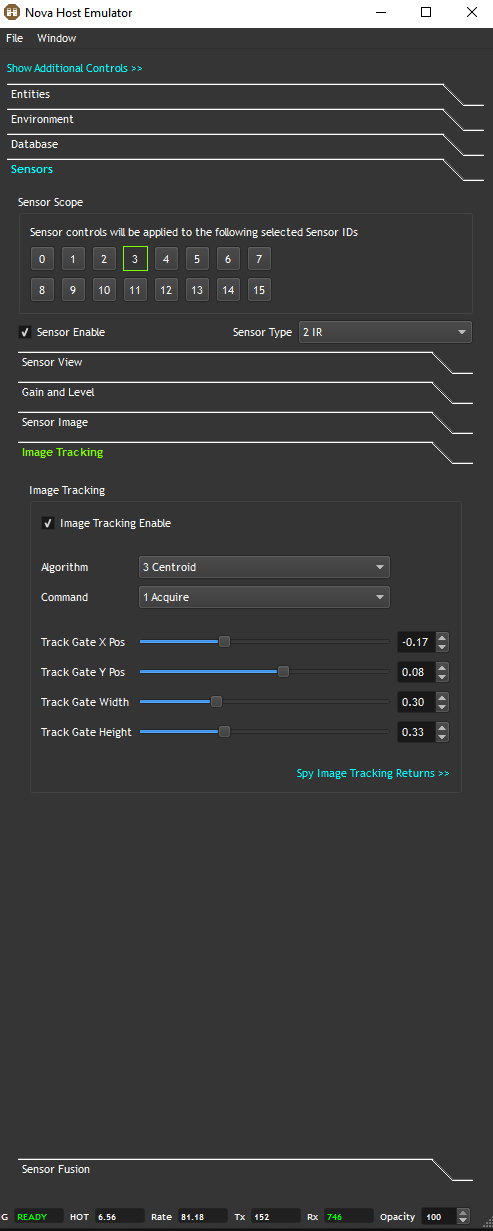
Pressing the Spy Image Tracking Returns >> button will open the Spy tab and show the returns that could be used to compute the sensor slew angles to maintain the track.
Sensor Fusion
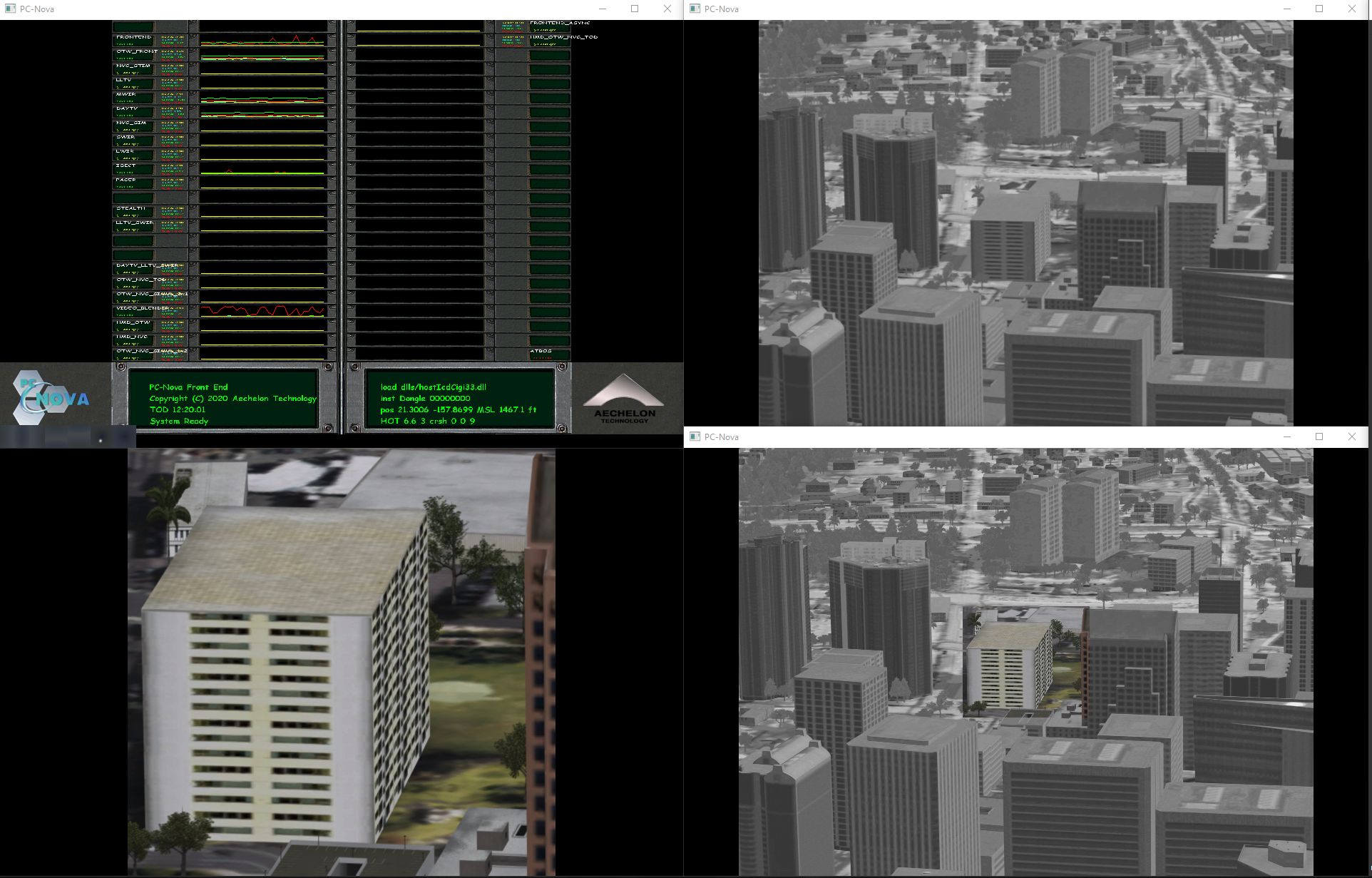
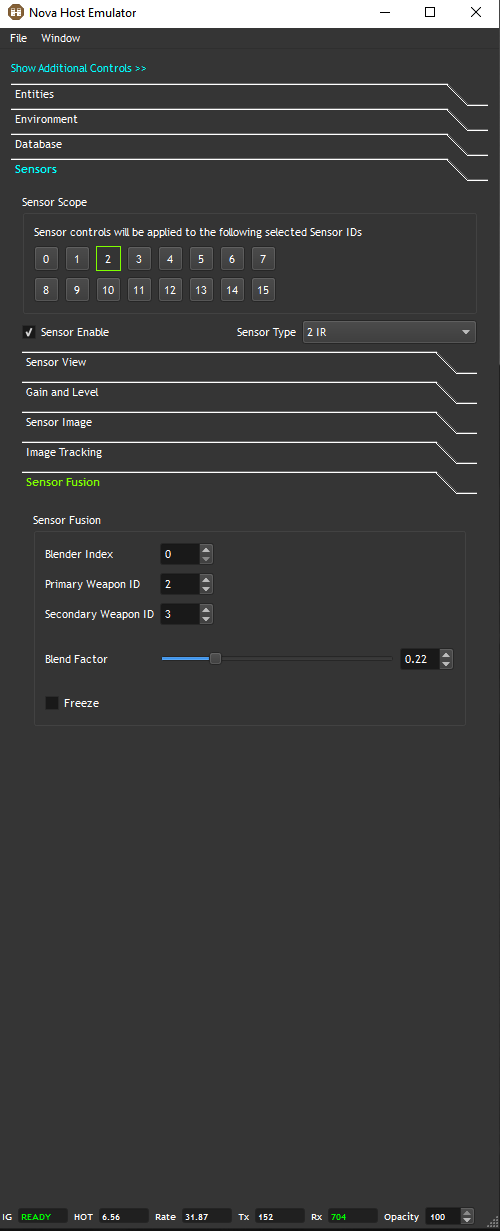
The Sensor Fusion controls allow a Video Blender channel to be used to blend (fuse) two sensor channels.
Below we have a DayTV (Lower Left, Sensor ID 2) zoomed in on a building. The MWIR (Upper Right, Sensor ID 3) is looking at the same building with a wider FOV.
The Blender Channel in the Lower Right shows the output of blending the two sensors.