
novaHost - Database Plugin
Overview
The Nova Host Database plugin implements the "Database" tab found in the Nova Host GUI.
The Database Plugin encapsulates database wide controls and features.
Source Location
src/novaHostDatabasePlugin
INI File Data
The Database Plugin reads INI File Settings from the [DatabasePlugin] group.
[DatabasePlugin]
#-------------------------------------------------
# The Auto Traffic Exclusions Zones.
# Exclusions zones are polygons whose vertices are
# specified in lat/lon.  Vertices MUST be listed
# in clockwise or counter-clockwise order.
# Exclusion zones are areas where the auto traffic
# will stop to simulate an accident.
# Each zone is ';' delimited and contains the zone
# name followed by lat/lon pairs for each vertex.
#------------------------------------------------
ExclusionZones="OahuTest,21.30628246147378,-157.8639135470667,21.30660095928611,-157.8630484856506,21.3074157545174,-157.8634489457946,21.30720310359462,-157.8642659064038;UrbanTraining,8.328186341945795,47.03644974116951,8.32840078521274,47.03625520040757,8.328704853487199,47.0364534873441,8.328450568769735,47.0366634192721;NorthernHighwayAccident,8.225473901268455,47.12033246822058,8.225013976145268,47.12098152481273,8.224174801062905,47.12073995584013,8.224654974692122,47.12012103419364;SouthernHighwayAccident,8.957585483058441,46.35465641139528,8.958044374647269,46.3556197711798,8.956911994917625,46.35606625535488,8.956597445417398,46.35501668634502"
Command Line Options
The Database Plugin uses the --databaseOverlayBase command line option to parse ATP positions.
Without this option the Positions tab will be blank.
IG Features Demonstrated
The following IG features are demonstrated in the Database Plugin:
Light groups
Auto Traffic
ICD Fields Used
The Database Plugin reads and writes the following ICD fields which are later translated to CIGI messages to be sent to (or read from) the IG.
ICD Field | Usage |
|---|---|
host2pcnova->ios2ig.dat.rw_lts.lightgroup* | Light group control. |
host2pcnova->h2traffic.auto_traffic* | Auto traffic control. |
host2pcnova->h2ig.dat.fx_data.crash_dimming | Optionally use G Dimming while the IG is paging. |
CIGI Packets Used
The Nova Host GUI's aeRosetta library will translate the aforementioned ICD fields to the following CIGI packet types.
CigiCompCtrl
CigiShortCompCtrl
API Features Used
The Entity Plugin uses the following Plugin API features:
Feature | Usage |
|---|---|
GuiEventApi | Used to write messages. |
GuiInputApi | Reading, writing, and responding to the Database Plugin's GUI widgets. |
GuiDataApi | Reading/writing the pC-Nova ICD that the Nova Host GUI translates to CIGI with aeRosetta. Reading parsed ATP positions. |
Usage
The Database Plugin provides a few sub-tabs explained below.
Positions
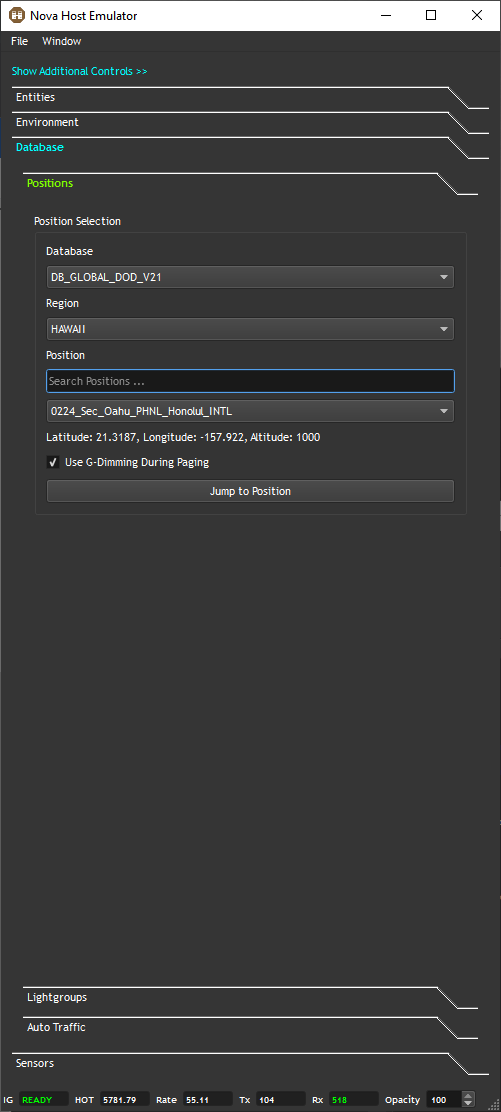
If Nova Host was started with the correct --databaseOverlayBase command line option the Positions tab will provide options for finding areas of interest (AOIs) and moving to them.
Database
First select an available visual database.
Typically, users will have one selection here for either the DOD or COMM (commercial) database.
Region
Next, select a Region within the database to provide a general area for the area you're interested in.
Position
Finally, select a position within the Region.
Note that you can search for positions by typing in the Line Edit above the Combo Box.
When you select a Position it's Latitude, Longitude, and starting Altitude will be displayed.
Use G-Dimming During Paging
When enabled G-Dimming will be used to fade the screen in and out of black until the terrain and elevation data has been paged in and the IG has indicated it's ready.
Jump to Position
Moves the ownship to the specified position.
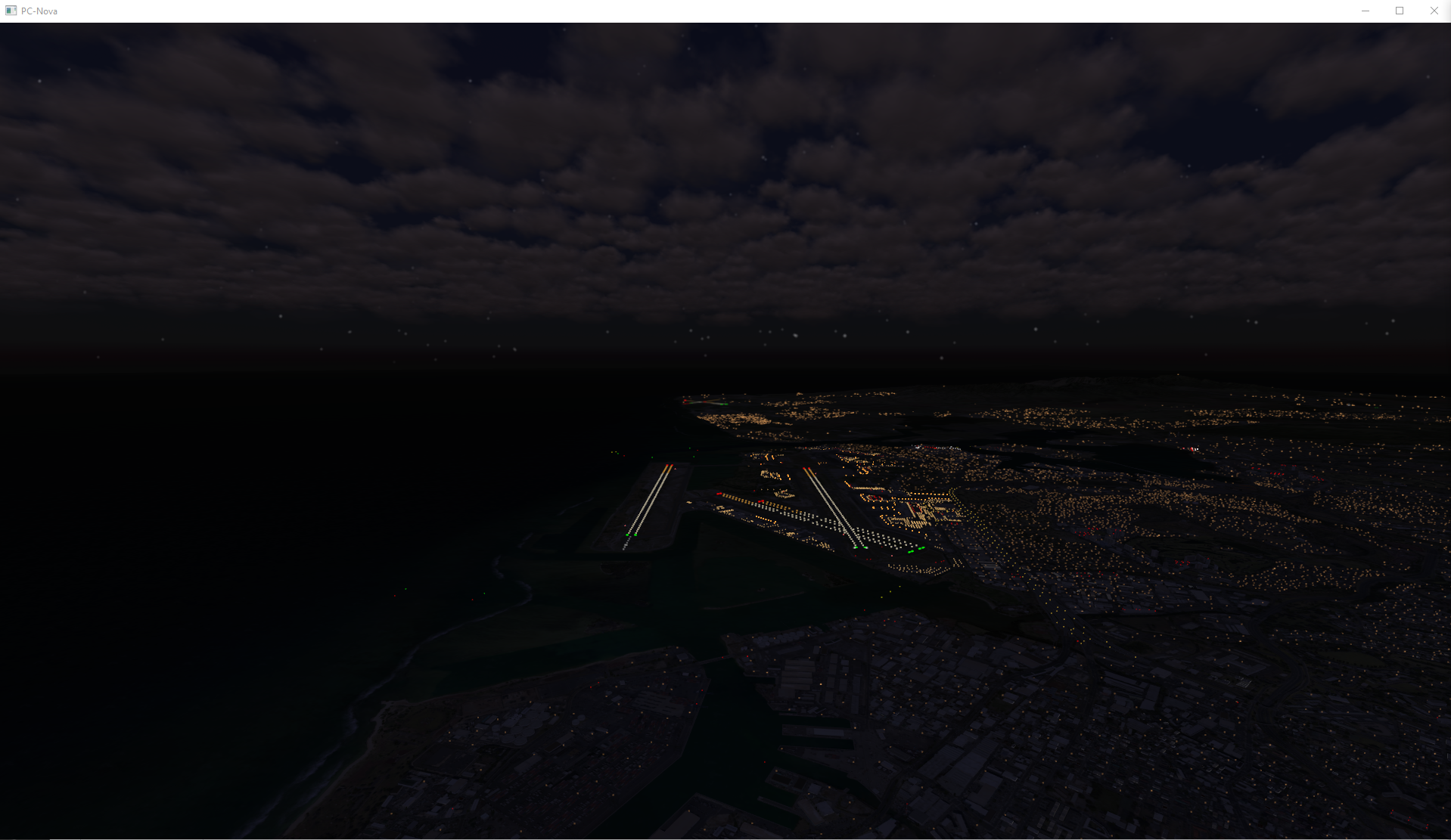
Lightgroups
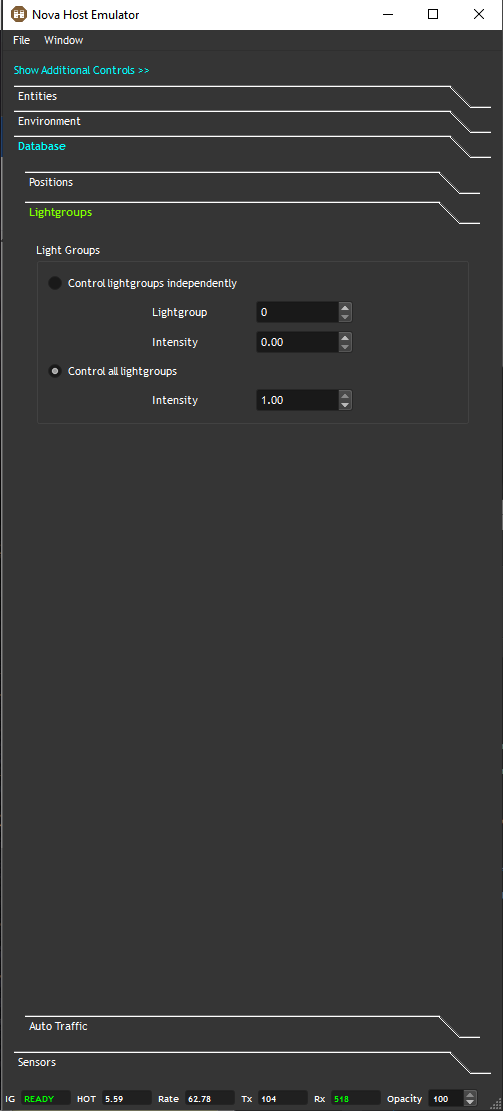
The light group controls allow users to control database lights either individual or all together.
Control lightgroups independently
The index of the lightgroup to adjust.
Lightgroups can be remapped by database developers, so the final mappings are database dependent.
Additionally, target models can contain light systems controlled by light groups so please consult your configuration for specifics.
By default, the following mappings are present:
Lightgroup Index | Control |
|---|---|
0 | Edge & centerline lights on primary runways |
1 | Edge & centerline lights on secondary runways |
2 | Edge & centerline lights on tertiary (generic) runways |
3 | Approach lights on primary runways |
4 | Approach lights on secondary runways |
5 | Approach lights on tertiary runways |
6 | Strobe & REILS on primary runways |
7 | Strobe & REILS on secondary runways |
8 | Strobe & REILS on tertiary runways |
9 | Ship Edge & centerline lights |
10 | Ship Position & Running lights (rabbits) |
11 | Ship PAD lights |
12 | Ship IFLOLS/FLOLS Meatball lights |
13 | Ship IFLOLS/FLOLS Datum lights |
14 | Ship IFLOLS/FLOLS Wave Off lights |
15 | Ship HPI lights |
16 | Ship VASI/PAPI lights |
17 | Ship IFLOLS/FLOLS CUT lights |
18 | Taxi Lights |
19 | Airport/Ship Beacon Lights |
20 | VASI Lights |
Control all lightgroups
A convenience control allowing users to enable all light groups at once.
Auto Traffic
Provided the IG is properly configured the Auto Traffic controls can be used to drive the feature.
Note that Nucleus systems are delivered with the necessary data to drive Auto Traffic exclusively in Oahu, HI.
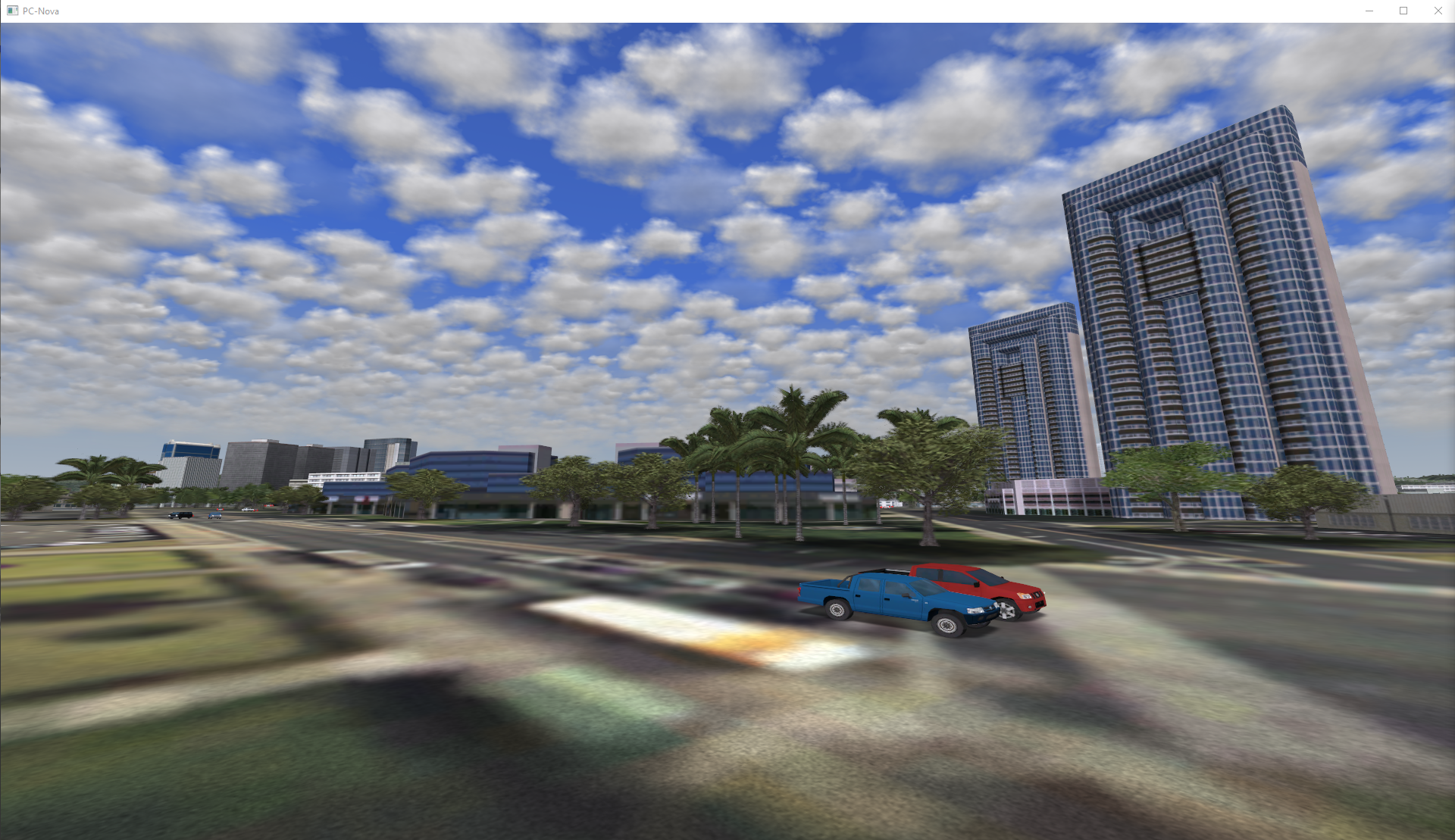
Autonomous Traffic
These controls are self explanatory and allow users to specify the number of vehicles to render, their draw range, and lights.
Note that while thousands of vehicles are being simulated only the closest to the ownship and within the defined field -of view (FOV) will be rendered.
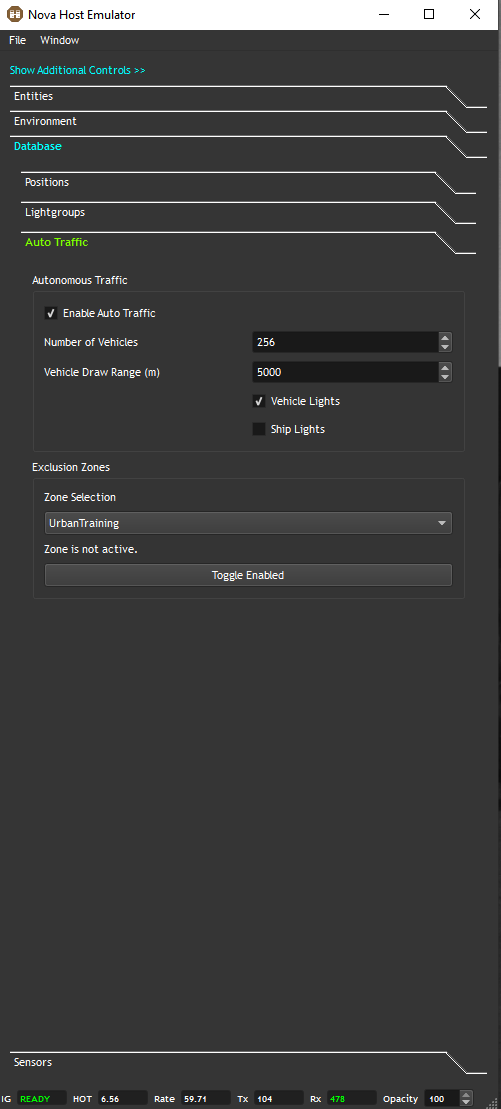
Exclusion Zones
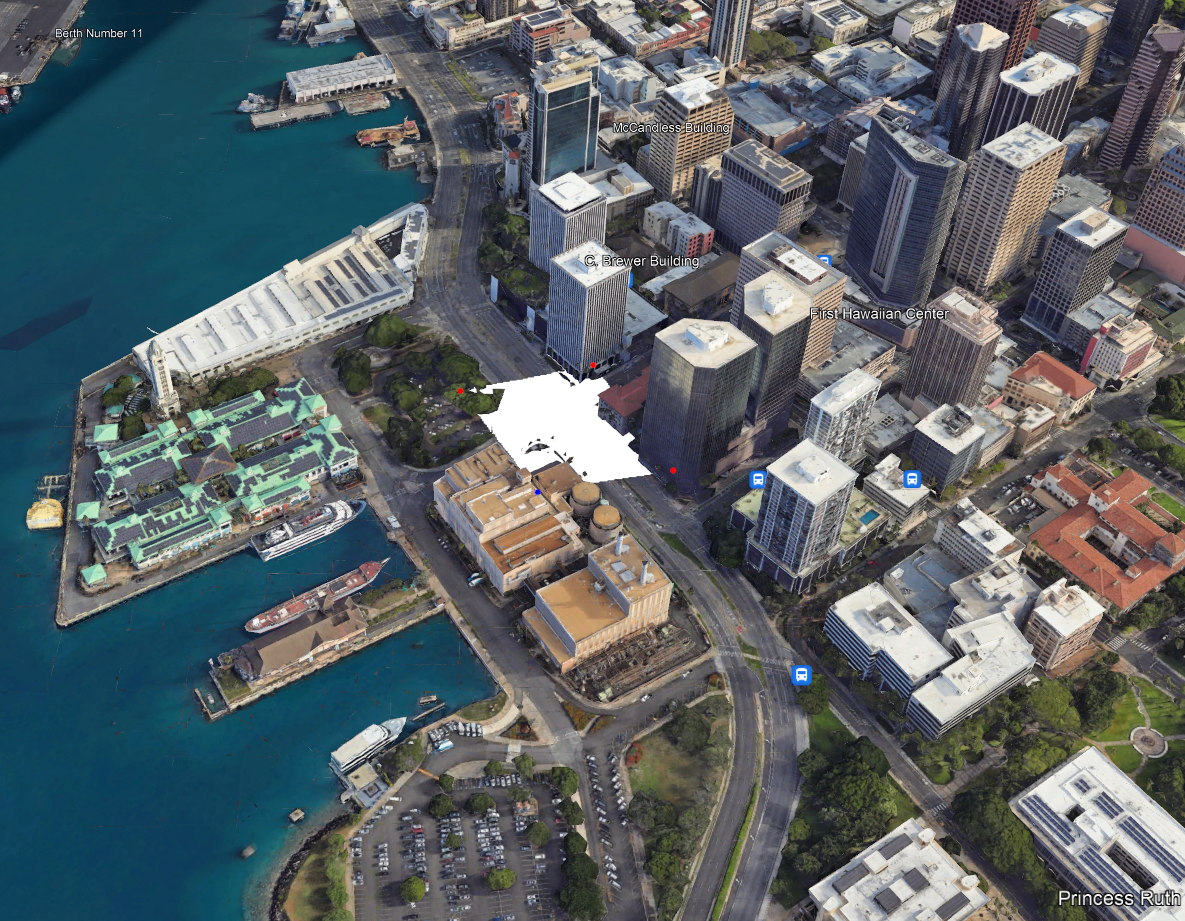
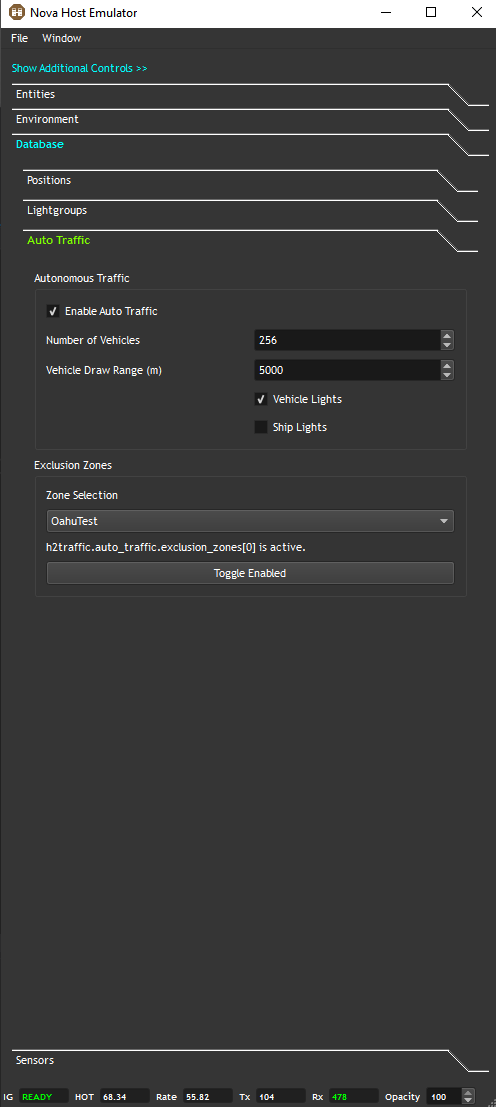
Exclusion zones are polygons the host can define where the Auto Traffic should not enter to simulate accidents.
As an example, "OahuTest" defines the polygon shown below in Google Earth located near 21.3062, -157.8641.
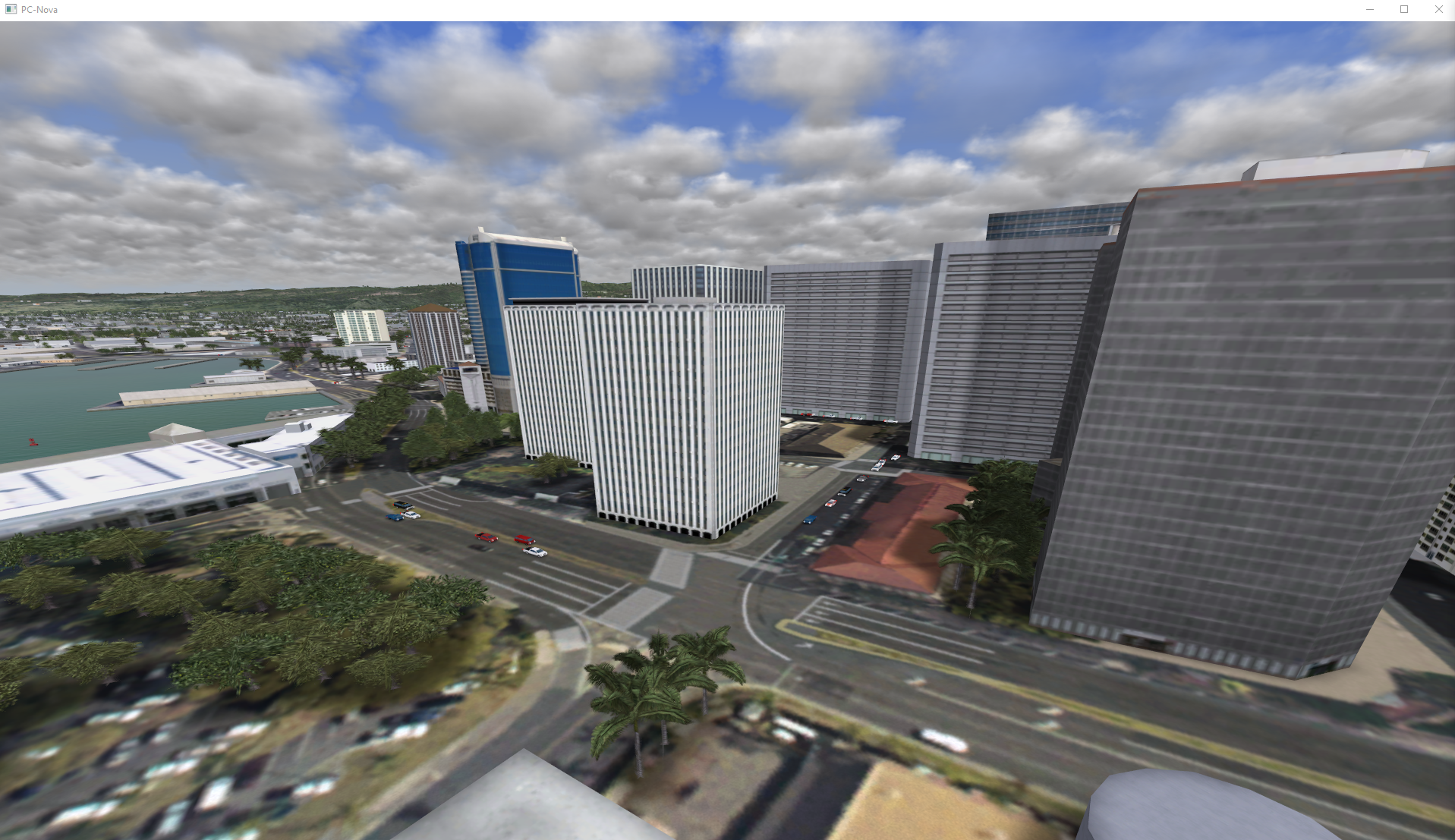
Toggling the zone on causes the traffic to stop and reroute if possible:
Note that exclusion zone polygon vertices are created in the INI file for ease of use and that the vertices must be in clockwise or counter-clockwise order.