
ClipmapSubsetCopier
Overview
The clipmapSubsetCopier is an application to simplify the process of generating a database for use with nova. The process wraps a gui around the base processes clipCopy.exe and clipAuxFile.exe allowing the user to more quickly generate a subset using a KML file to define the boundaries of the subset database. By default the settings for both clipCopy.exe and clipAuxFile.exe should already be configured properly but options are available within advanced tabs for futher configuration settings. The process also tracks the progress of the database subset and logs all information for future reference if there are errors or information from the process that needs to be reviewed.
GUI
Base Settings
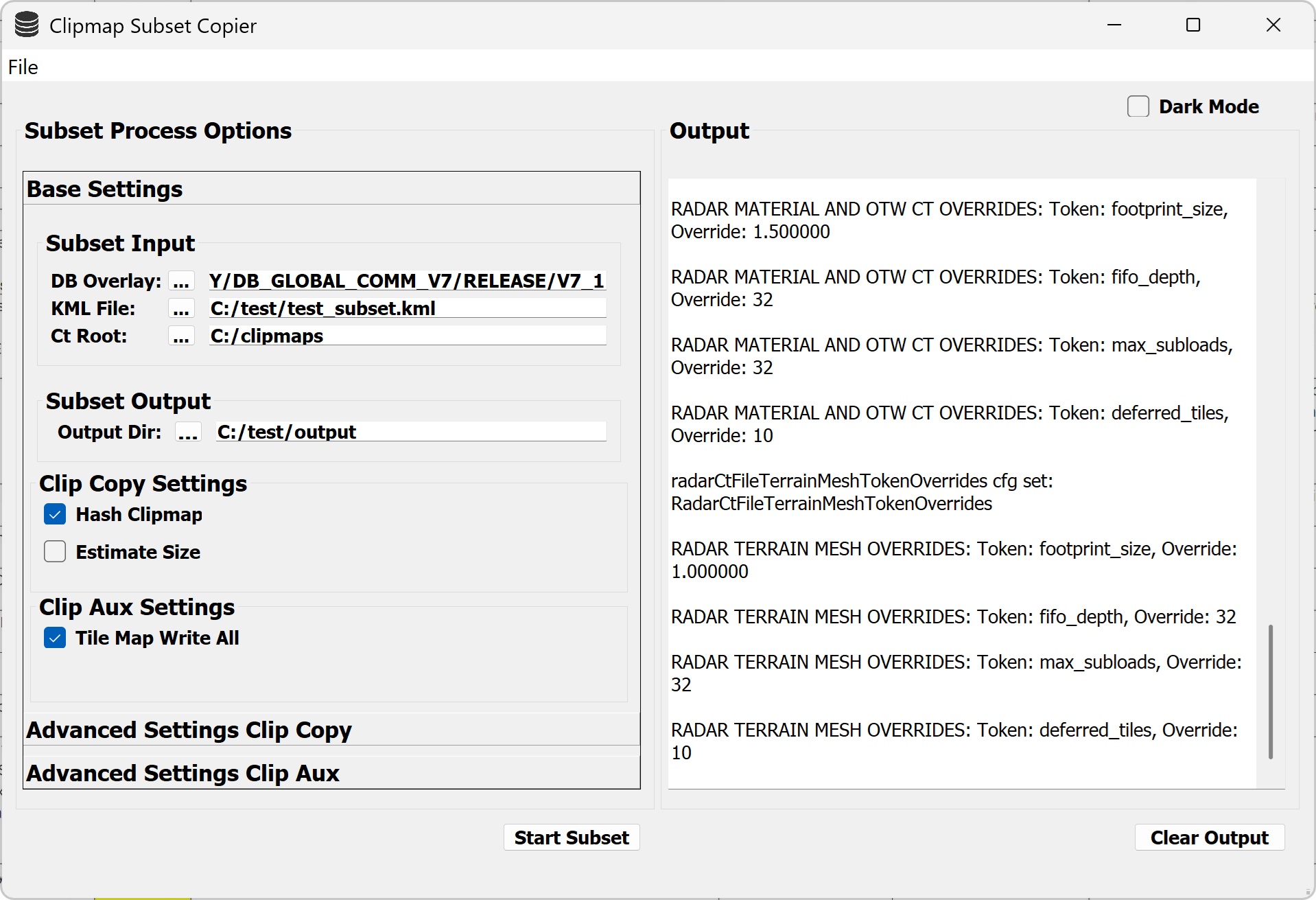
Capture of clipmapSubsetCopier main window with “Base Settings” selected.
The base settings tab contains the required settings for running the clipmapSubsetCopier. By default the required settings are already enabled. In order for the process to run the DB Overlay, KML File, Ct Root and Output Dir selections must be selected in order for the process to run. Additionally the “Estimate Size” selection is also exposed on the base settings for quick access as it is frequently used before the generation of a subset to estimate the final size.
Advanced Settings Clip Copy
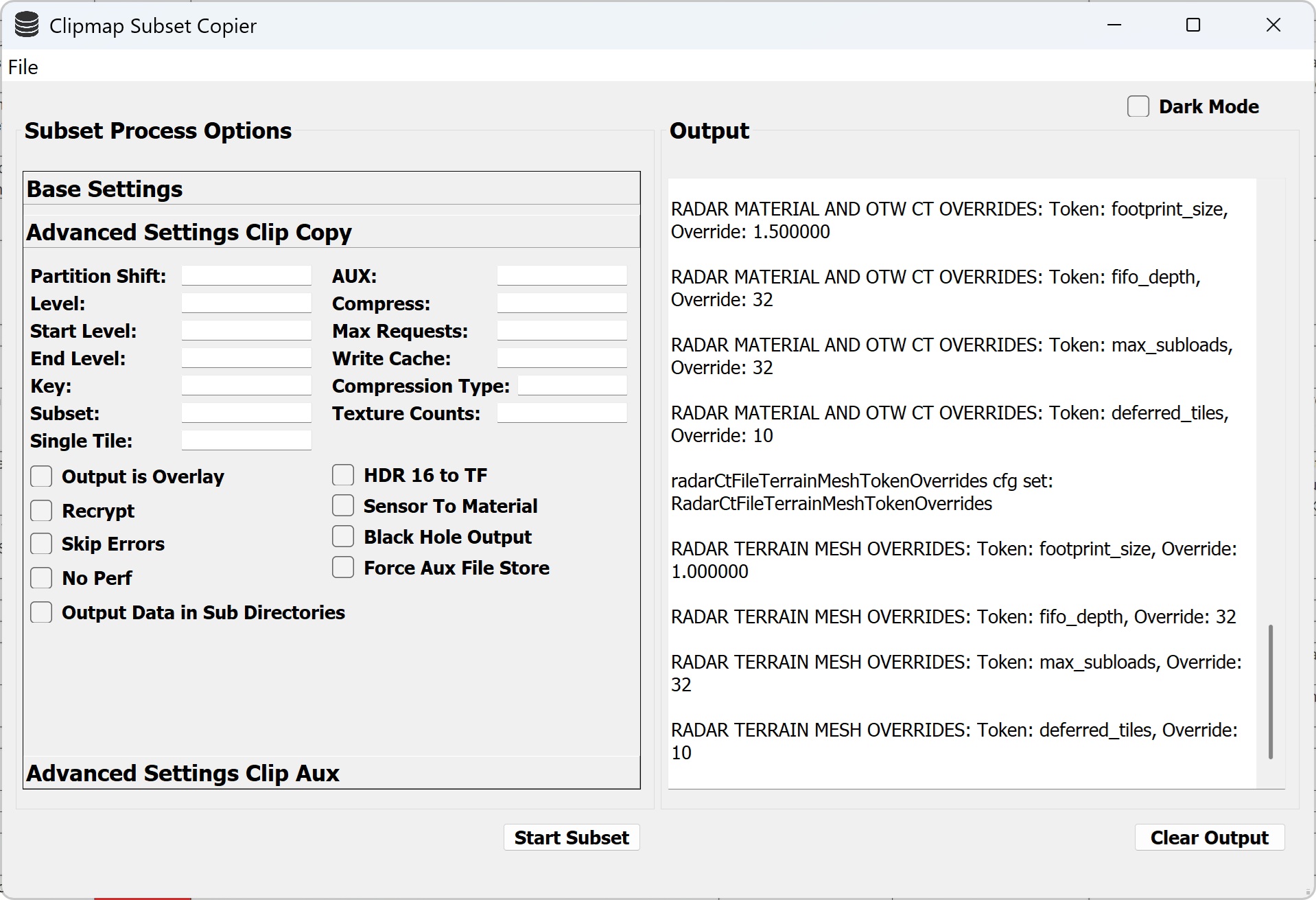
Capture of clipmapSubsetCopier main window with “Advanced Settings Clip Copy” selected.
The “Advanced Settings Clip Copy” tab contains all of the additional options that can be set when running with the clipCopy.exe process. These generally are not used but there may be circumstances where some of these options could be required for usage in the future.
Advanced Settings Clip Aux
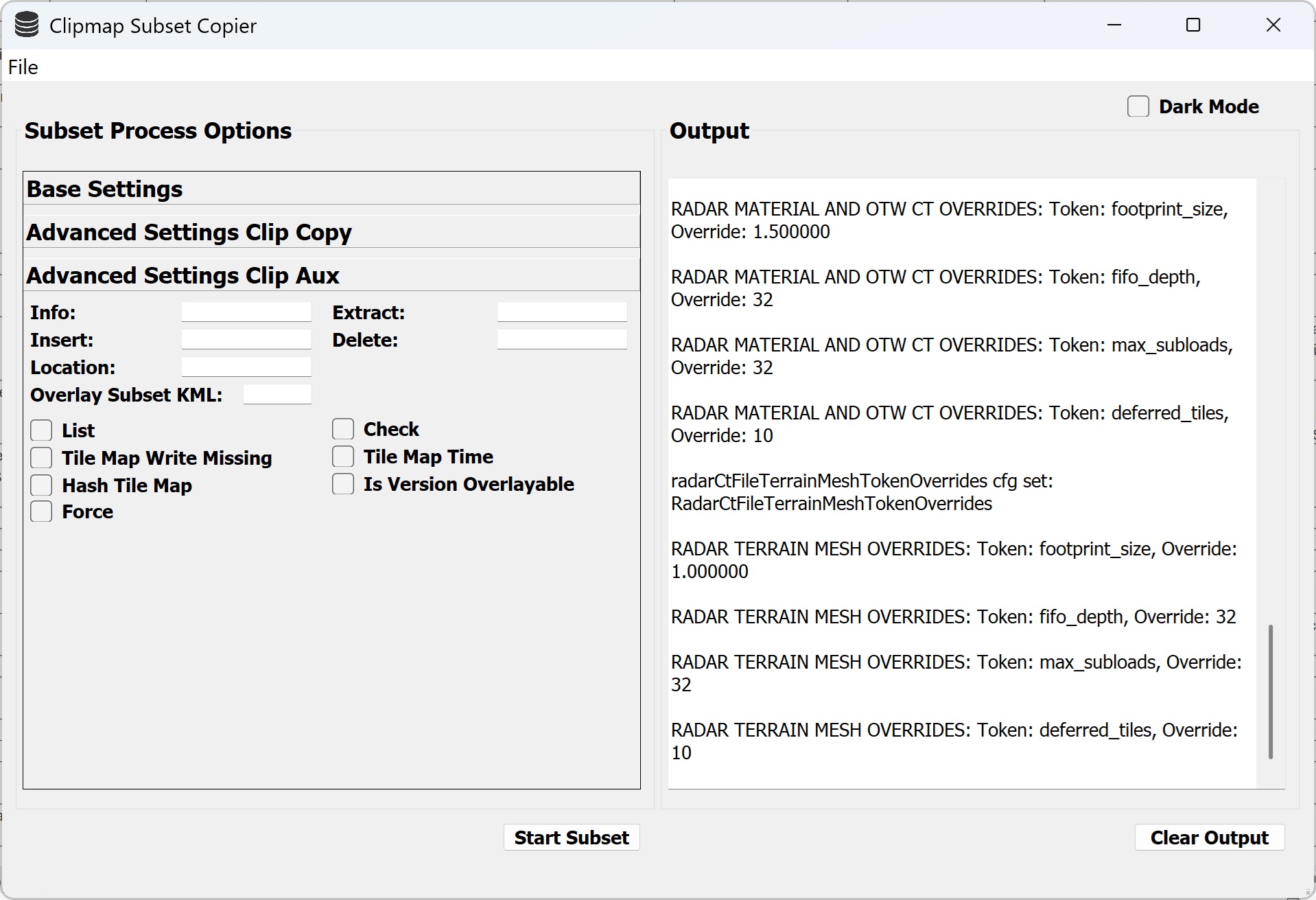
Capture of clipmapSubsetCopier main window with “Advanced Settings Clip Aux” selected.
The “Advanced Settings Clip Aux” tab contains all of the additional options that can be set when running with the clipAuxFile.exe process. These generally are not used but there may be circumstances where some of these options could be required for usage in the future.
Process Selection Window
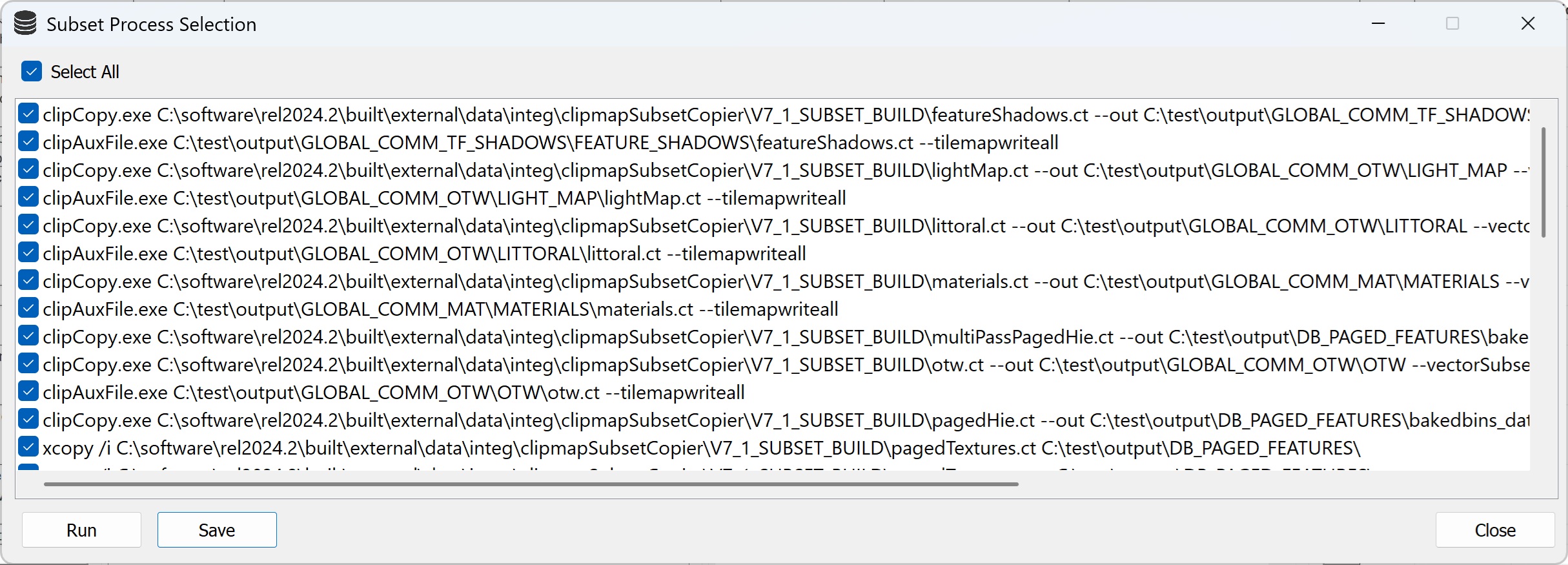
Capture of clipmapSubsetCopier pop-up window for process selection for database subset.
The process selection window appears after a subset database build is initiated. This window shows all of the process that will be run with the option to select specific processes if it is desired to not run all of them. Additionally there is an option for to save which will save all of the selected processes off to a specified batch file that can be run independently of the clipmapSubsetCopier if desired.
Example Run
Using the "DB_OVERLAY" selection button navigate to the specific database release folder that you would like to generate a database from.
Using the "KML FILE" selection button navigate to the KML that you would like to use to specify the boundaries of the subset database.
Using the "CT ROOT" selection button navigate to the CT ROOT of the database you will generate the subset from.
Using the "OUTPUT DIR" selection button naviagate to the output location you would like for the subset.
Select any advanced options that you would like for clipCopy or clipAux process if they are required (NOTE: By default the appropriate settings should alread be set within the gui.)
Select the "START SUBSET" button and a new GUI will appear displaying all of the ct files found along with the associate process that will be run. (NOTE: You can select save to save the selections as ".bat" file to run via a console if desired.)
Select the "RUN" button from the process selection and allow for all processes to complete their runs. (NOTE: The output will be updated as the processes run along with a progress bar.)
When the process completes a message and pop-up will appear notifying you of completion.
Either use the ct files in the tree and update your "ct_root" to the database location or just include the generated database override file found within the output subset database folder.
Post Build Output
After the clipmapSubsetCopier completes the generation of the subset database all data can be found within the specified output folder. Additionally an override file is generated. The override file can be included to run the database if desired by overriding all of the ct files to point to the output subset database. Additionally the CT ROOT tokens can be updated to point to the new subset database if it is desired to run with the ct files found within the overlay.
Configuration
The clipmapSubsetCopier has a configuration file that specifies specific processes to use for specific ct files along with other associations that the gui needs for reference when processing the database. The configuration file can be located at “data\integ\clipmapSubsetCopier\ config.cfg”. Below is a list of the tokens and their usage.
CopyCTFiles | List of ct files that have to be copied instead of using the clipCopy.exe process as they do not work with the process. |
GenerateAuxFiles | List of ct files that have to aux data generated via the clipAuxFile.exe process. |
GenerateRadarFiles | List of ct files that have to have a ct file generated for the radar process. |
DatabaseCTFiles | List of directories within the database overlay that contain ct files. |
CtFileTokens | List of all of the tokens and the ct file that they reference when setting up the clipmaps for a database. |
RadarCtFileOtwMaterialTokenOverrides | The specific ct file settings for the generated radar ct file for otw_radar.ct and material_radar.ct files. |
RadarCtFileTerrainMeshTokenOverrides | The specific ct file settings for the generated radar ct file for terrain_mesh_radar.ct. |
Logging
During the entirety of the clipmapSubsetCopier running all relevant information is logged to a log file located at “data\integ\clipmapSubsetCopier\ clipmapSubsetCopierLog.txt”. This file is overwritten each time that the process is started. Within the log file you will find all output from the process logging along with all of the output generated from running the clipCopy.exe and clipAuxFile.exe process as they run.