aeAdmin - Nucleus Display Settings
Overview
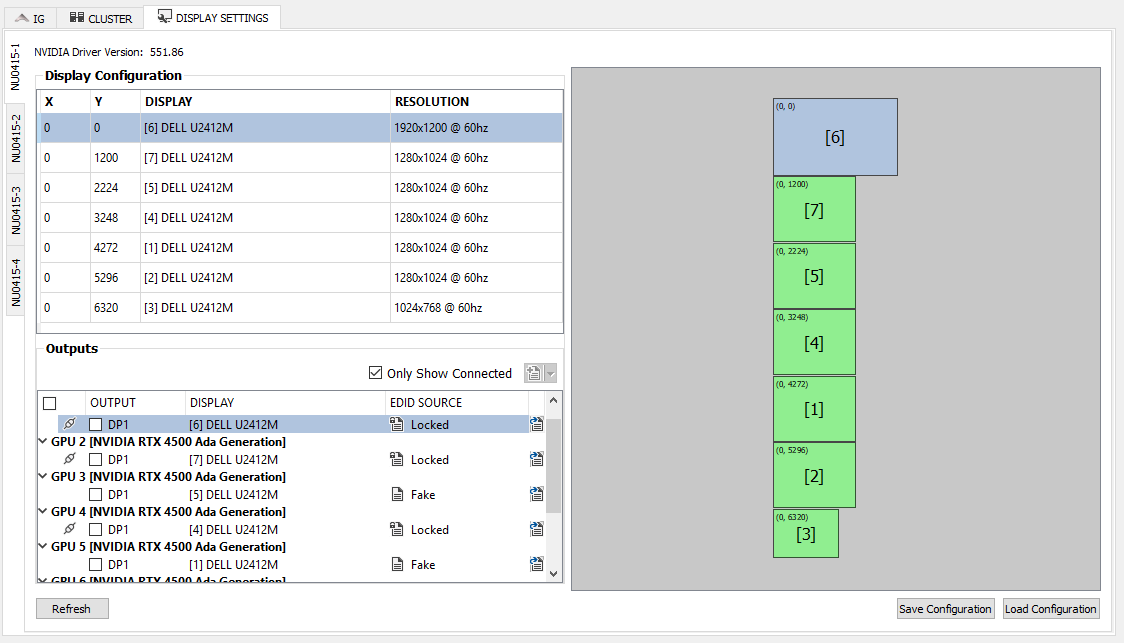
Example DISPLAY SETTINGS Tab
The DISPLAY SETTINGS tab provides information about all of the connected displays in an IG system.
Each computer in a Nucleus cluster will have its own tab listed on the left-hand side.
Display Configuration Table
The “Display Configuration” table shows the computer’s current display configuration.
The table shows the x,y position of each display, the display number in brackets [#], the display name/model, and the current resolution and refresh rate.
The layout of the configuration is also visualized on the right side of the window.
Clicking on a row in the Display Configuration table will highlight that display on the right, as well as highlight the physical output(s) for the display in the Outputs table (note: this may be more than one output for Mosaic displays).
Outputs Table
The “Outputs” table lists all of the outputs on the computer. By default, only connected outputs are shown, but users can view all outputs by unchecking the “Only Show Connected” checkbox.
The table lists both GPUs and outputs.
A GPU rows includes the model of the GPU as well as the PCI address (for use in cluster.cfg).
An output row indicates which display is connected to the output along with information about the EDID source.
The outputs table allows users to export, load, lock, or clear EDIDs on any output.
EDID Sources
EDID Source | EDID File Loaded? | Description |
|---|---|---|
| NO | The EDID comes from a physically connected display. |
| YES | The display is “fake” because no display is physically connected. Not recommended outside of testing/integration environments. |
| YES | The EDID is “locked” because an EDID file is loaded, but the display is also physically connected. This allows users to swap cables or turn off displays without losing the display configuration. |
| YES | An EDID file is loaded on the output that does not match the physically connected display. This is dangerous and is likely a misconfiguration. |


Saving a Display Configuration
Press the Save Configuration button.
Select the location and type the filename to save. By default it will save "displayConfiguration.xml" in the location defined by the NodeDefaultDisplayCfgDirectory token.
Press OK.
A message will be printed in the log whether or not the operation was successful.
Loading a Display Configuration
Press the Load Configuration button.
Browse for the display configuration file to load. By default it will look in the location defined by the NodeDefaultDisplayCfgDirectory token.
Press OK.
A message will be printed in the log whether or not the operation was successful.
Note: the displayGrid whose position is x=0, y=0 will become the primary display.
Exporting an EDID
Click the export button
 next to the output
A window appears to choose a name/location for the file
Click Save
Loading an EDID
Click the checkbox next to each output to load an EDID on
Click the Load EDID button

A window appears to select the EDID file to load
Click Open
The Output log will indicate if the operation was successful
Locking an EDID
Locking an EDID is similar to loading an EDID, but can only be performed on an output with a physically connected display. The physically connected display’s EDID will be loaded as a file to “lock” that display. This allows users to swap cables or turn off displays, without losing the current display configuration.
Click the checkbox next to each output to lock
Click the Lock EDID button

A confirmation window will appear, explaining which outputs will locked
Click OK
The Output log will indicate if the operation was successful
Clearing an EDID
Click the checkbox next to each output whose EDID should be cleared
Click the Clear EDID button

A confirmation window will appear explaining which EDIDs will be cleared
Click OK
The Output log will indicate if the operation was successful
GPU Enumeration File
The GPU Enumeration File maps the GPU chassis numbers to their PCI bus information. In order to be able to assign displays to GPUs based on their chassis label, the file must be present and configured by setting the GpuEnumerationFile token.
The enumerations should be identical on the same hardware configuration. You can find examples for 9.x and 10.x Nuclei under E:\CM\software\<release>\data\integ\aeAdmin\examples.
In rare cases, it may be necessary to regenerate the mapping in the field for unique hardware setups or failed PCI slots. To do this, run the following command from the Nucleus in an administrator command window:
aeDisplay.exe --enumerateGpusThis command will walk you through connecting a single display to each GPU to generate a new gpuEnumeration.csv file.
Display Configuration XML Format
A display configuration consists of one or more "display grids". Each display grid consists of one or more outputs.
In XML terms, the file must define the root displayConfiguration element with one or more displayGrid elements, each containing one or more output elements:
<displayConfiguration>
 <displayGrid ...>
  <output ... />
 </displayGrid>
</displayConfiguration>
In the general case, a 1x1 grid is used to represent a single display such as a monitor, but more complex grids can be used for Mosaic displays.
displayGrid Attributes
Attribute | Description | Required? |
|---|---|---|
rows | The number of rows in this grid. Typically 1 for single displays. | Yes |
cols | The number of columns in this grid. Typically 1 for single displays | Yes |
x | The X position (in pixels) of this display grid in the overall display configuration. | Yes |
y | The Y position (in pixels) of this display grid in the overall display configuration. | Yes |
width | The width (in pixels) of each output in this grid. Note: this is NOT the total width of a Mosaic display grid. For example, for a 1x2 Mosaic configuration with two 2560x1600 outputs, | Yes |
height | The height (in pixels) of each output in this grid. Note: this is NOT the total width of a Mosaic display grid. For example, for a 2x1 Mosaic configuration with two 2560x1600 outputs, | Yes |
freq | The refresh rate of the display grid (in hz), For example, 60 or 120 hz | Yes |
bpp | The bits per pixel of the display grid (usually 32) | Yes |
output Attributes
Attribute | Description | Required? |
|---|---|---|
gpu | The GPU number per label on the chassis where this output is connected (1 through 8) | Yes |
port | The port on the GPU where this output is connected (DP1 through DP4) | Yes |
rotation | The rotation (in degrees) of this output (0, 90, 180, or 270; defaults to 0) | No |
Examples
Single Display + Mosaic 1x2 Display
This example shows two GPUs configured for a single 1080p display and another 1x2 MOSAIC display. Note that the total resolution of the 1x2 Mosaic display is 5120x1600, but the displayGrid::width is 2560 because that is the width of each output.
<?xml version="1.0" encoding="UTF-8"?>
<displayConfiguration>
 <displayGrid rows="1" cols="1" x="0" y="0" width="1920" height="1080" freq="60" bpp="32">
  <output gpu="1" port="DP1"/>
 </displayGrid>
 <displayGrid rows="1" cols="2" x="0" y="1080" width="2560" height="1600" freq="60" bpp="32">
  <output gpu="2" port="DP1"/>
  <output gpu="2" port="DP2"/>
 </displayGrid>
</displayConfiguration>
Complex Offsets and Rotated Display
This example shows various displays connected across 6 GPUs. Note that the display connected to GPU 6, DP3 is rotated 270 degrees.
<?xml version="1.0" encoding="UTF-8"?>
<displayConfiguration>
 <displayGrid rows="1" cols="1" x="0" y="-1080" width="1920" height="1080" freq="60" bpp="32">
  <output gpu="1" port="DP1"/>
 </displayGrid>
 <displayGrid rows="1" cols="1" x="0" y="0" width="1920" height="1080" freq="60" bpp="32">
  <output gpu="4" port="DP1"/>
 </displayGrid>
 <displayGrid rows="1" cols="1" x="0" y="1080" width="3840" height="2160" freq="60" bpp="32">
  <output gpu="2" port="DP1"/>
 </displayGrid>
 <displayGrid rows="1" cols="1" x="0" y="3240" width="1024" height="768" freq="60" bpp="32">
  <output gpu="3" port="DP1"/>
 </displayGrid>
 <displayGrid rows="1" cols="1" x="0" y="4008" width="1024" height="768" freq="60" bpp="32">
  <output gpu="5" port="DP1"/>
 </displayGrid>
 <displayGrid rows="1" cols="1" x="0" y="4776" width="1920" height="1920" freq="60" bpp="32">
  <output gpu="6" port="DP4"/>
 </displayGrid>
 <displayGrid rows="1" cols="1" x="0" y="6696" width="1920" height="1080" freq="60" bpp="32">
  <output gpu="6" port="DP3" rotation="270"/>
 </displayGrid>
 <displayGrid rows="1" cols="1" x="0" y="8616" width="3840" height="2160" freq="60" bpp="32">
  <output gpu="6" port="DP2"/>
 </displayGrid>
</displayConfiguration>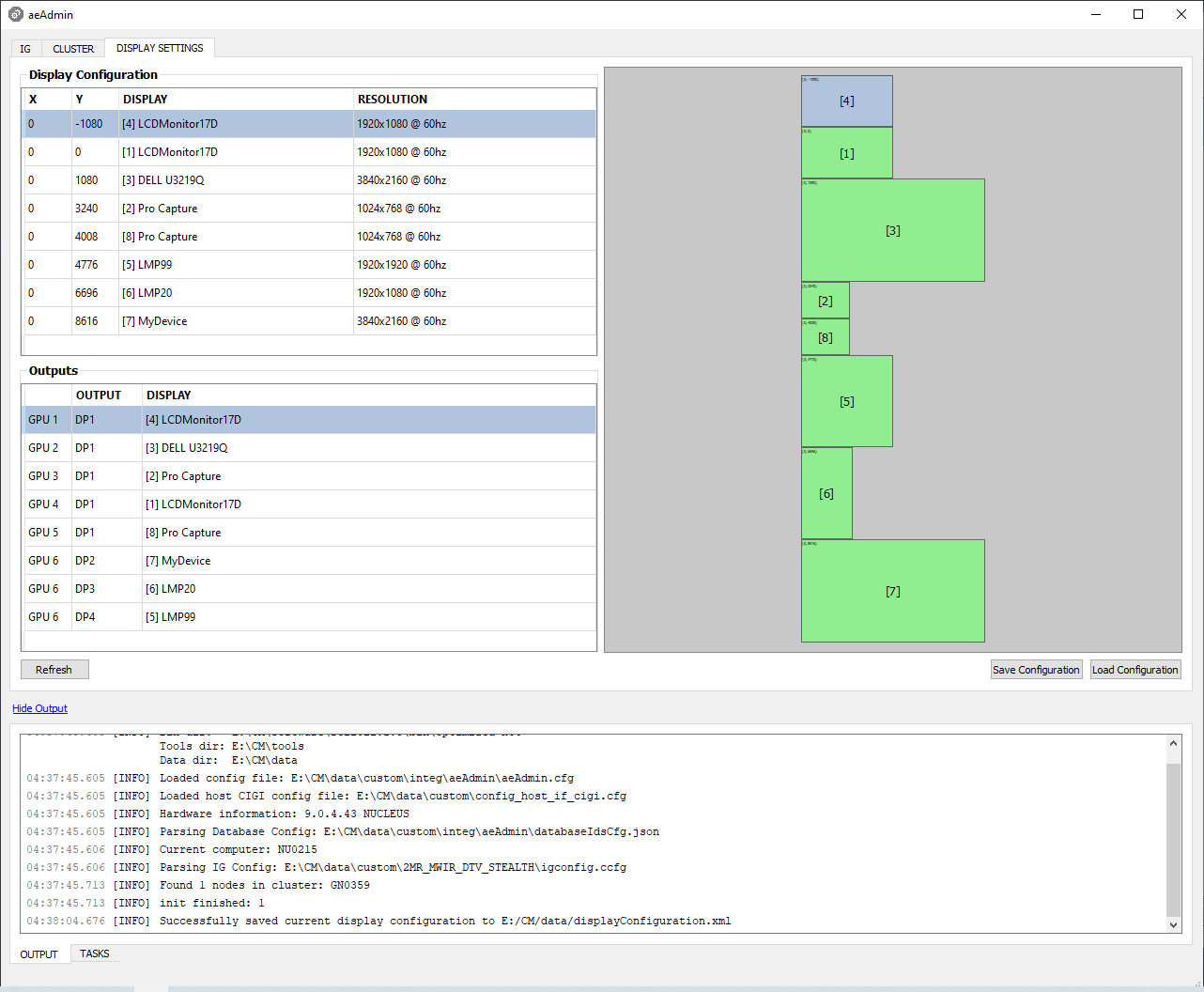
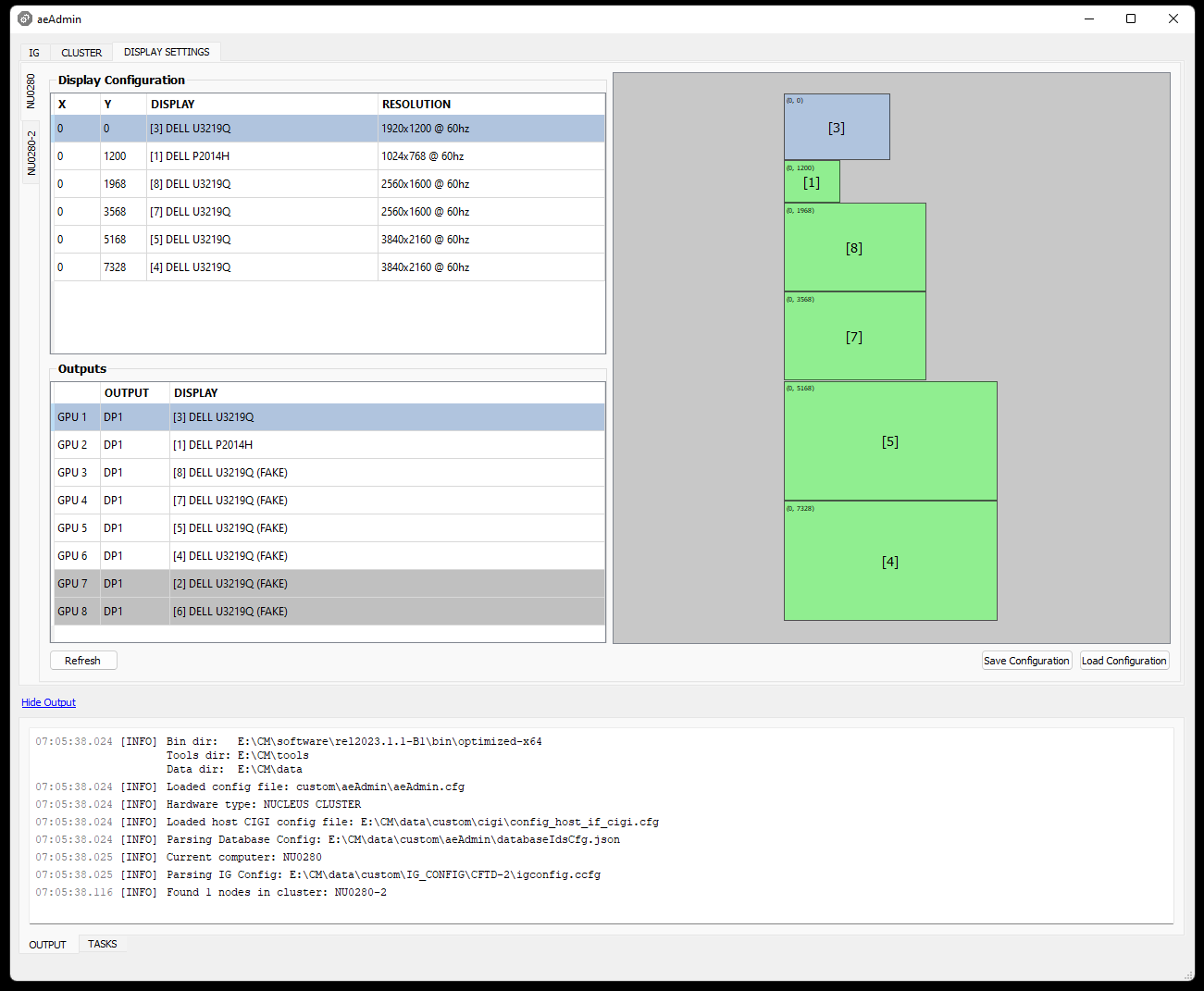
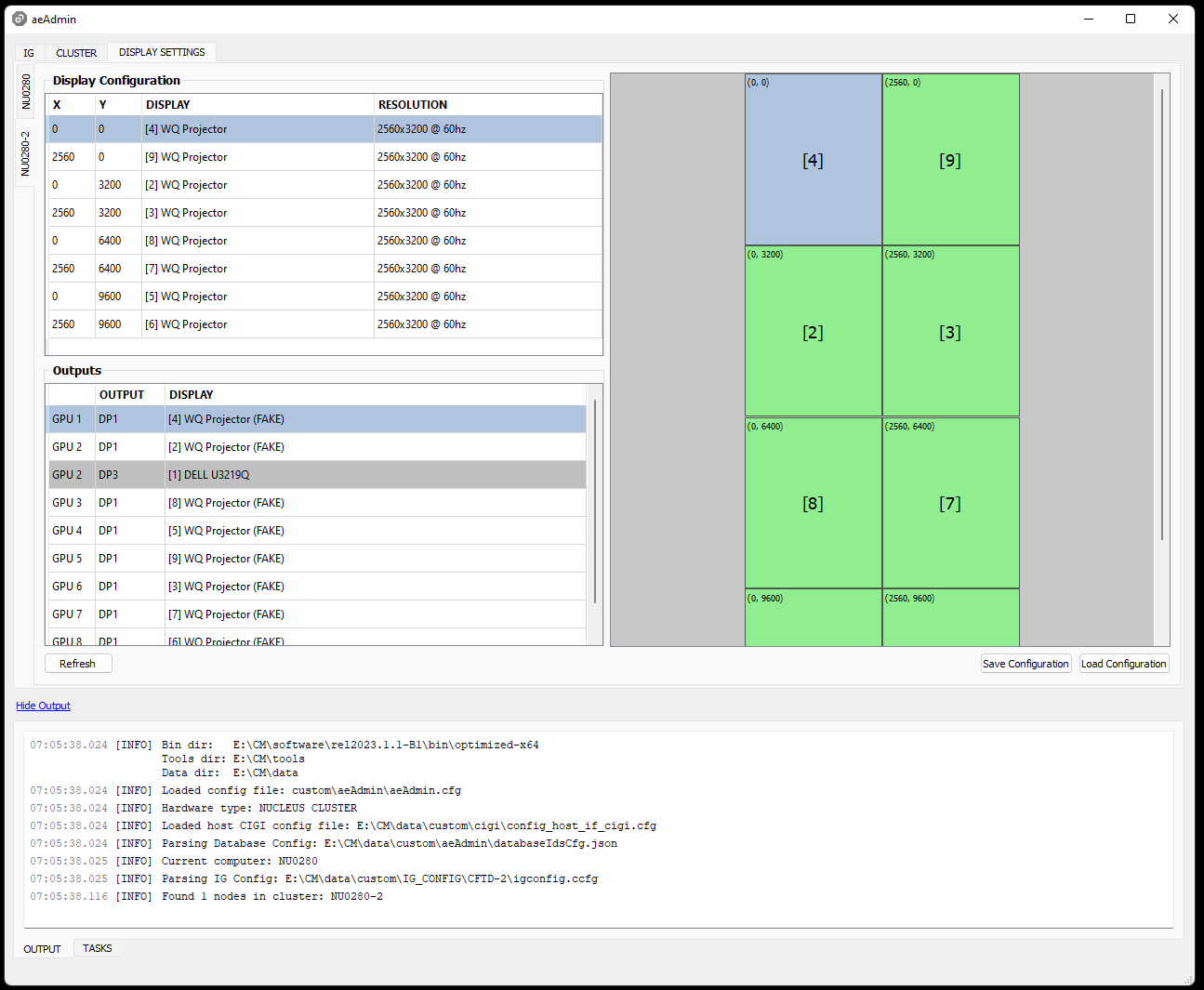
Nucleus Cluster with Two Computers
Primary computer
<?xml version="1.0" encoding="UTF-8"?>
<displayConfiguration>
 <displayGrid rows="1" cols="1" x="0" y="0" width="1920" height="1200" freq="60" bpp="32">
  <output gpu="1" port="DP1"/>
 </displayGrid>
 <displayGrid rows="1" cols="1" x="0" y="1200" width="1024" height="768" freq="60" bpp="32">
  <output gpu="2" port="DP1"/>
 </displayGrid>
 <displayGrid rows="1" cols="1" x="0" y="1968" width="2560" height="1600" freq="60" bpp="32">
  <output gpu="3" port="DP1"/>
 </displayGrid>
 <displayGrid rows="1" cols="1" x="0" y="3568" width="2560" height="1600" freq="60" bpp="32">
  <output gpu="4" port="DP1"/>
 </displayGrid>
 <displayGrid rows="1" cols="1" x="0" y="5168" width="3840" height="2160" freq="60" bpp="32">
  <output gpu="5" port="DP1"/>
 </displayGrid>
 <displayGrid rows="1" cols="1" x="0" y="7328" width="3840" height="2160" freq="60" bpp="32">
  <output gpu="6" port="DP1"/>
 </displayGrid>
</displayConfiguration>
Secondary computer
<?xml version="1.0" encoding="UTF-8"?>
<displayConfiguration>
 <displayGrid rows="1" cols="1" x="0" y="0" width="2560" height="3200" freq="60" bpp="32">
  <output gpu="1" port="DP1"/>
 </displayGrid>
 <displayGrid rows="1" cols="1" x="0" y="3200" width="2560" height="3200" freq="60" bpp="32">
  <output gpu="2" port="DP1"/>
 </displayGrid>
 <displayGrid rows="1" cols="1" x="0" y="6400" width="2560" height="3200" freq="60" bpp="32">
  <output gpu="3" port="DP1"/>
 </displayGrid>
 <displayGrid rows="1" cols="1" x="0" y="9600" width="2560" height="3200" freq="60" bpp="32">
  <output gpu="4" port="DP1"/>
 </displayGrid>
 <displayGrid rows="1" cols="1" x="2560" y="0" width="2560" height="3200" freq="60" bpp="32">
  <output gpu="5" port="DP1"/>
 </displayGrid>
 <displayGrid rows="1" cols="1" x="2560" y="3200" width="2560" height="3200" freq="60" bpp="32">
  <output gpu="6" port="DP1"/>
 </displayGrid>
 <displayGrid rows="1" cols="1" x="2560" y="6400" width="2560" height="3200" freq="60" bpp="32">
  <output gpu="7" port="DP1"/>
 </displayGrid>
 <displayGrid rows="1" cols="1" x="2560" y="9600" width="2560" height="3200" freq="60" bpp="32">
  <output gpu="8" port="DP1"/>
 </displayGrid>
</displayConfiguration>